
Drag the slider to adjust text size.
If you’re looking for a reliable way to stream movies and TV shows on Kodi, the Covenant Kodi addon remains one of the most popular choices. This comprehensive guide will walk you through the installation process step by step, ensuring you can enjoy your favorite content with ease.
🔒 Protect Your Kodi Streaming
Avoid ISP tracking and stream Kodi safely using one of the fastest and most trusted VPN services.
✔ Works with Kodi & Firestick
✔ No Logs Privacy Protection
✔ 30-Day Money Back Guarantee
Recommended for safe and private Kodi streaming
What is Covenant Kodi Addon?
Covenant is a powerful video addon for Kodi that provides access to a vast library of movies and TV shows. As a fork of the legendary Exodus addon, Covenant has maintained its reputation for reliable streaming links and user-friendly interface. The addon scrapes multiple sources to provide high-quality streams, making it a go-to choice for many Kodi users.
Prerequisites Before Installation
Before we dive into the installation process, ensure you have the following:
- Kodi application installed on your device (version 18 or higher recommended)
- Unknown Sources enabled in Kodi settings
- A stable internet connection
- VPN service for privacy and security (highly recommended)
Step-by-Step Installation Guide
Enabling Unknown Sources
First, you need to allow Kodi to install addons from third-party sources:
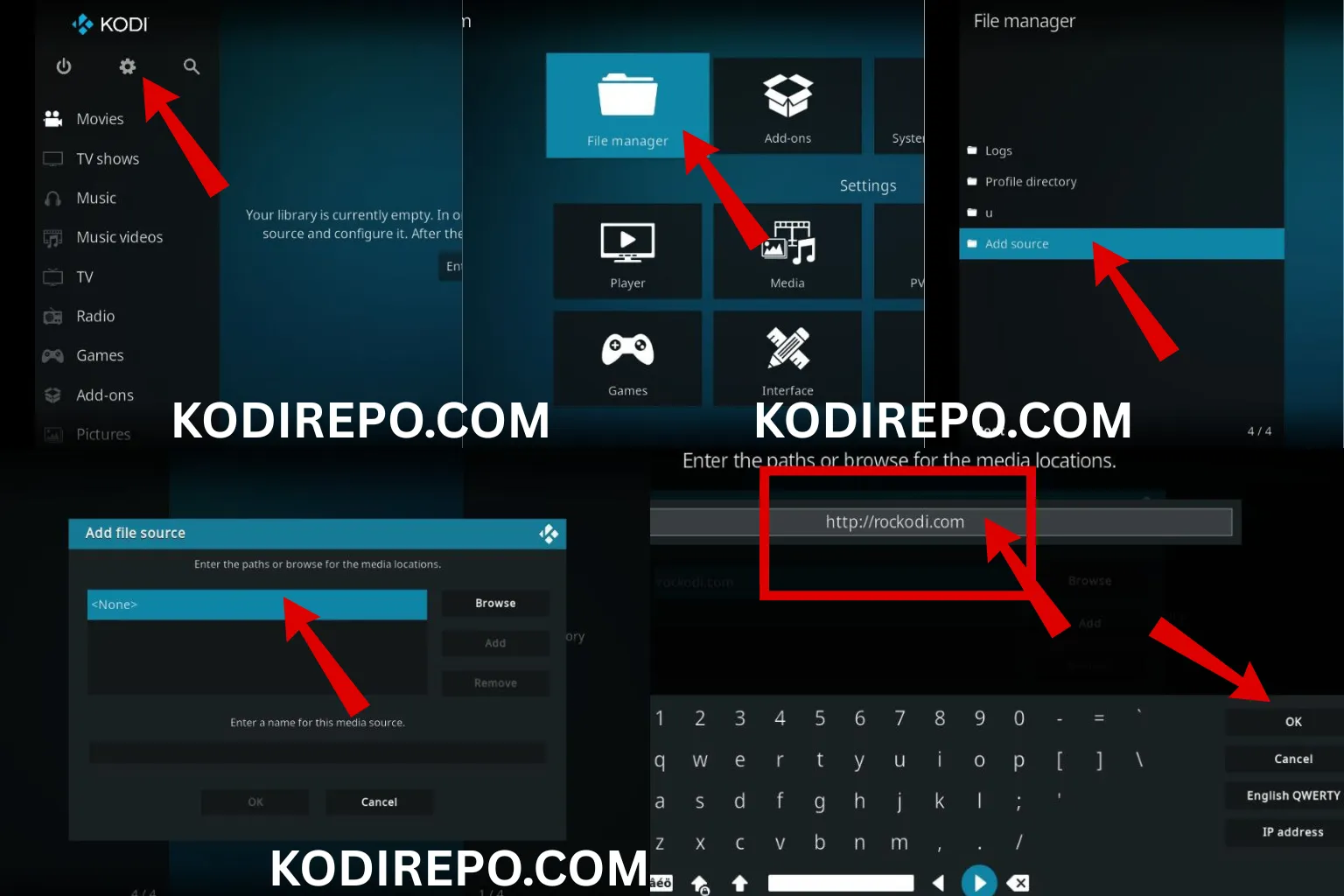
- Open Kodi and click the gear icon to access Settings
- Select System (or System Settings depending on your Kodi version)
- Navigate to Add-ons in the left menu
- Toggle on Unknown Sources
- Confirm the warning message by clicking Yes
Adding the Covenant Repository
The Covenant addon is installed through its repository. Here’s how to add it:
⚠️ WARNING: Before installing this Kodi addon, it is strongly recommended to use a VPN to protect your privacy while streaming.
👉 Get 76% NordVPN Deal- Return to the main menu and select File Manager
- Click Add Source on the left side
- Choose None and enter this URL:
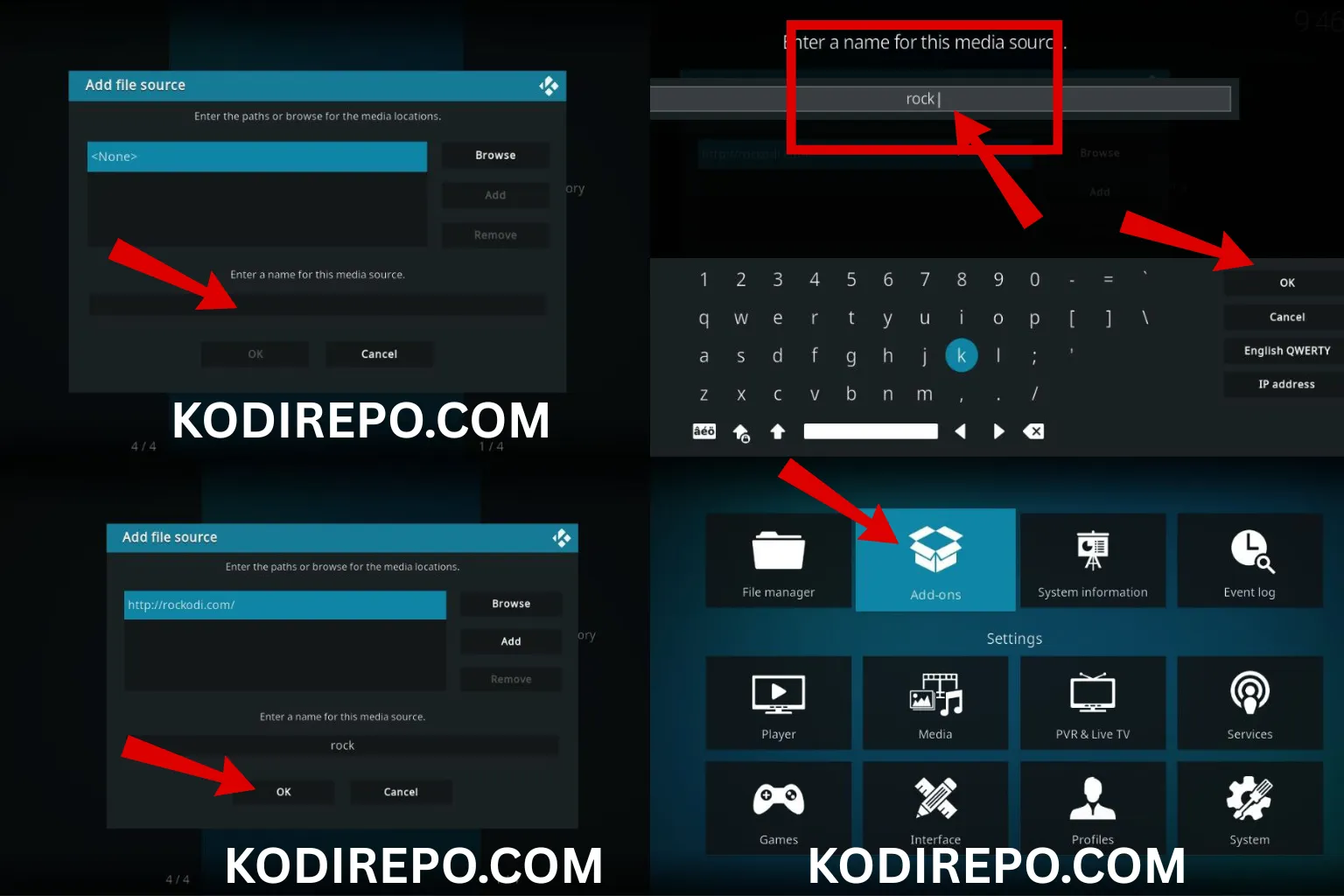
https://kinkeadtech.com/repos - Name the source as “KDIL” and click OK
- Double-check the URL for accuracy, then click OK again
Installing the Covenant Addon
Now that you’ve added the repository source, follow these steps:
- Go back to the main menu and select Add-ons
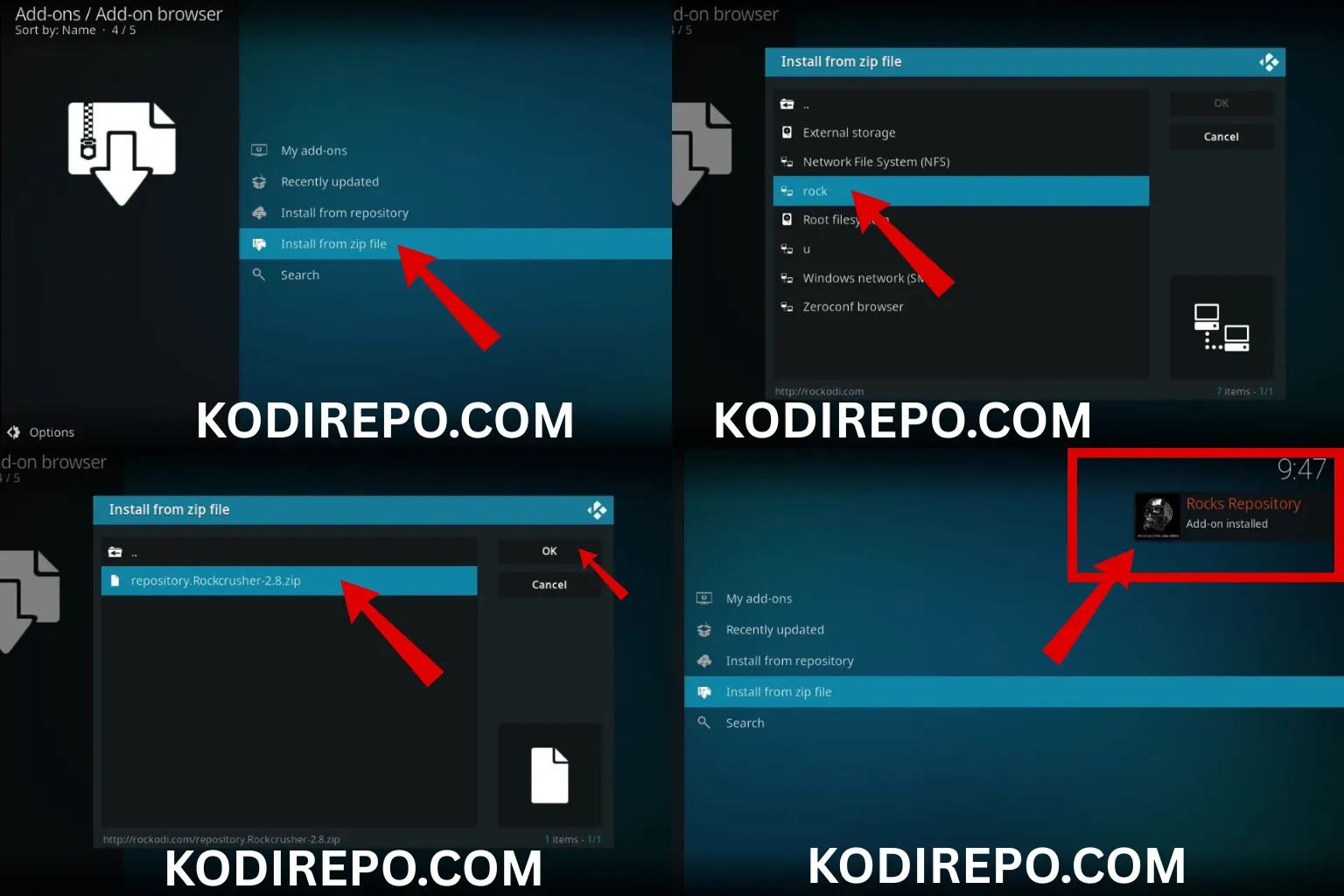
- Click the open box icon at the top left (Package Installer)
- Choose Install from zip file
- Select KDIL from the list
- Click on repository.Kodil.zip
- Wait for the notification confirming the repository installation
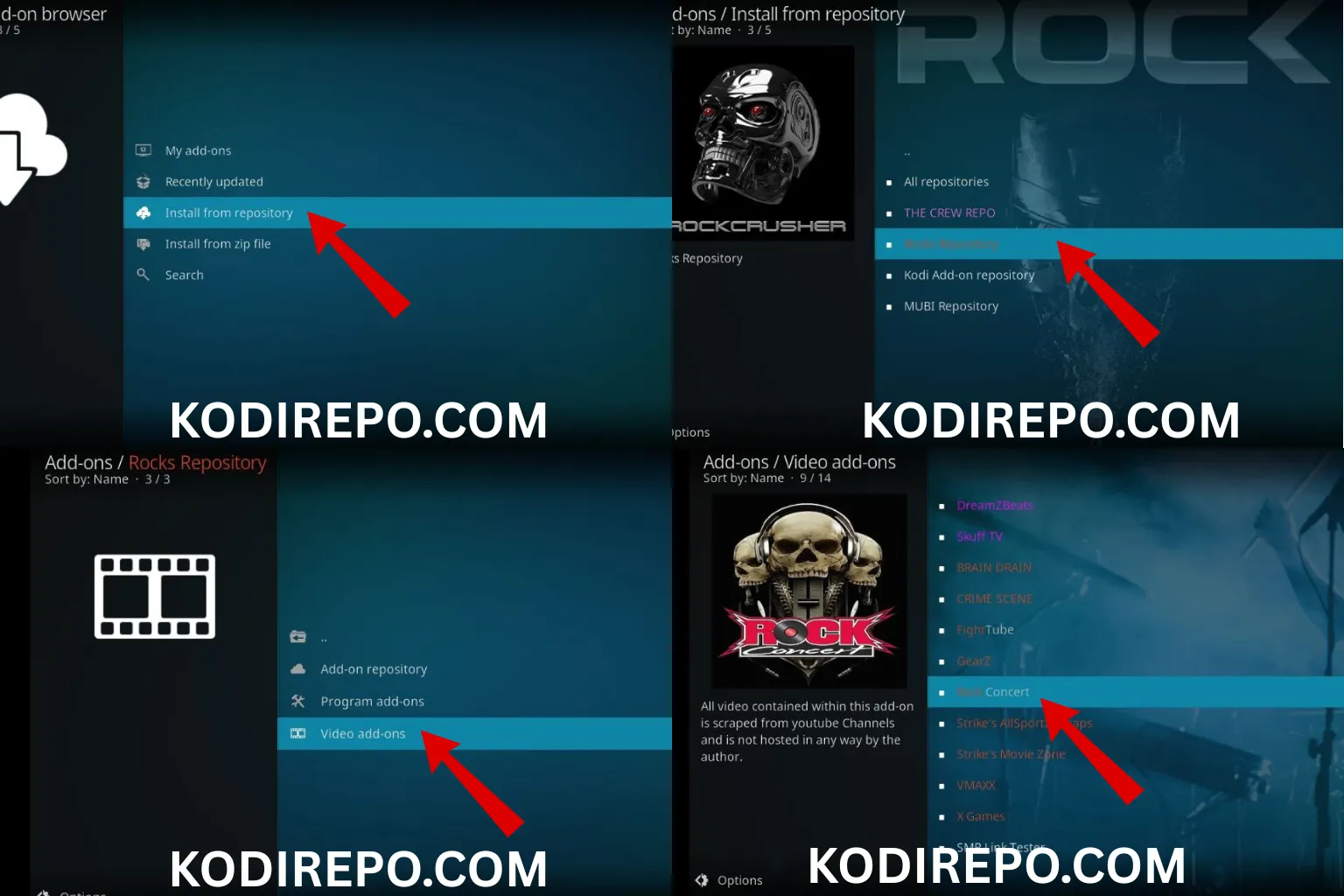
- Now select Install from repository
- Choose Kodil Repository
- Navigate to Video add-ons
- Find and select Covenant
- Click Install and wait for the addon to download and install
Configuring Covenant for Optimal Performance
After installation, take a few minutes to configure Covenant properly:
Setting Up Real-Debrid Integration
For premium streaming quality, connect Covenant with Real-Debrid:
- Open Covenant from the Add-ons menu
- Click the gear icon to access settings
- Navigate to Accounts
- Select Real-Debrid and authorize your account
- Return to main settings and configure your preferred streaming quality
Customizing the Interface
Personalize your Covenant experience:
- Adjust scraper timeout settings
- Configure subtitle preferences
- Set default streaming quality
- Organize your favorites and playlists
Troubleshooting Common Issues
Even with proper installation, you might encounter some issues. Here are solutions to common problems:
Addon Not Loading
If Covenant fails to load or crashes:
- Clear the addon cache through settings
- Check your internet connection
- Ensure your Kodi version is compatible
- Try reinstalling the addon
No Streams Available
When you can’t find working streams:
- Check Real-Debrid status if configured
- Try different scraper sources within the addon
- Verify your internet speed
- Consider using a VPN to bypass regional restrictions
Playback Errors
For buffering or playback issues:
- Reduce streaming quality in settings
- Clear Kodi cache regularly
- Check your network bandwidth
- Ensure sufficient device storage
Safety and Legal Considerations
While Covenant is a popular addon, it’s important to understand the implications:
Use a VPN: Always use a reliable VPN service when streaming with Kodi addons to protect your privacy and bypass potential geo-restrictions.
Content Legality: Be aware of your local copyright laws regarding streaming content. Some streams may not be legally distributed in your region.
Security: Only install addons from trusted sources to avoid malware or security risks.
Alternative Addons to Consider
If you experience issues with Covenant or want alternatives, consider these popular options:
- Exodus Redux: Another fork of the original Exodus with similar functionality
- The Crew: A comprehensive addon with movies, TV shows, and live TV
- Seren: Premium streaming experience with Real-Debrid integration
- Venom: Modern alternative with excellent streaming capabilities
Maintaining Your Covenant Addon
To ensure continued smooth operation:
- Regularly check for addon updates
- Clear cache periodically to prevent performance issues
- Monitor repository status for any changes
- Keep your Kodi installation updated
Conclusion
Installing the Covenant Kodi addon in February 2026 remains a straightforward process that opens up a world of streaming possibilities. By following this guide carefully, you can set up the addon correctly and enjoy a seamless entertainment experience. Remember to prioritize your privacy with a VPN and stay informed about the legal aspects of streaming in your region.
The key to success with Covenant lies in proper installation, thoughtful configuration, and regular maintenance. With these elements in place, you’ll have access to an extensive library of content right at your fingertips.
Pro Tip: Bookmark this guide for future reference, as addon installation processes may change with Kodi updates throughout the year.