
Drag the slider to adjust text size.
If you’re looking for a powerful and reliable way to stream movies and TV shows on Kodi, the Seren Addon is one of the best choices available. Known for its seamless integration with premium debrid services and high-quality streaming links, Seren has become a favorite among Kodi users. In this guide, we’ll walk you through the step-by-step process of installing the Seren Addon on Kodi, ensuring you can enjoy your favorite content without hassle.
🔒 Protect Your Kodi Streaming
Avoid ISP tracking and stream Kodi safely using one of the fastest and most trusted VPN services.
✔ Works with Kodi & Firestick
✔ No Logs Privacy Protection
✔ 30-Day Money Back Guarantee
Recommended for safe and private Kodi streaming
What is the Seren Addon?
The Seren Addon is a premium Kodi addon designed to provide users with access to a vast library of movies and TV shows. It stands out for its ability to integrate with premium debrid services like Real-Debrid, Premiumize, and AllDebrid, which significantly improves streaming quality and reduces buffering. Seren is also praised for its user-friendly interface, advanced filtering options, and reliable performance, making it a top choice for Kodi enthusiasts.
Why Choose Seren Addon?
Before diving into the installation process, let’s explore why Seren is worth your time:
- High-Quality Streams: Seren fetches premium links from debrid services, ensuring HD and 4K streaming.
- User-Friendly Interface: The addon is easy to navigate, even for beginners.
- Advanced Features: Seren offers features like Trakt integration, custom playlists, and advanced search options.
- Reliability: Unlike many free addons, Seren is known for its stability and consistent performance.
Prerequisites for Installing Seren Addon
Before installing Seren, ensure you have the following:
- Kodi Installed: Make sure you have the latest version of Kodi installed on your device.
- Premium Debrid Account: While not mandatory, a premium debrid account (e.g., Real-Debrid) enhances your streaming experience.
- Unknown Sources Enabled: Kodi’s default settings block third-party addons. You’ll need to enable installations from unknown sources.
Step-by-Step Guide to Install Seren Addon on Kodi
Step 1: Enable Unknown Sources
- Open Kodi and click on the Settings icon (gear icon) in the top-left corner.
- Navigate to System (or System Settings in older versions).
- Select Add-ons from the left-hand menu.
- Toggle on Unknown Sources and confirm the warning message.
Step 2: Install the Seren Repository
Seren is not available directly; you need to install its repository first. Follow these steps:
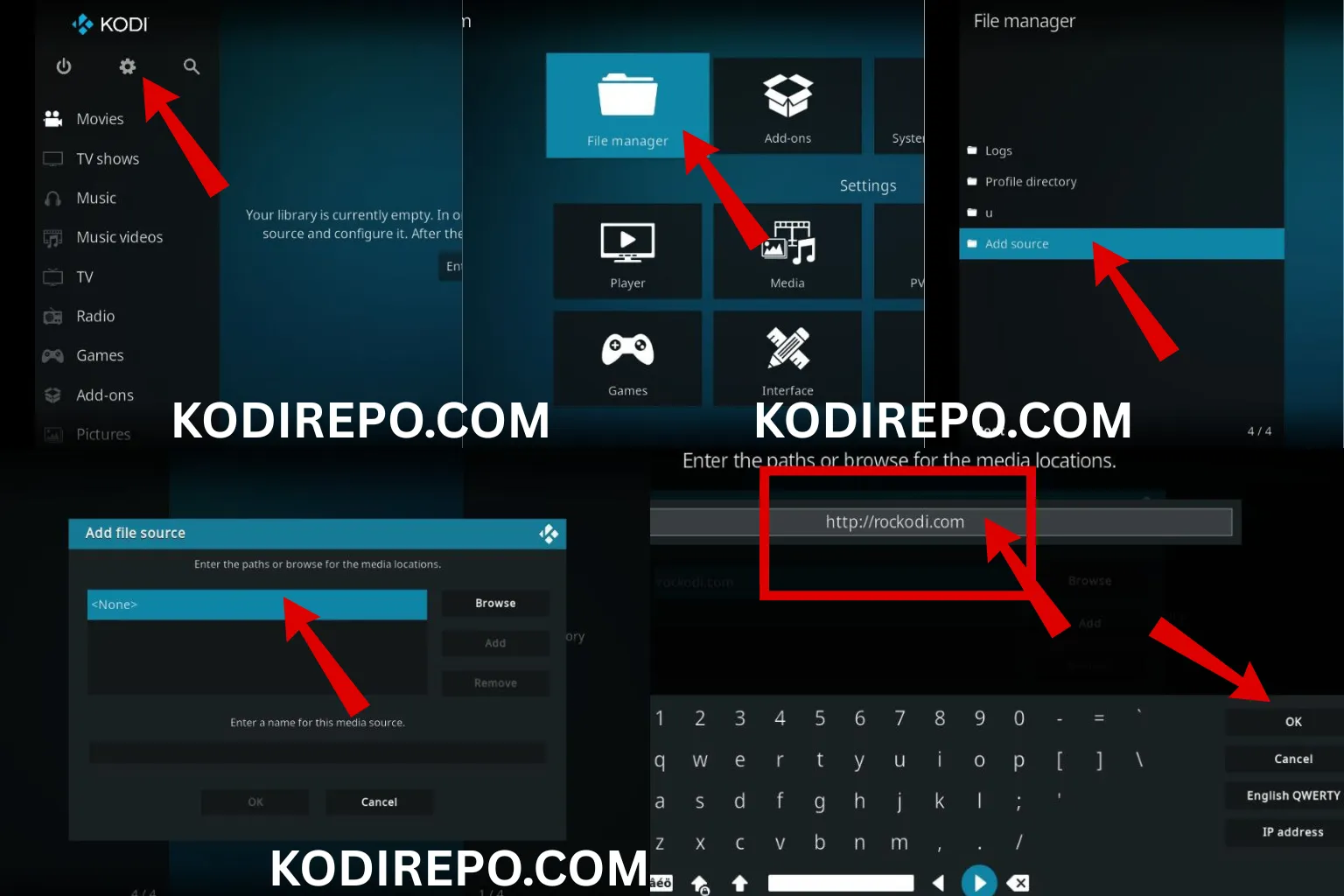
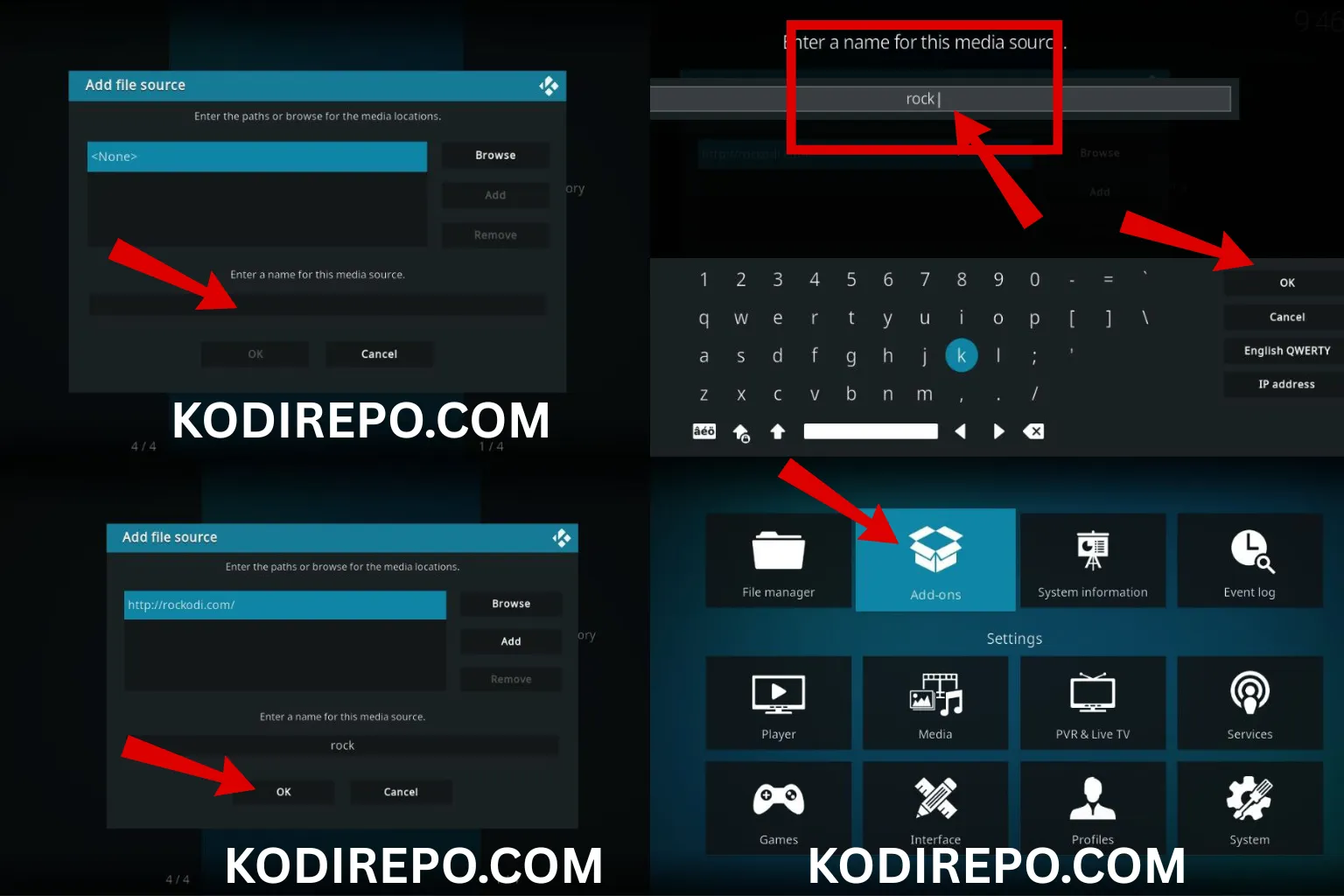
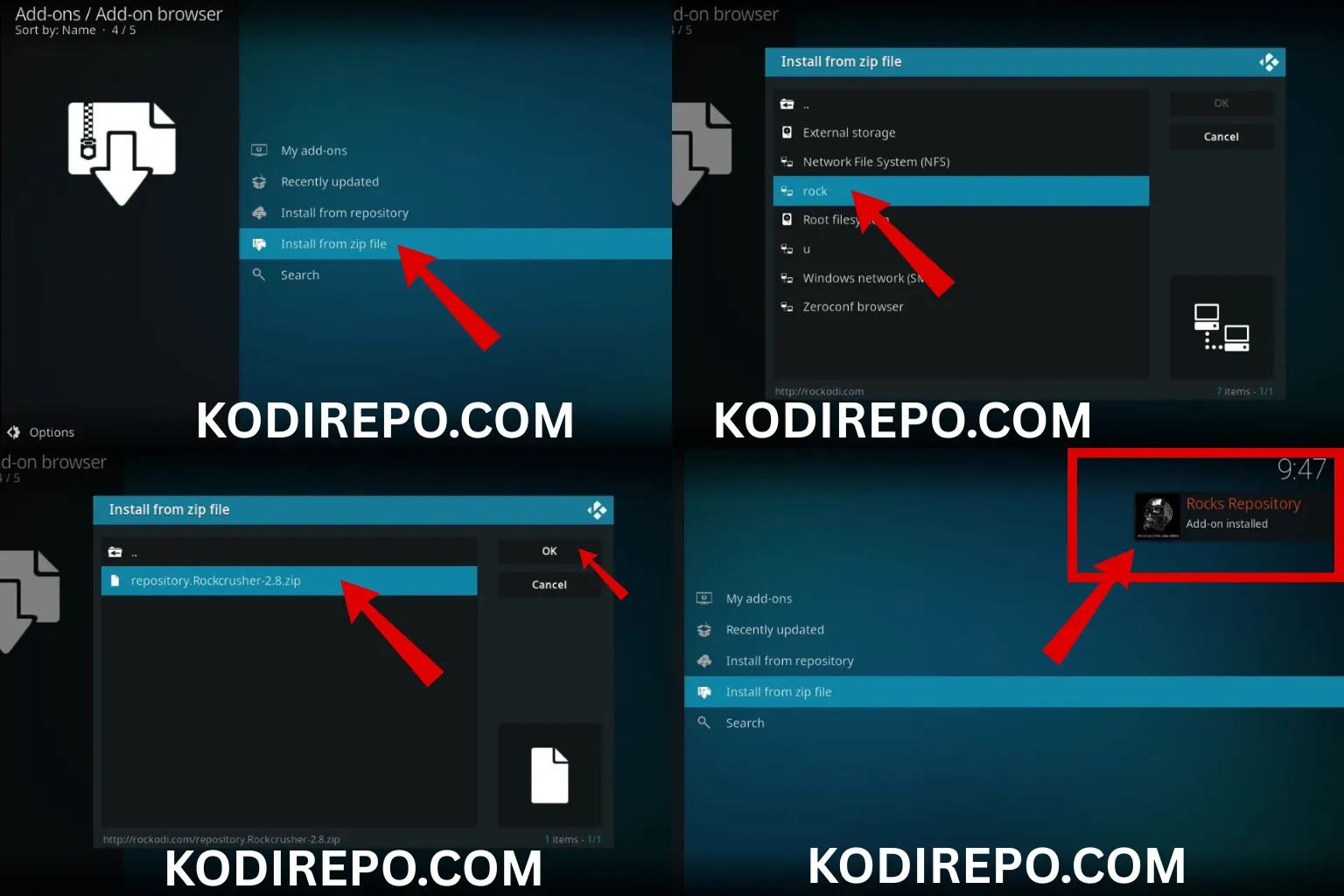
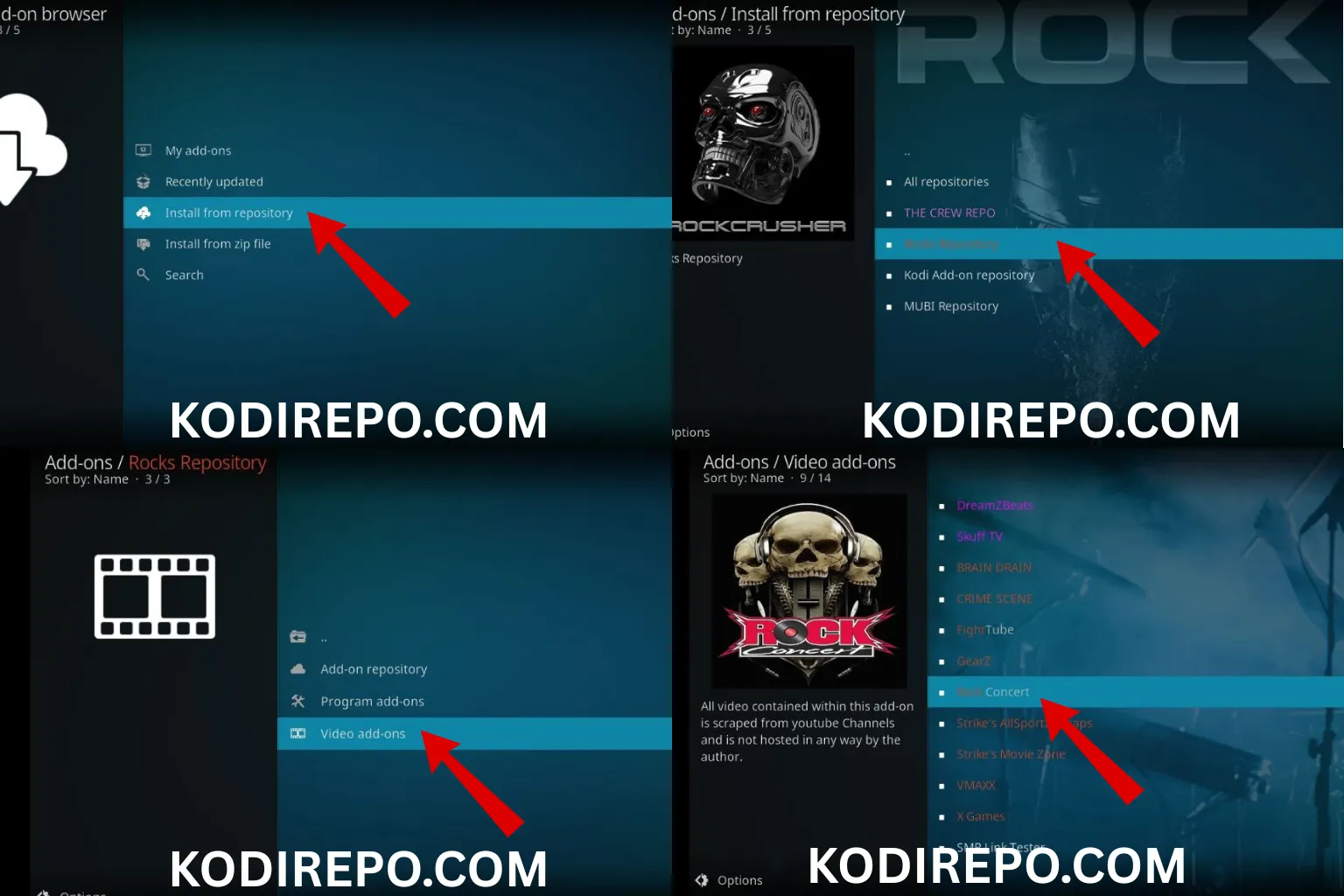
⚠️ WARNING: Before installing this Kodi addon, it is strongly recommended to use a VPN to protect your privacy while streaming.
👉 Get 76% NordVPN Deal- Go back to the Settings menu and select File Manager.
- Click on Add Source and then .
- Enter the following URL:
https://nixgates.github.io/packages(This is the official Seren repository URL). - Name the source (e.g., “Seren Repo”) and click OK.
- Return to the Settings menu and select Add-ons.
- Click on Install from zip file.
- Select the source you just added (e.g., “Seren Repo”).
- Choose the file named
repository.djcldm.zipand install it.
Step 3: Install the Seren Addon
- Once the repository is installed, go back to Add-ons and select Install from repository.
- Choose DJCldm Repository.
- Navigate to Video add-ons and find Seren.
- Click on Seren and then select Install.
- Wait for the installation to complete. A notification will appear once it’s done.
Step 4: Configure Seren Addon
After installation, you’ll need to configure Seren for optimal performance:
- Open the Seren Addon from the Add-ons menu.
- Go to Settings (gear icon).
- Navigate to the Services section and link your premium debrid account (e.g., Real-Debrid).
- Adjust other settings like playback quality, subtitle preferences, and Trakt integration as needed.
Troubleshooting Common Issues
If you encounter any issues during installation or usage, here are some quick fixes:
- Addon Not Installing: Ensure the repository URL is correct and try again.
- No Streams Available: Check your debrid account connection and ensure it’s active.
- Buffering Issues: Lower the playback quality or check your internet connection.
Conclusion
The Seren Addon is a game-changer for Kodi users who want a seamless and high-quality streaming experience. By following this guide, you can easily install and configure Seren to enjoy your favorite movies and TV shows. Remember to use a premium debrid service for the best results and always keep Kodi and its addons updated for optimal performance.
If you found this guide helpful, share it with fellow Kodi users and leave a comment below if you have any questions. Happy streaming!
Related Keywords: Kodi addons, Seren installation guide, Kodi streaming, premium debrid services, Real-Debrid integration, Kodi movies and TV shows.