Drag the slider to adjust text size.
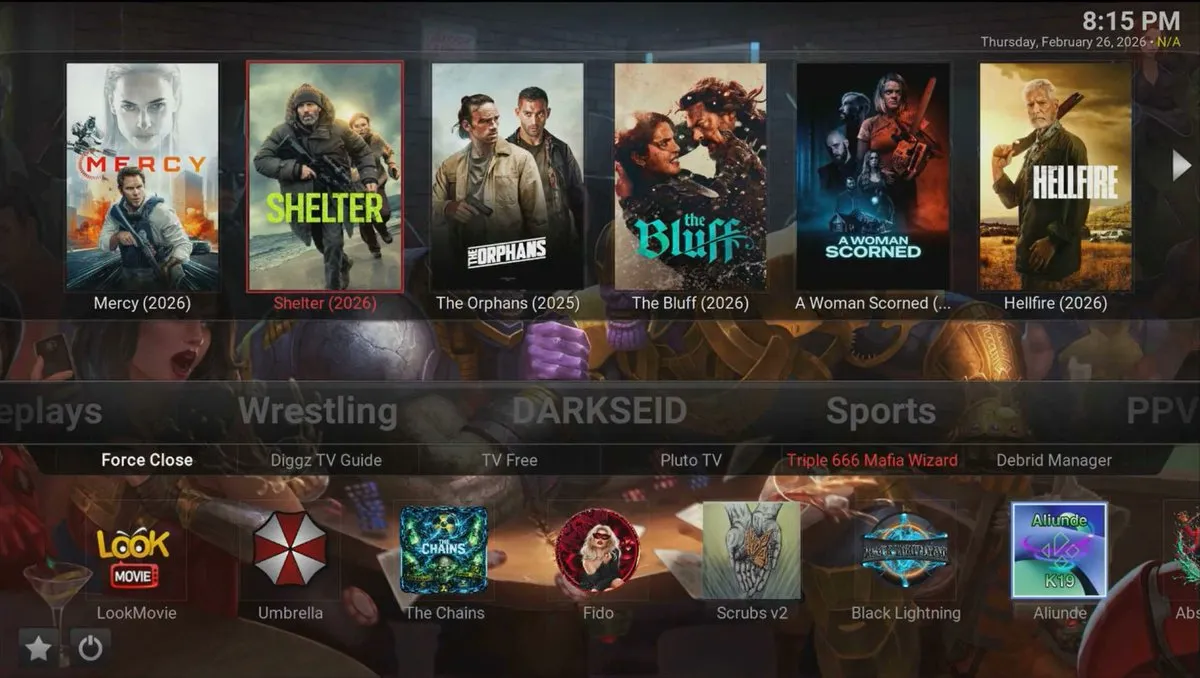
If you’re looking for a powerful and feature-rich Kodi build that works seamlessly with both free sources and Real-Debrid, the Darkseid Build is an excellent choice. This build offers a sleek interface, fast navigation, and access to a wide range of streaming content, including movies, TV shows, live TV, and sports. In this guide, we’ll walk you through the entire installation process step by step, ensuring you can enjoy a premium Kodi experience without any hassle.
🔒 Protect Your Kodi Streaming
Avoid ISP tracking and stream Kodi safely using one of the fastest and most trusted VPN services.
✔ Works with Kodi & Firestick
✔ No Logs Privacy Protection
✔ 30-Day Money Back Guarantee
Recommended for safe and private Kodi streaming
What is Darkseid Build?
Darkseid Build is a popular Kodi build designed to enhance your streaming experience. It comes pre-configured with numerous add-ons, skins, and settings, making it easy for users to access their favorite content without manually installing each component. Whether you’re a fan of on-demand movies, binge-worthy TV series, or live sports, Darkseid Build has something for everyone. Plus, it’s compatible with Real-Debrid, allowing you to unlock high-quality links for smoother playback.
Why Choose Darkseid Build?
Before diving into the installation process, let’s explore why Darkseid Build stands out among other Kodi builds:
- User-Friendly Interface: The build features an intuitive layout, making it easy for beginners to navigate.
- Pre-Installed Add-Ons: It comes with a variety of add-ons for movies, TV shows, live TV, and sports.
- Real-Debrid Integration: Seamlessly connect your Real-Debrid account for access to premium streaming links.
- Regular Updates: The build is frequently updated to ensure compatibility and performance.
- Lightweight Design: Optimized for smooth performance on various devices, including Firestick, Android TV, and PC.
Prerequisites for Installing Darkseid Build
Before you begin the installation process, ensure you have the following:
- Kodi Installed: Make sure you have the latest version of Kodi installed on your device.
- Unknown Sources Enabled: Go to Settings > System > Add-ons and toggle on Unknown Sources.
- VPN (Recommended): For privacy and security, use a reliable VPN while streaming.
- Real-Debrid Account (Optional): If you want to unlock premium links, sign up for a Real-Debrid account.
Step-by-Step Guide to Install Darkseid Build
Step 1: Install a Build Loader
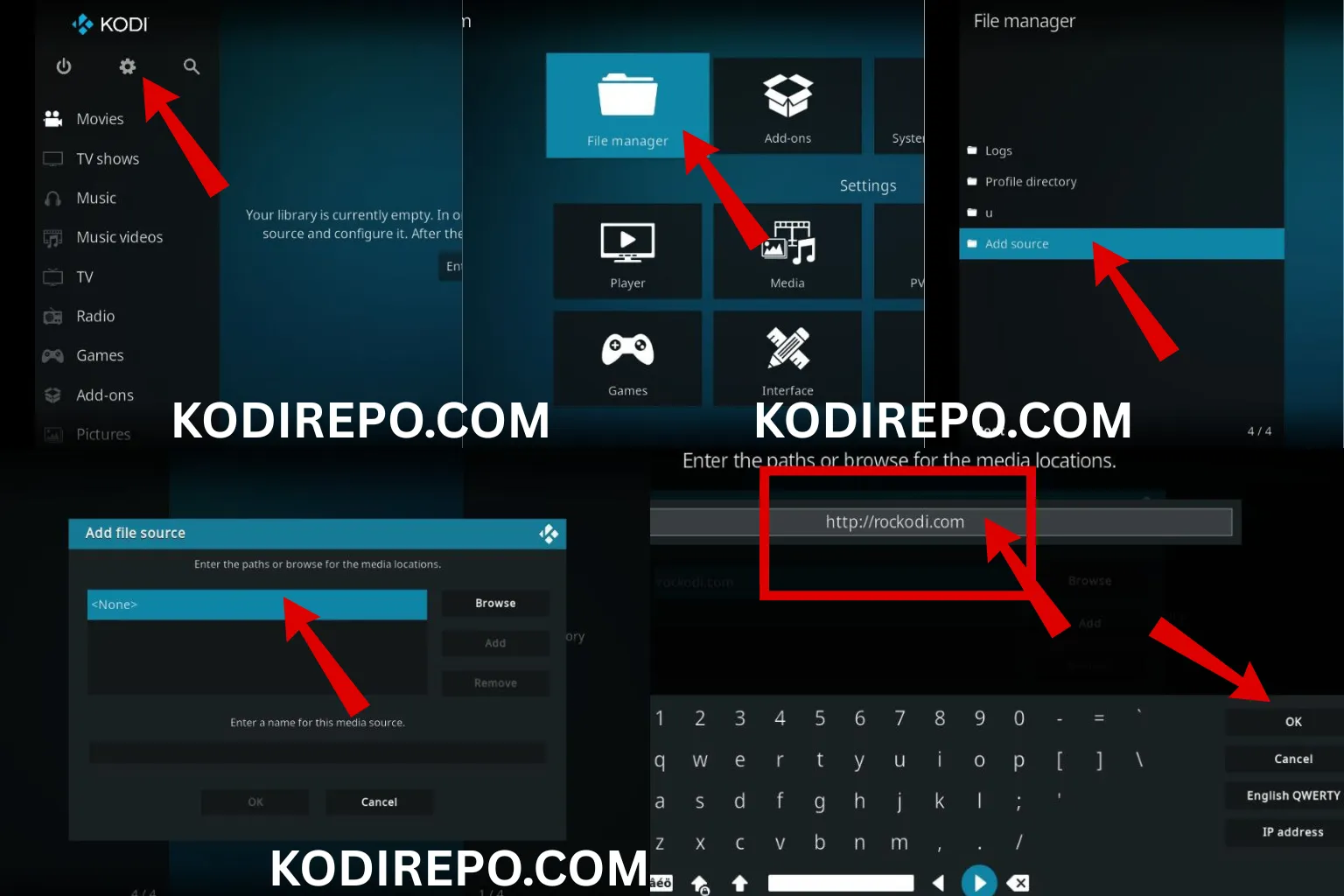
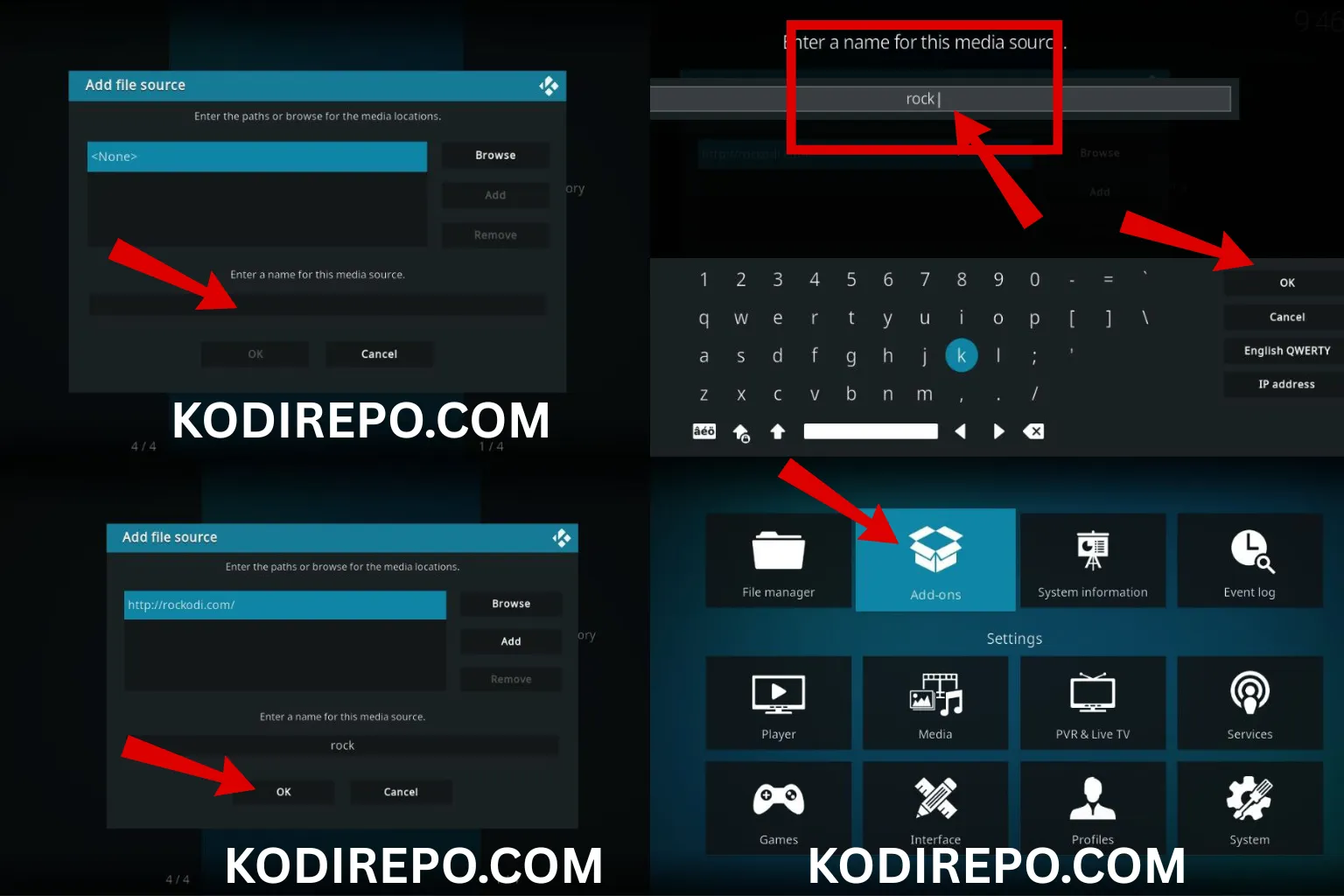
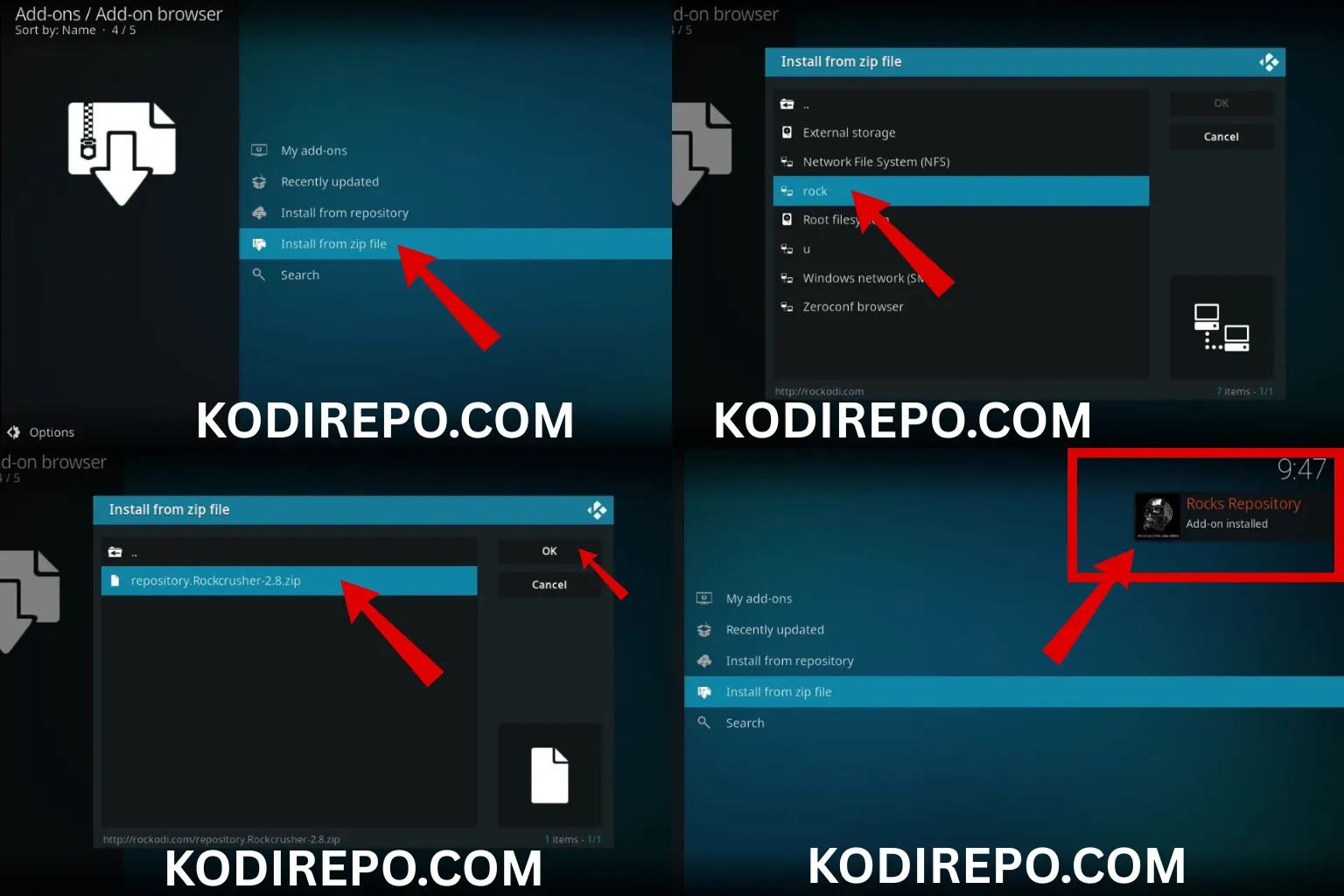
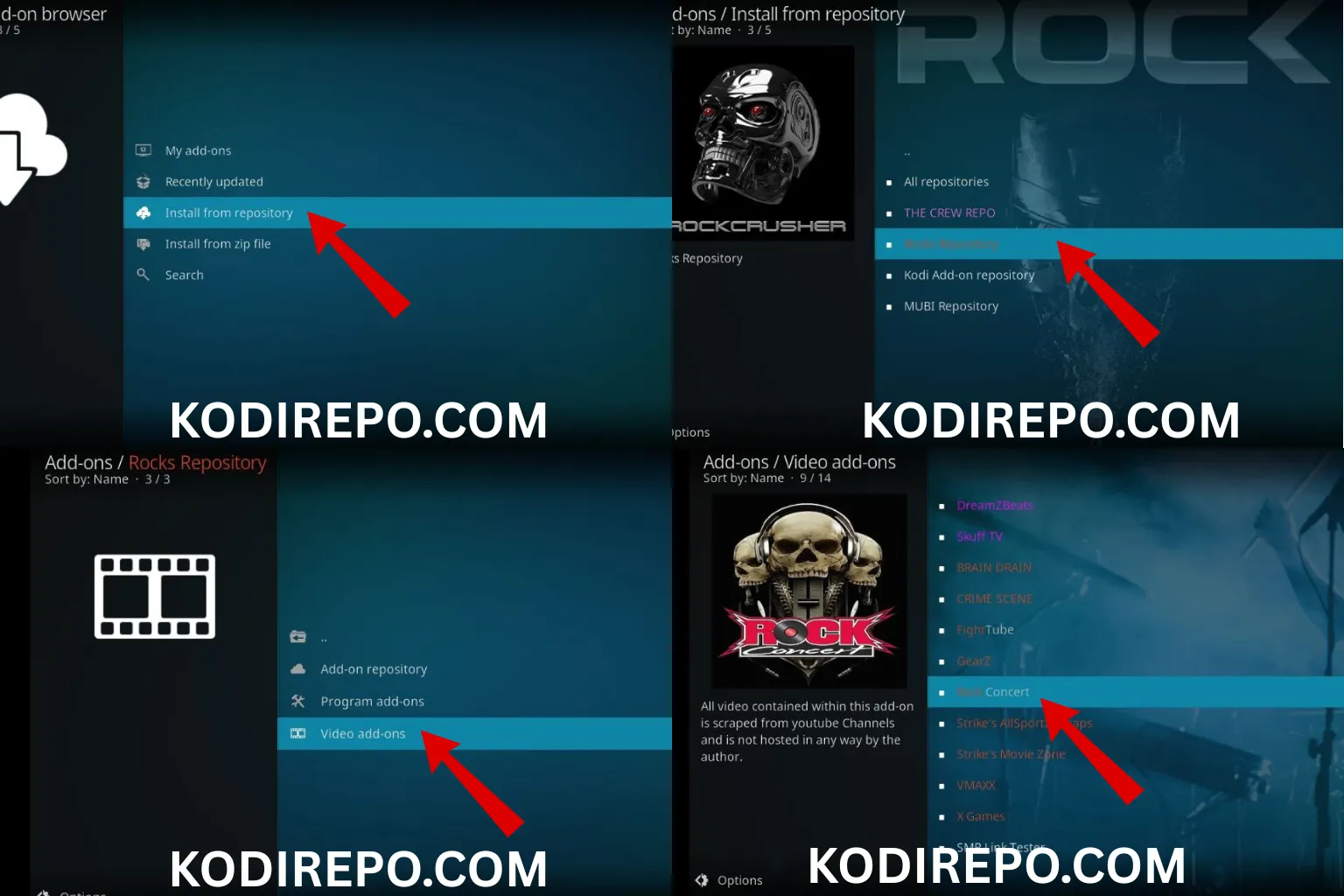
To install Darkseid Build, you’ll need a build loader. Follow these steps:
- Open Kodi and click on the Settings icon (gear icon) in the top-left corner.
- Navigate to File Manager and click on Add Source.
- Click on and enter the URL:
https://the666mafia.github.io/repo/ - Name the source (e.g., “KDIL”) and click OK.
- Go back to the Kodi home screen and select Add-ons from the left menu.
- Click on the Package Installer icon (box icon) in the top-left corner.
- Choose Install from zip file and select the source you added earlier.
- Install the repository zip file (e.g.,
repository.kodil.zip). - Once the repository is installed, go to Install from repository > Kodil Repository > Program Add-ons.
- Find and install the Build Loader (or the specific build loader for Darkseid).
Step 2: Install Darkseid Build
Now that you have the build loader installed, follow these steps to install Darkseid Build:
- Open the Build Loader from the Add-ons menu.
- Browse through the available builds and select Darkseid Build.
- Click on Install and wait for the build to download and install.
- Once the installation is complete, you’ll be prompted to Force Close Kodi. Click Yes to restart Kodi with the new build.
Step 3: Configure Darkseid Build
After installing Darkseid Build, take a few minutes to configure it for optimal performance:
- Set Up Real-Debrid: If you have a Real-Debrid account, go to Settings > Accounts and link your account.
- Adjust Video Settings: Navigate to Settings > Player and adjust video playback settings for smoother streaming.
- Customize the Interface: Explore the build’s menu to customize the home screen and add your favorite add-ons.
Troubleshooting Common Issues
If you encounter any issues during or after the installation, here are some quick fixes:
- Build Not Installing: Ensure you have the latest version of Kodi and a stable internet connection.
- Add-Ons Not Working: Clear the cache by going to Settings > Add-ons > My add-ons > Program add-ons > Indigo (or similar tool) and select Clear Cache.
- Buffering Issues: Connect to a faster internet connection or use Real-Debrid for high-quality links.
Is Darkseid Build Legal?
Kodi itself is a legal media player, but the legality of third-party builds like Darkseid Build depends on the content you access. Always use a VPN to protect your privacy and ensure you’re streaming content from legitimate sources.
Conclusion
Installing Darkseid Build on Kodi is a straightforward process that can significantly enhance your streaming experience. With its user-friendly interface, pre-installed add-ons, and Real-Debrid integration, it’s a great choice for both beginners and advanced users. Follow the steps outlined in this guide, and you’ll be enjoying your favorite movies, TV shows, and live TV in no time.
FAQs
Q: Can I install Darkseid Build on Firestick?
A: Yes, Darkseid Build is compatible with Firestick and other Android devices.
Q: Do I need Real-Debrid to use Darkseid Build?
A: No, Real-Debrid is optional but recommended for accessing premium streaming links.
Q: How often is Darkseid Build updated?
A: The build is regularly updated to ensure compatibility and performance.
By following this guide, you’ll be able to install and configure Darkseid Build effortlessly, unlocking a world of entertainment on Kodi.






