Drag the slider to adjust text size.
If you’re a fan of independent, international, and classic cinema, the MUBI add-on for Kodi is a must-have. This guide will walk you through the installation process step by step, ensuring you can enjoy curated films from around the world directly on your TV.
🔒 Protect Your Kodi Streaming
Avoid ISP tracking and stream Kodi safely using one of the fastest and most trusted VPN services.
✔ Works with Kodi & Firestick
✔ No Logs Privacy Protection
✔ 30-Day Money Back Guarantee
Recommended for safe and private Kodi streaming
What is the MUBI Add-on for Kodi?
The MUBI add-on is a popular extension for Kodi that provides access to MUBI’s vast library of independent, art-house, and classic films. MUBI is a streaming service known for its carefully curated selection of movies, often featuring lesser-known gems and critically acclaimed titles. By installing the MUBI add-on, you can stream these films directly through Kodi, making it easier than ever to enjoy high-quality cinema on your TV.
Why Use the MUBI Add-on?
- Curated Content: MUBI offers a rotating selection of 30 films at a time, ensuring fresh and diverse content.
- High-Quality Streaming: Enjoy films in HD with minimal buffering.
- User-Friendly Interface: The add-on is designed to be intuitive, even for beginners.
- Free Access: While MUBI is a subscription service, the add-on itself is free to install and use.
Prerequisites for Installation
Before you begin, ensure you have the following:
- A compatible device running Kodi (e.g., Firestick, Android TV, Windows, or Mac).
- A stable internet connection.
- A MUBI subscription (optional but recommended for full access).
Step-by-Step Installation Guide
Step 1: Enable Unknown Sources
To install third-party add-ons like MUBI, you need to enable unknown sources in Kodi.
- Open Kodi and navigate to Settings (gear icon).
- Click on System or System Settings.
- Select Add-ons from the left menu.
- Toggle on Unknown Sources.
- Confirm by clicking Yes on the warning message.
Step 2: Install the MUBI Repository
⚠️ WARNING: Before installing this Kodi addon, it is strongly recommended to use a VPN to protect your privacy while streaming.
👉 Get 76% NordVPN DealThe MUBI add-on is typically available through a third-party repository. Here’s how to install it:
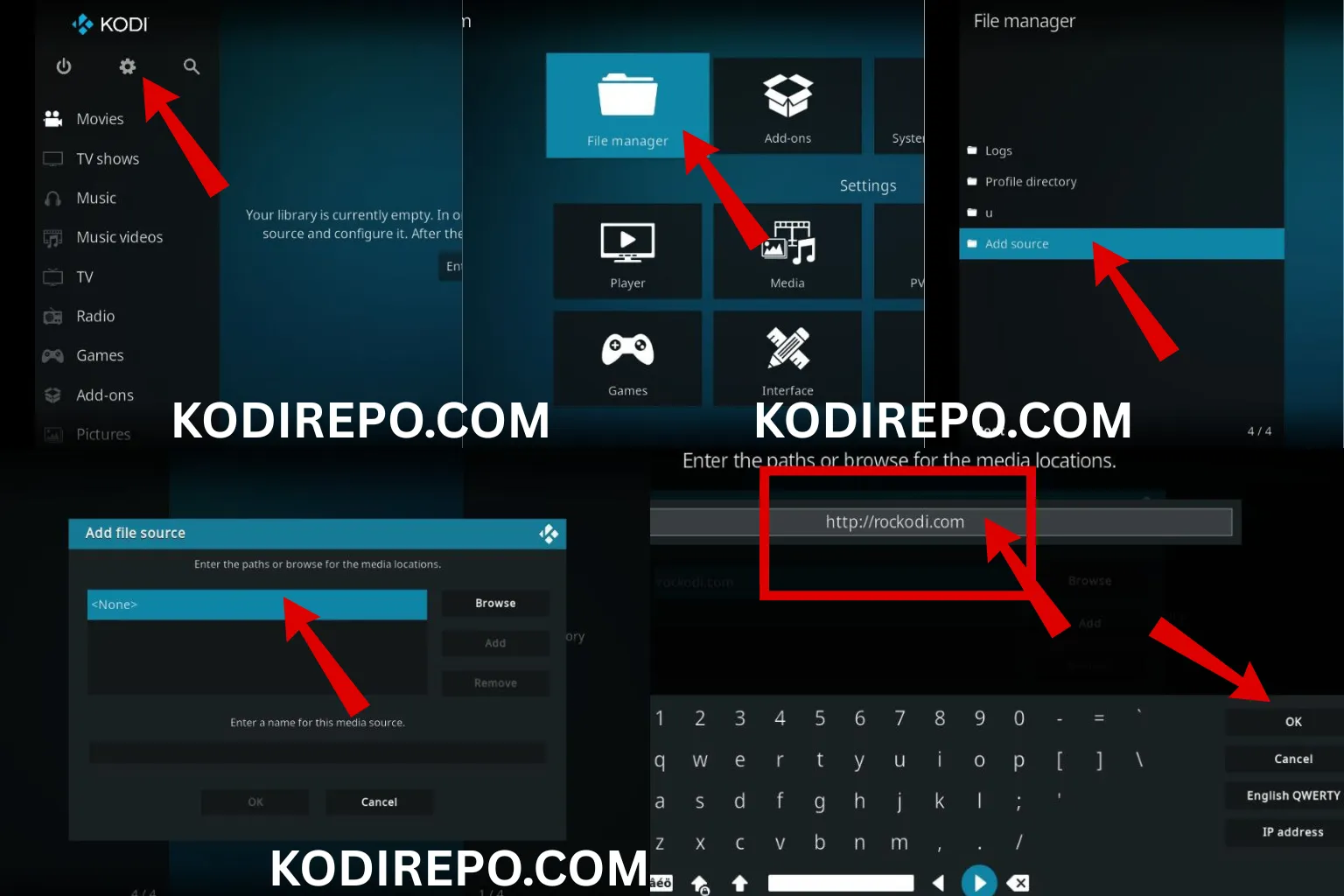
- Go back to Settings and select File Manager.
- Click on Add Source and then .
- Enter the repository URL: https://mtr81.github.io/kodi_addons/
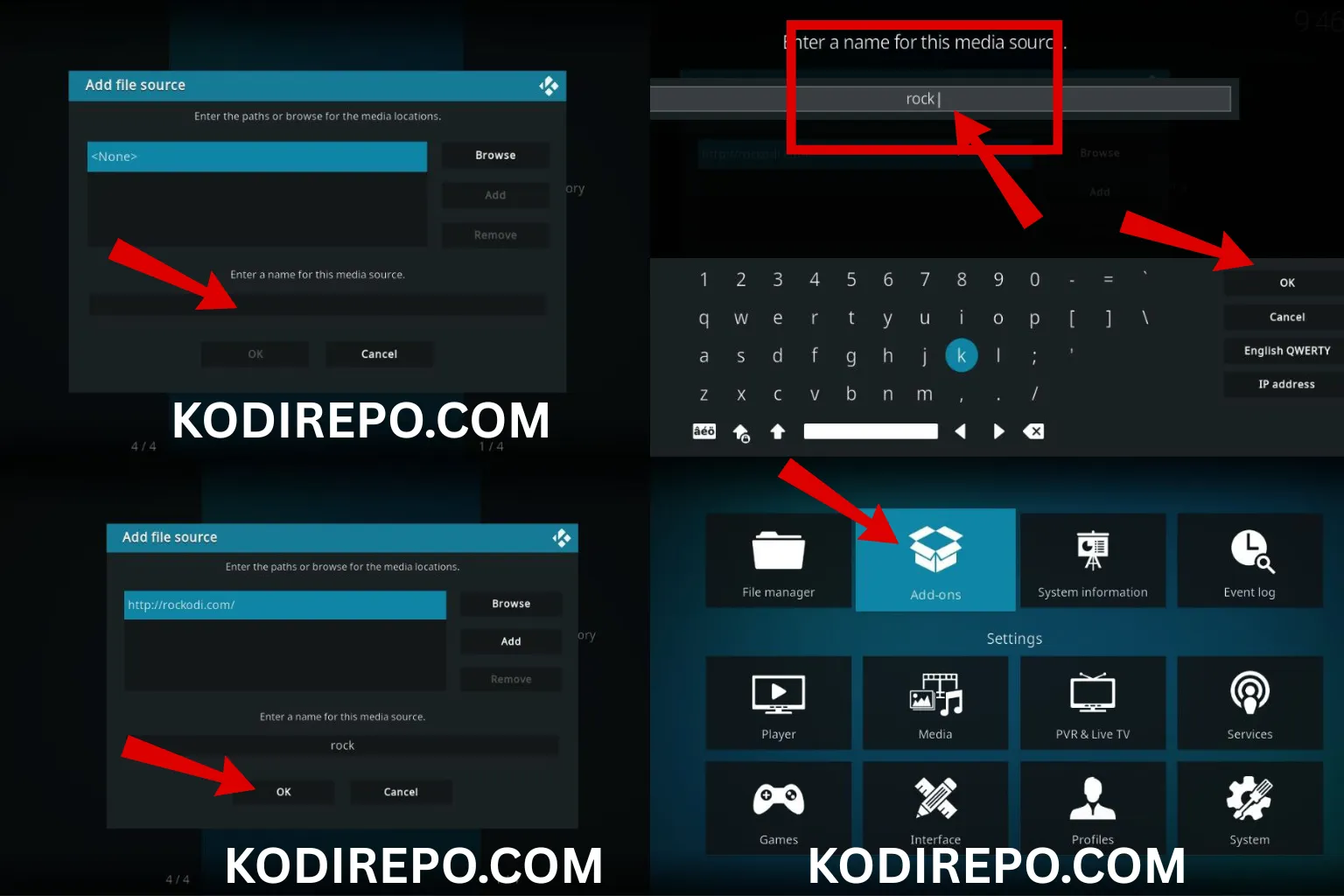
- Name the source (e.g., “MUBI Repo”) and click OK.
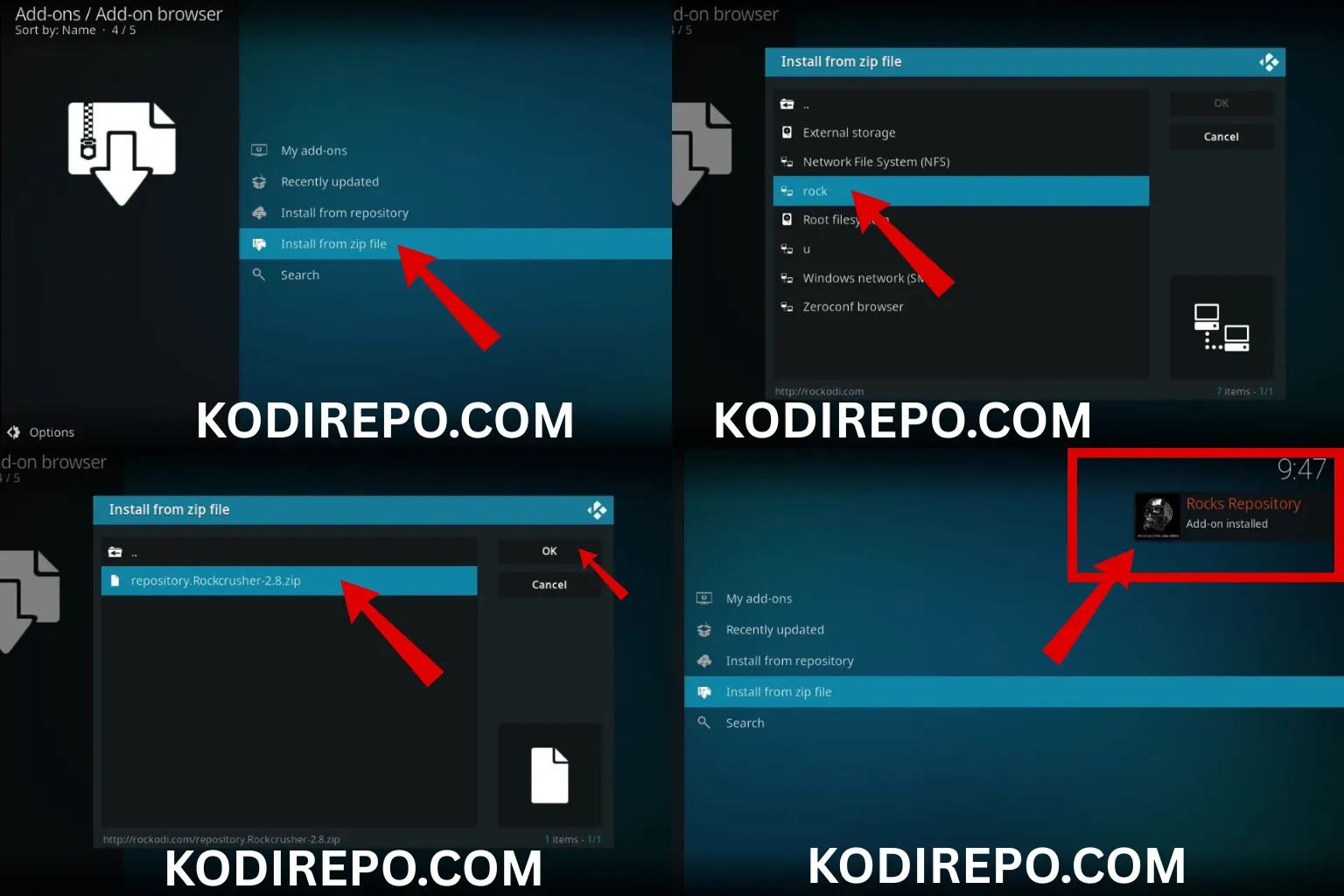
- Return to the Home Screen and select Add-ons.
- Click the Package Installer icon (top-left corner).
- Choose Install from zip file and select the MUBI Repo.
- Wait for the repository to install.
Step 3: Install the MUBI Add-on
Once the repository is installed, you can proceed to install the MUBI add-on:
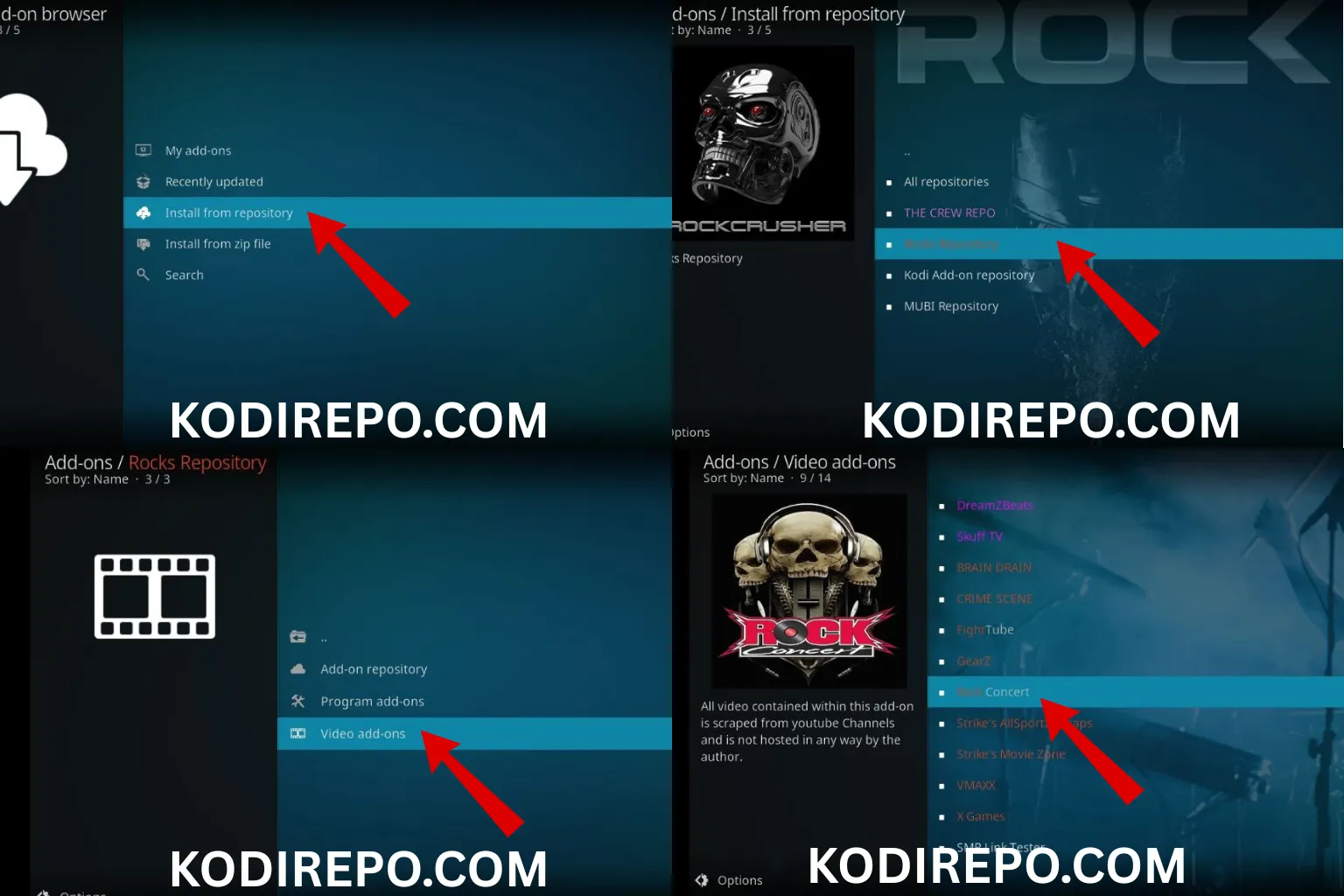
- From the Add-ons menu, click Install from repository.
- Select the MUBI Repository.
- Navigate to Video add-ons and find MUBI.
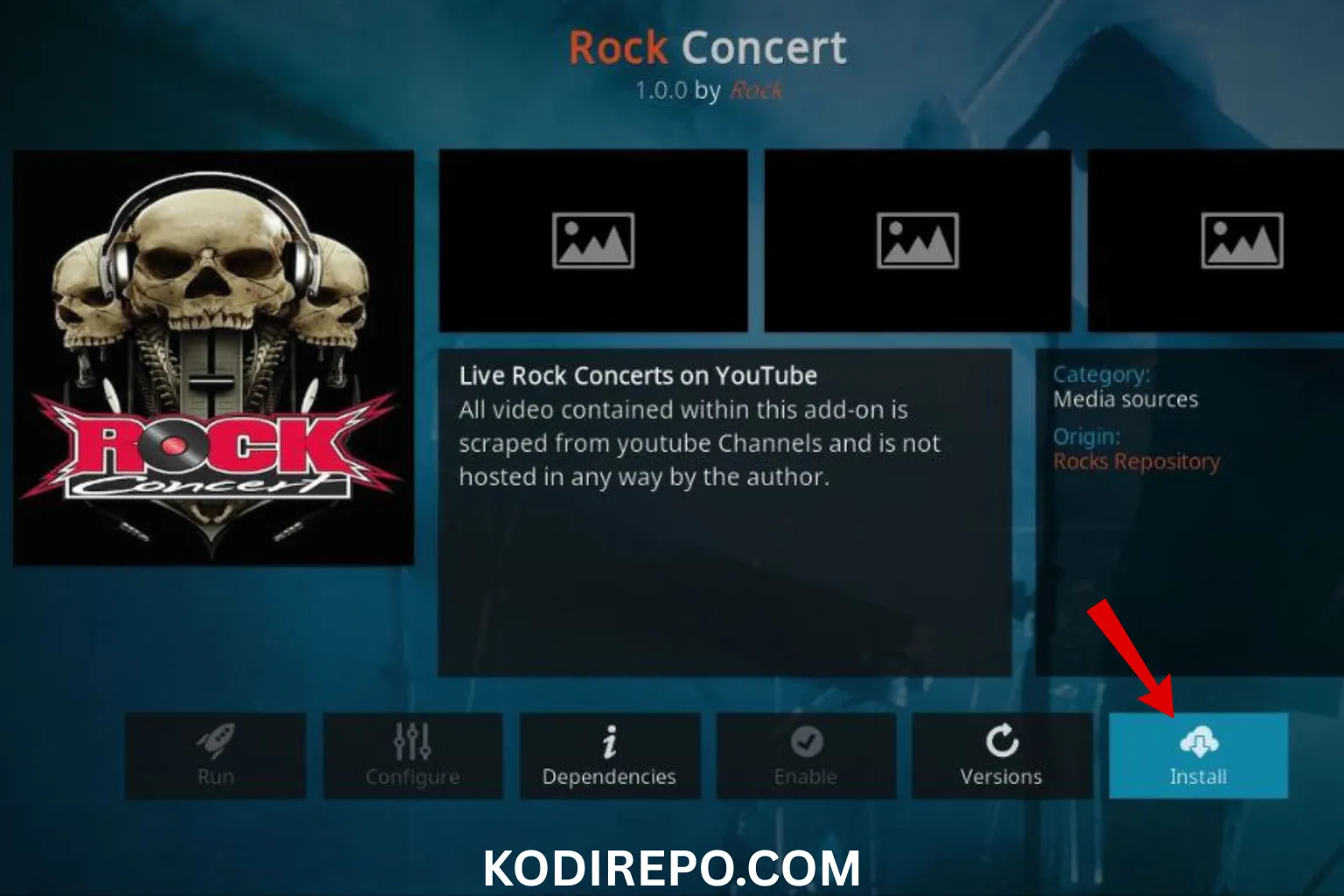
- Click Install and wait for the add-on to download and install.
- Once installed, the MUBI add-on will appear in your add-ons list.
Step 4: Configure and Use the MUBI Add-on
- Open the MUBI add-on from the Add-ons menu.
- If prompted, log in with your MUBI account credentials.
- Browse the library, search for films, or explore curated collections.
- Click on a movie to start streaming.
Troubleshooting Common Issues
- Add-on Not Installing: Ensure you’ve entered the correct repository URL and that unknown sources are enabled.
- Buffering Issues: Check your internet connection or adjust Kodi’s video settings.
- Login Problems: Verify your MUBI account details and ensure the add-on is up to date.
Tips for Optimizing Your MUBI Experience
- Use a VPN: Protect your privacy and access geo-restricted content.
- Keep Kodi Updated: Ensure you’re using the latest version of Kodi for compatibility.
- Clear Cache: Regularly clear Kodi’s cache to improve performance.
Conclusion
The MUBI add-on for Kodi is a fantastic way to bring independent and international cinema to your living room. With its easy installation process and user-friendly interface, even beginners can start enjoying curated films in no time. Follow this guide to set up the MUBI add-on and elevate your movie-watching experience.
Keywords: MUBI add-on, Kodi installation, independent cinema, streaming guide, MUBI repository, Kodi add-ons, curated films, art-house movies, classic cinema, MUBI subscription, Kodi setup, streaming on TV, MUBI login, Kodi troubleshooting, VPN for Kodi.