Drag the slider to adjust text size.
KodiVerse is a popular Kodi addon known for its vast library of movies, TV shows, live TV, and more. Whether you’re a FireStick user, Android enthusiast, or PC streamer, this guide will walk you through the installation process step-by-step. By the end, you’ll have KodiVerse up and running on your device, ready to stream your favorite content.
🔒 Protect Your Kodi Streaming
Avoid ISP tracking and stream Kodi safely using one of the fastest and most trusted VPN services.
✔ Works with Kodi & Firestick
✔ No Logs Privacy Protection
✔ 30-Day Money Back Guarantee
Recommended for safe and private Kodi streaming
What is KodiVerse Kodi Addon?
KodiVerse is a third-party Kodi addon that aggregates content from various sources, offering users access to a wide range of entertainment options. From the latest movies to classic TV shows, KodiVerse is a one-stop solution for streaming enthusiasts. However, since it’s a third-party addon, it’s essential to use a VPN for privacy and security while streaming.
Why Use KodiVerse?
- Extensive Content Library: Movies, TV shows, live TV, and more.
- User-Friendly Interface: Easy navigation for beginners.
- Regular Updates: Ensures access to the latest content.
- Compatibility: Works on FireStick, Android, and PCs.
How to Install KodiVerse Kodi Addon on FireStick
Step 1: Enable Unknown Sources
- Go to Settings on your FireStick.
- Select My Fire TV or Device.
- Choose Developer Options.
- Turn on Apps from Unknown Sources.
Step 2: Install Downloader App
- Open the Amazon Appstore.
- Search for Downloader and install it.
- Launch the app and allow necessary permissions.
Step 3: Download Kodi
- In the Downloader app, enter the official Kodi download link:
https://kodi.tv/download. - Download the Android version compatible with FireStick.
- Install Kodi once the download is complete.
Step 4: Install KodiVerse Addon
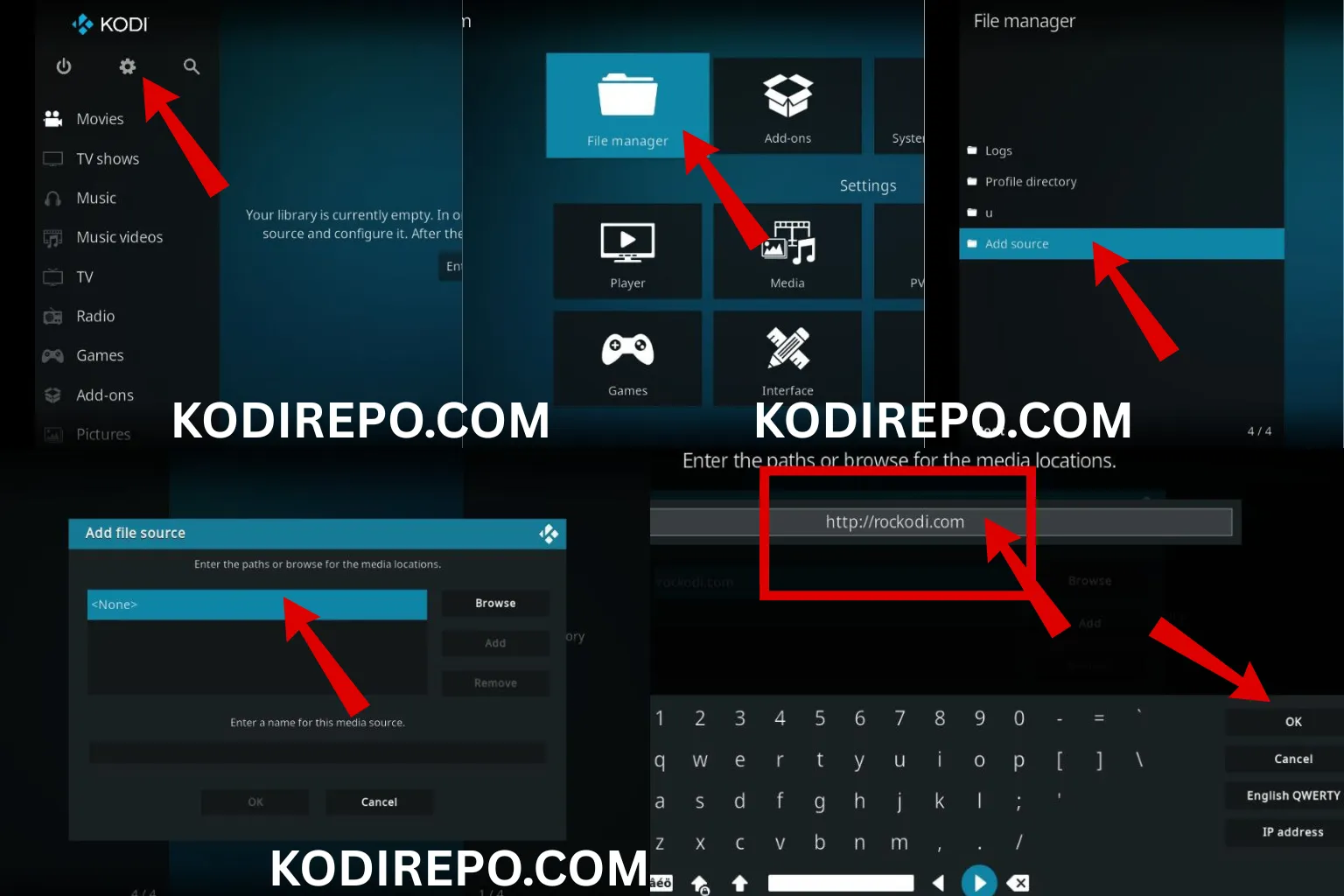
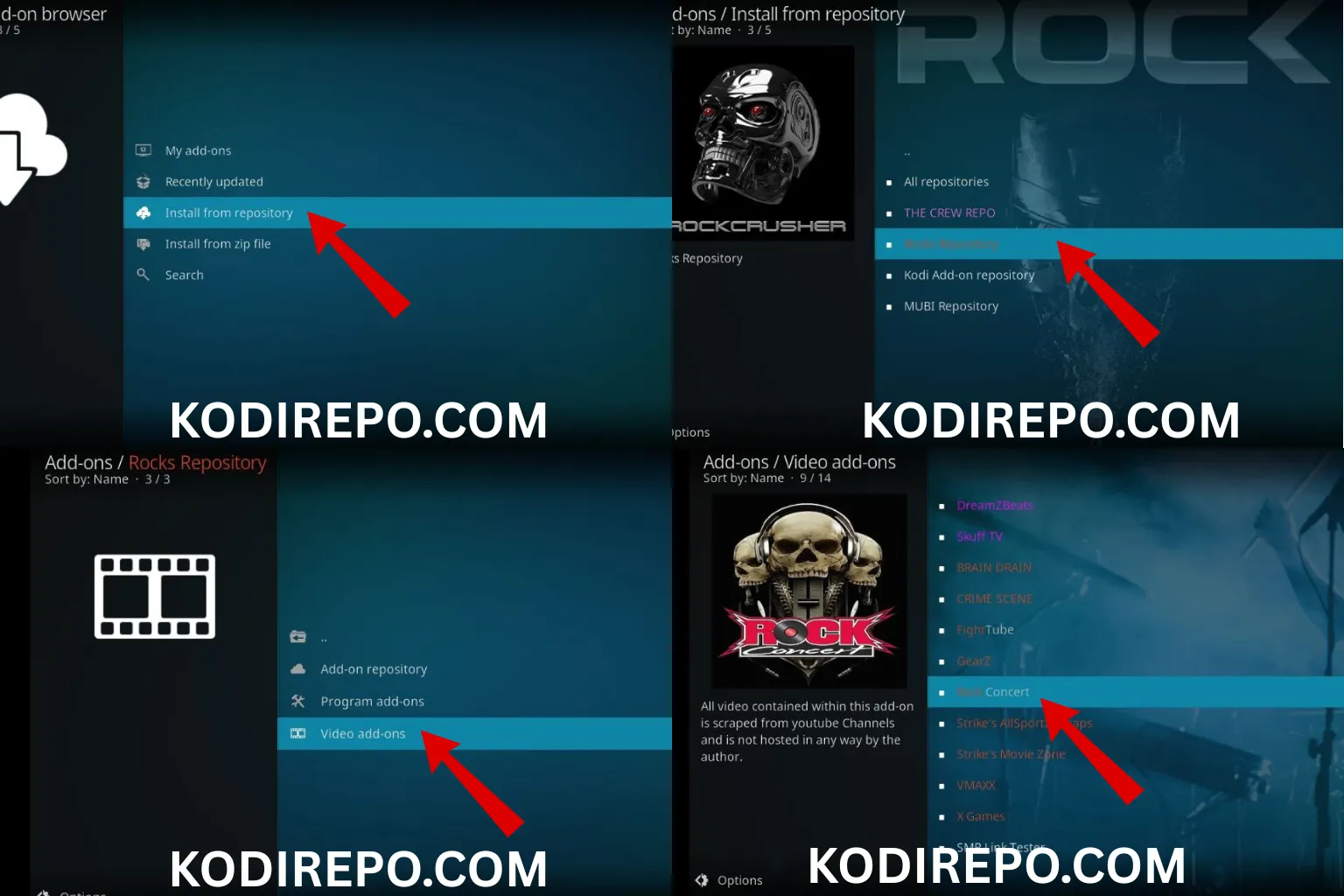
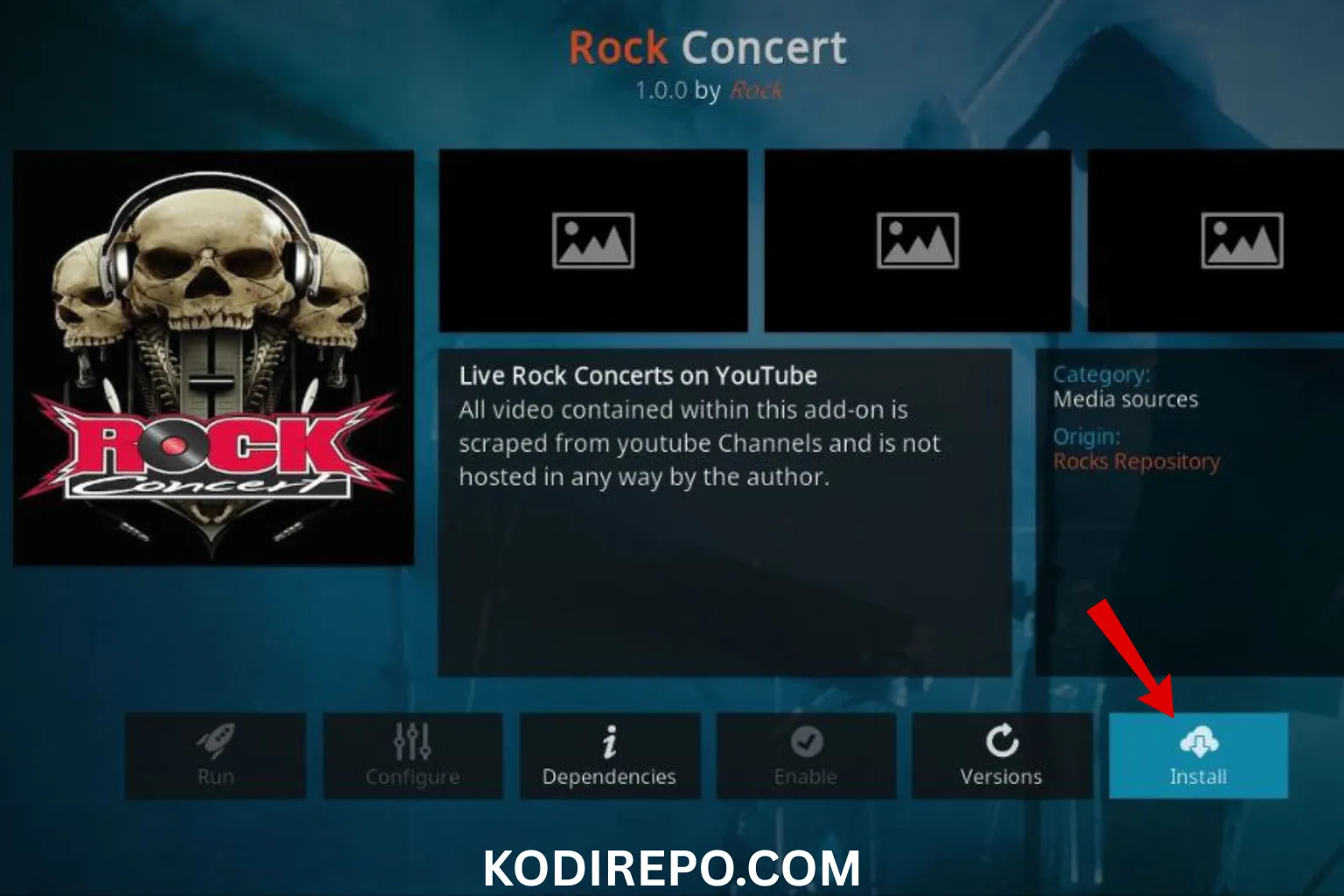
⚠️ WARNING: Before installing this Kodi addon, it is strongly recommended to use a VPN to protect your privacy while streaming.
👉 Get 76% NordVPN Deal- Open Kodi and go to Settings (gear icon).
- Select File Manager > Add Source.
- Click None and enter the KodiVerse repository URL:
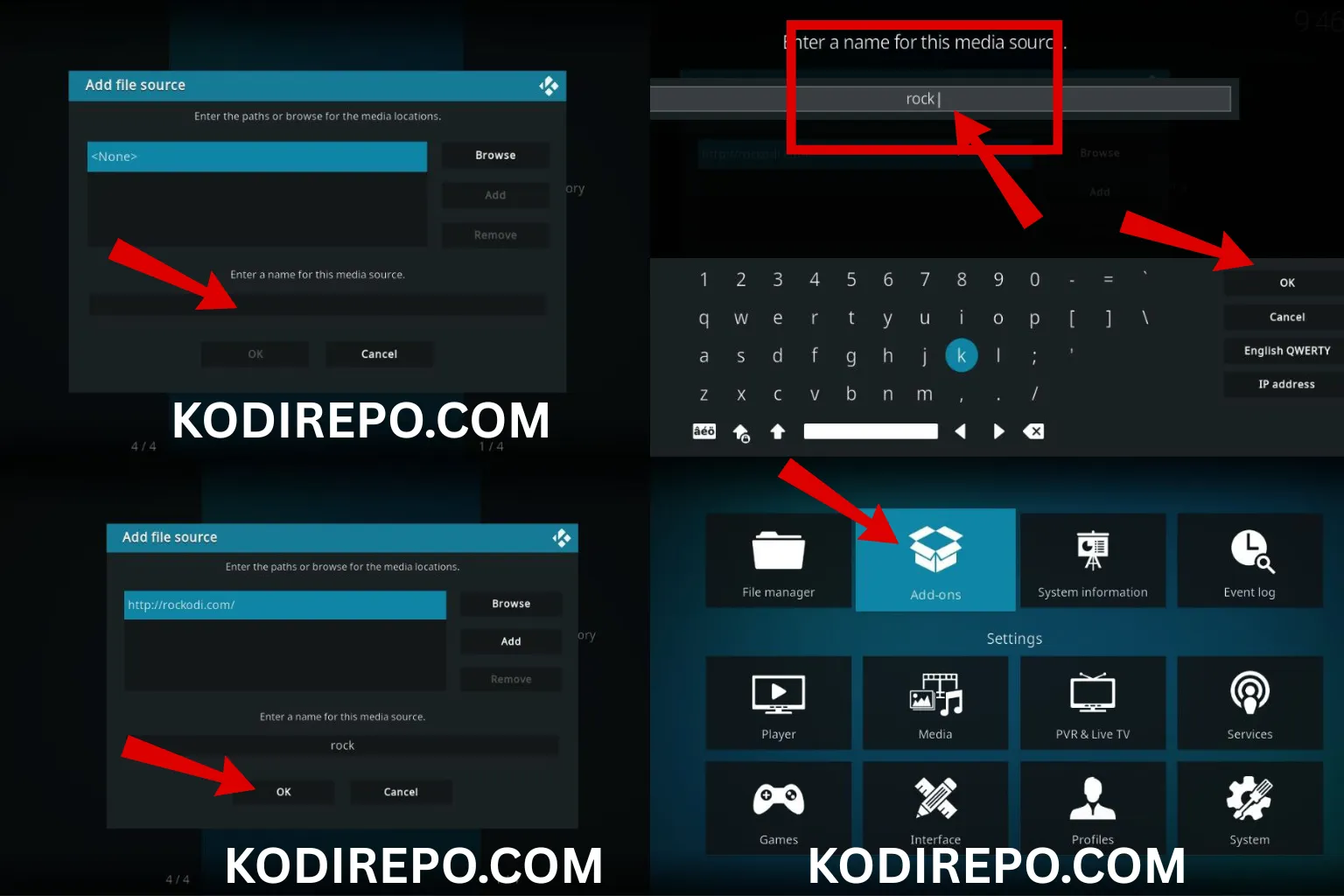
http://narcacist.com/repo. - Name the source (e.g., “KodiVerse”) and click OK.
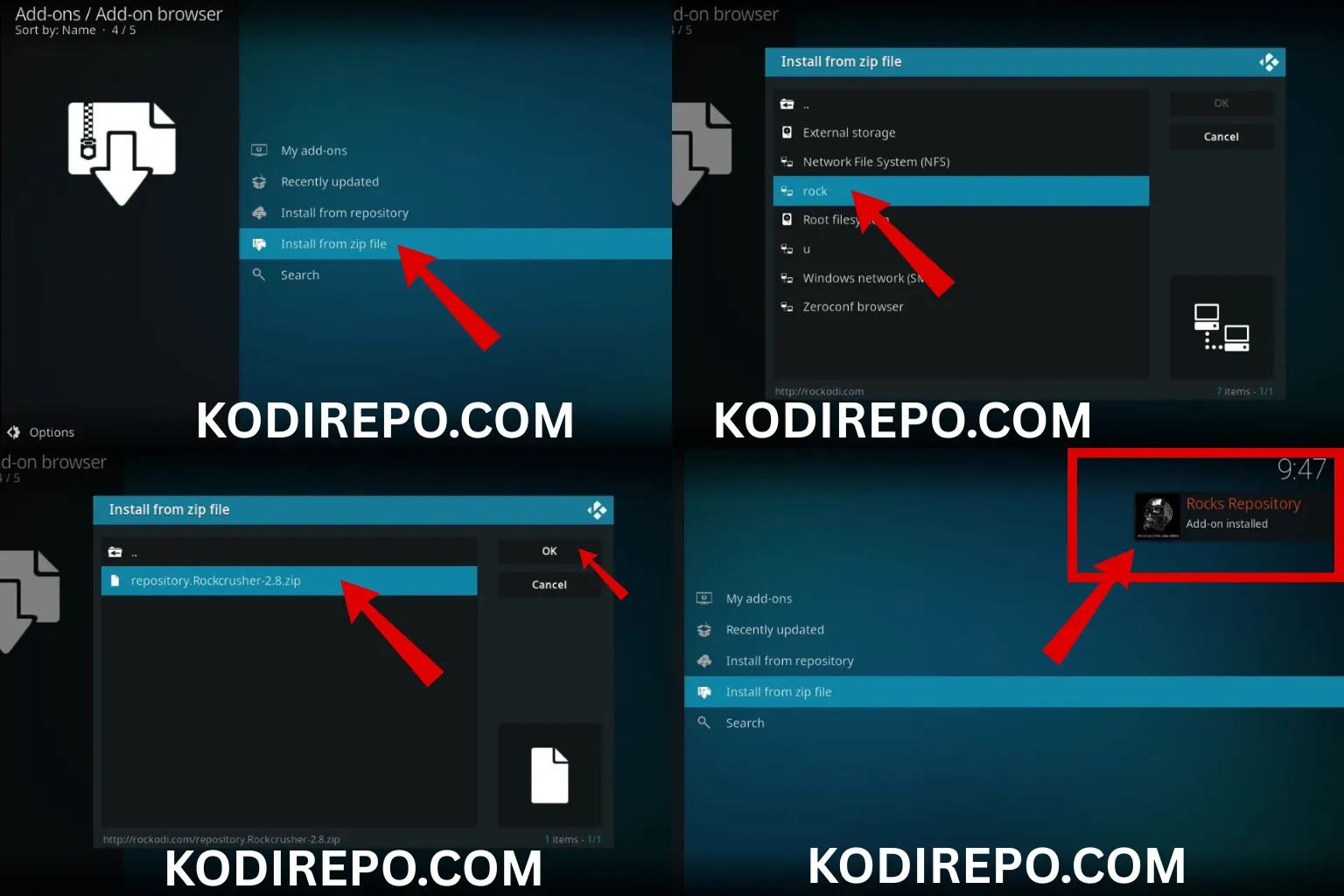
- Go back to the home screen and select Add-ons > Install from zip file.
- Choose the KodiVerse source and select the repository file.
- Wait for the installation to complete, then install the KodiVerse addon from the repository.
How to Install KodiVerse Kodi Addon on Android
Step 1: Download Kodi
- Open the Google Play Store on your Android device.
- Search for Kodi and install it.
Step 2: Install KodiVerse Addon
- Open Kodi and navigate to Settings > File Manager > Add Source.
- Enter the KodiVerse repository URL:
https://kodiverse.xyz/repo. - Name the source and click OK.
- Go to Add-ons > Install from zip file > KodiVerse.
- Select the repository file and wait for installation.
- Install the KodiVerse addon from the repository.
How to Install KodiVerse Kodi Addon on PCs
Step 1: Download Kodi
- Visit the official Kodi website:
https://kodi.tv/download. - Download the Windows version.
- Install Kodi by following the on-screen instructions.
Step 2: Install KodiVerse Addon
- Open Kodi and go to Settings > File Manager > Add Source.
- Enter the KodiVerse repository URL:
https://kodiverse.xyz/repo. - Name the source and click OK.
- Navigate to Add-ons > Install from zip file > KodiVerse.
- Select the repository file and wait for installation.
- Install the KodiVerse addon from the repository.
Tips for Using KodiVerse Safely
- Use a VPN: Protect your privacy and bypass geo-restrictions.
- Keep Kodi Updated: Ensure compatibility with the latest addons.
- Clear Cache Regularly: Improve performance and avoid buffering.
- Avoid Suspicious Links: Stick to trusted sources for addons.
Troubleshooting Common Issues
- Addon Not Installing: Check the repository URL and ensure it’s correct.
- Buffering Issues: Clear cache or switch to a faster server.
- Addon Not Working: Update Kodi and the addon to the latest version.
Conclusion
Installing KodiVerse Kodi addon on FireStick, Android, or PCs is a straightforward process that unlocks a world of entertainment. By following this guide, you can enjoy seamless streaming on your preferred device. Remember to use a VPN for added security and always download addons from trusted sources. Happy streaming!
Keywords used naturally: KodiVerse Kodi addon, FireStick, Android, PCs, installation guide, streaming, Kodi addon, third-party addon, VPN, repository URL.