
Drag the slider to adjust text size.
The Aliunde Kodi addon has become one of the most popular choices for streaming enthusiasts in 2026. This versatile addon offers access to a wide range of content, including movies, TV shows, live sports, and more. Whether you’re a beginner or an experienced Kodi user, this guide will walk you through the installation process step-by-step on any device.
🔒 Protect Your Kodi Streaming
Avoid ISP tracking and stream Kodi safely using one of the fastest and most trusted VPN services.
✔ Works with Kodi & Firestick
✔ No Logs Privacy Protection
✔ 30-Day Money Back Guarantee
Recommended for safe and private Kodi streaming
What is the Aliunde Kodi Addon?
Before diving into the installation process, let’s briefly discuss what makes Aliunde Kodi addon stand out. This third-party addon is known for its extensive library of high-quality streams, user-friendly interface, and regular updates. It’s compatible with various Kodi builds and works seamlessly on devices like Firestick, Android TV, Windows, Mac, and more.
Prerequisites for Installing Aliunde Kodi Addon
Before you begin, ensure you have the following:
- Kodi App: Make sure you have the latest version of Kodi installed on your device.
- Unknown Sources Enabled: Kodi requires you to enable “Unknown Sources” to install third-party addons.
- Stable Internet Connection: A reliable internet connection is essential for smooth streaming.
Step-by-Step Guide to Install Aliunde Kodi Addon
Step 1: Enable Unknown Sources
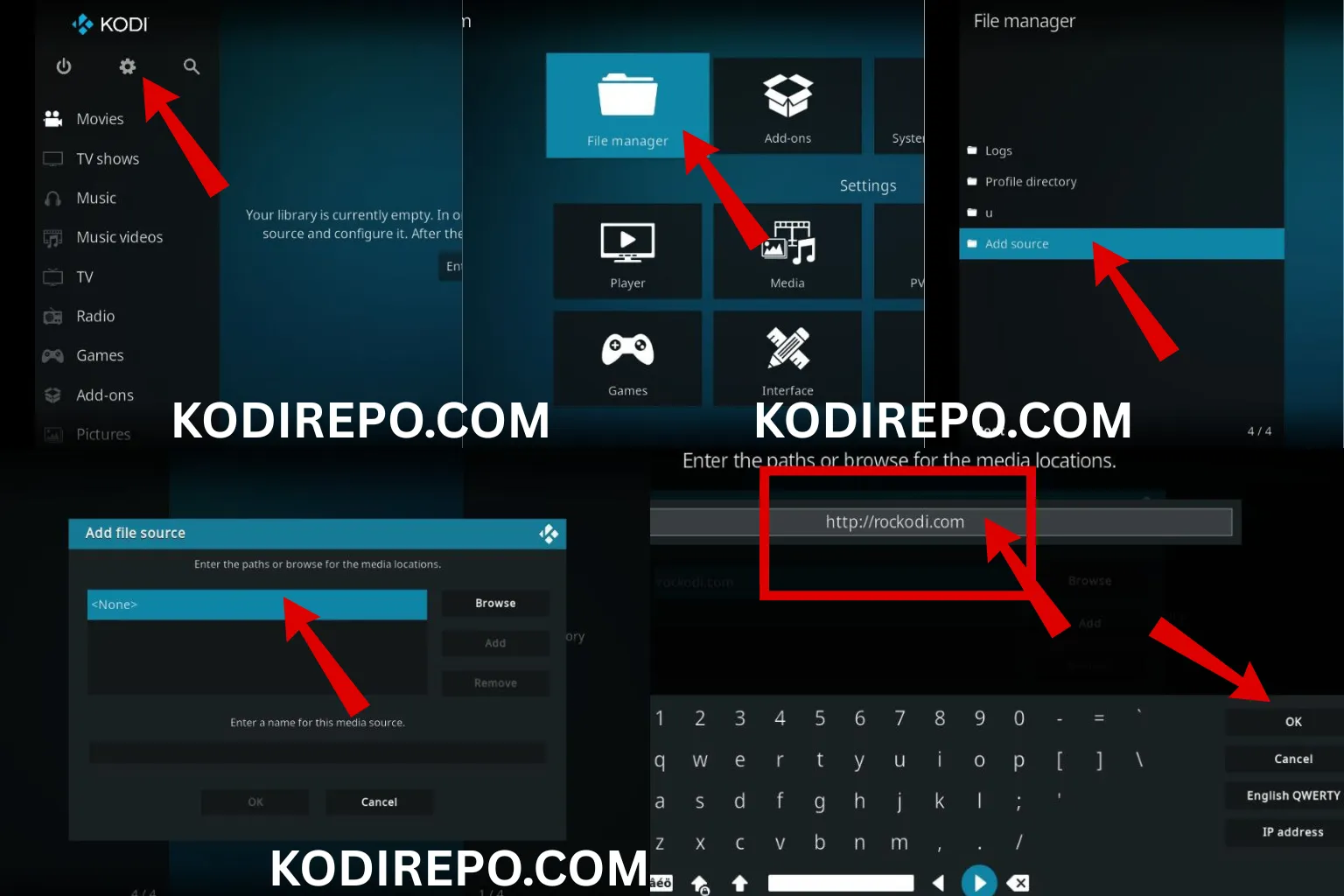
- Open Kodi and click on the Settings icon (gear icon) in the top-left corner.
- Navigate to System > Add-ons.
- Toggle on the option for Unknown Sources.
- A warning message will appear. Click Yes to confirm.
Step 2: Add the Aliunde Repository Source
⚠️ WARNING: Before installing this Kodi addon, it is strongly recommended to use a VPN to protect your privacy while streaming.
👉 Get 76% NordVPN Deal- Go back to the Settings menu and select File Manager.
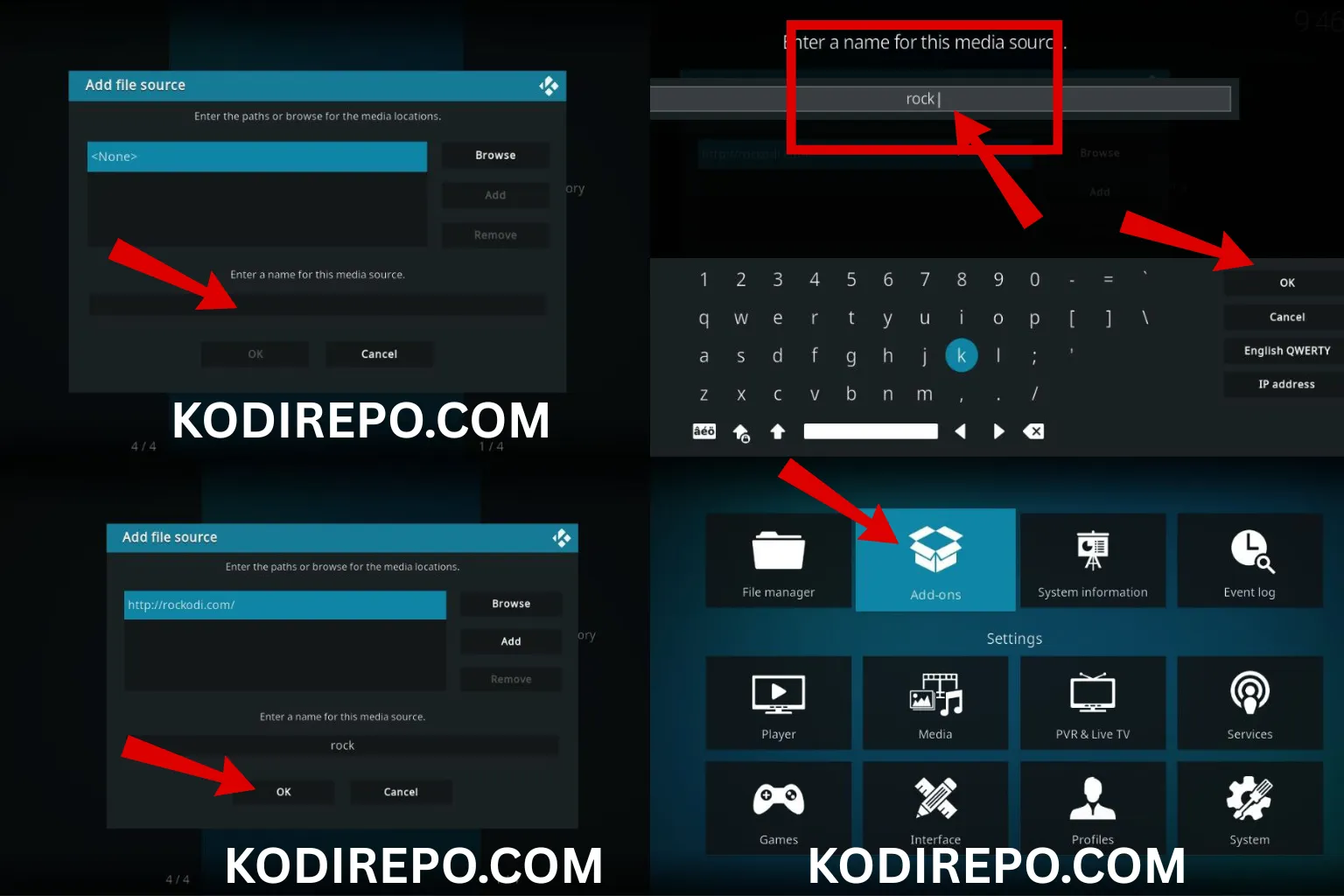
- Click on Add Source and then .
- Enter the URL for the Aliunde repository:
https://fuse99.com/aliunde - Name the source as Aliunde and click OK.
Step 3: Install the Aliunde Repository
- Return to the Settings menu and select Add-ons.
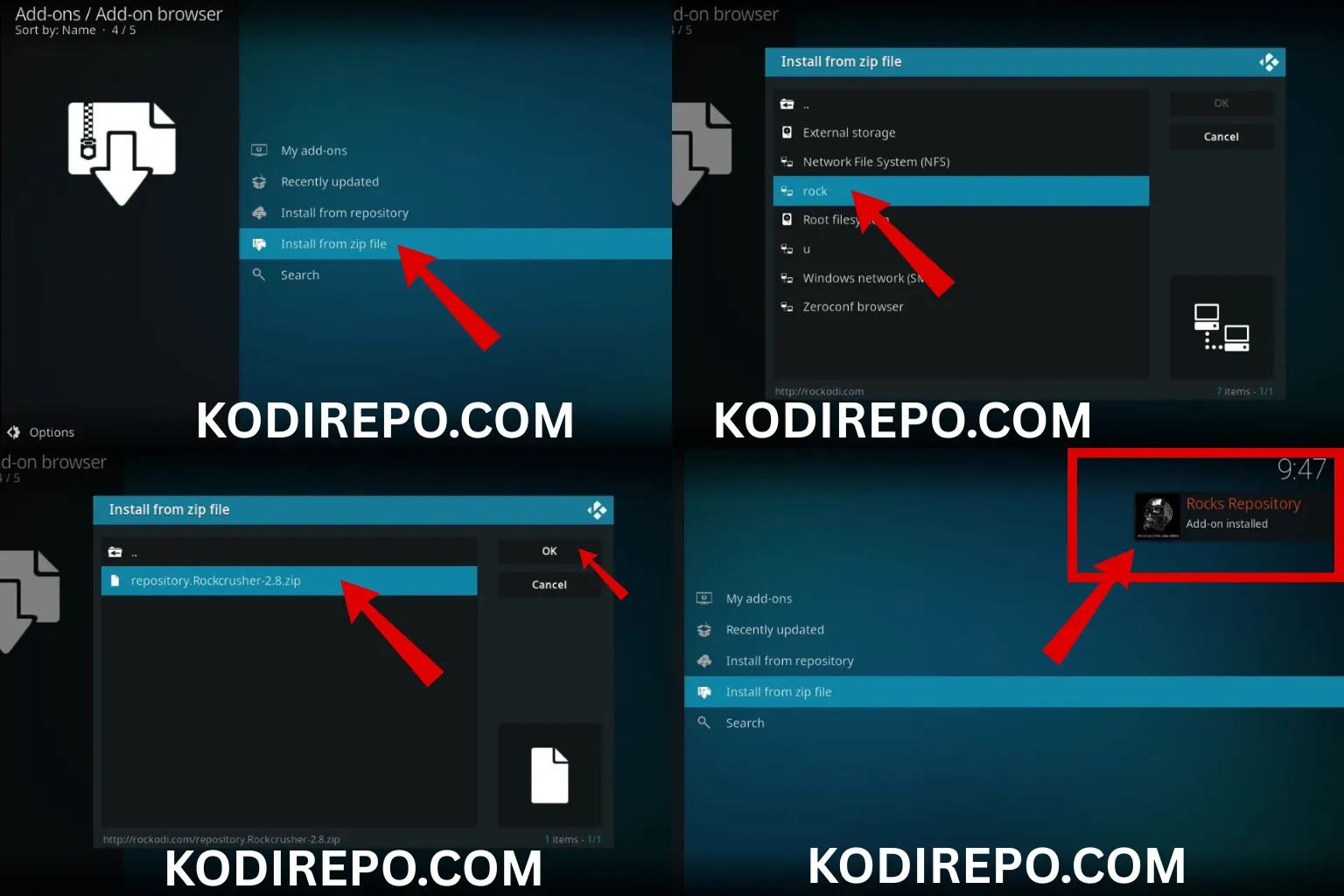
- Click on Install from zip file.
- Choose Aliunde from the list of sources.
- Select the repository file (e.g.,
repository.aliunde.zip). - Wait for the notification confirming the successful installation of the repository.
Step 4: Install the Aliunde Kodi Addon
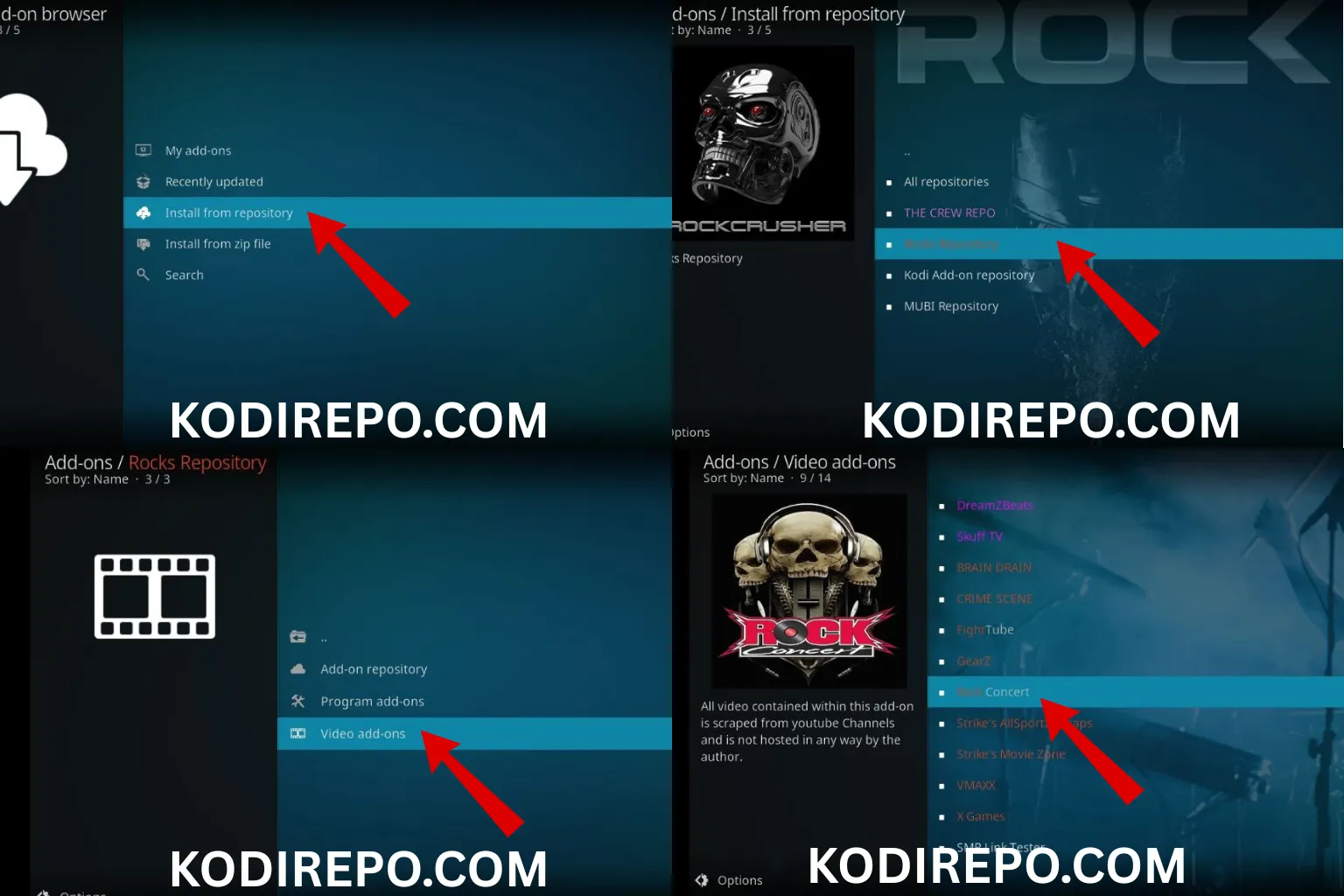
- Go back to Add-ons and click on Install from repository.
- Select Aliunde Repository.
- Navigate to Video add-ons and find Aliunde.
- Click on Install and wait for the addon to download and install.
- Once installed, you’ll see a notification confirming the successful installation.
Step 5: Launch the Aliunde Addon
- Return to the Add-ons menu and select Video add-ons.
- Click on Aliunde to launch the addon.
- Explore the content library and start streaming your favorite shows and movies.
Troubleshooting Common Issues
- Addon Not Installing: Ensure the repository URL is correct and that you’ve enabled Unknown Sources.
- Streams Not Loading: Check your internet connection or try using a VPN for better performance.
- Addon Crashing: Clear the Kodi cache or reinstall the addon.
Why Use a VPN with Aliunde Kodi Addon?
Using a VPN for Kodi is highly recommended to protect your privacy and bypass geo-restrictions. A VPN encrypts your internet traffic, ensuring your streaming activities remain anonymous. Some popular VPN options for Kodi users include ExpressVPN, NordVPN, and Surfshark.
Conclusion
The Aliunde Kodi addon is a fantastic addition to your streaming setup, offering a vast library of content and a seamless user experience. By following this guide, you can easily install and enjoy the addon on any device. Remember to use a VPN for added security and to explore the addon’s features to make the most of your streaming experience.
Pro Tip: Regularly update the Aliunde addon to access the latest features and content. Happy streaming!