Drag the slider to adjust text size.
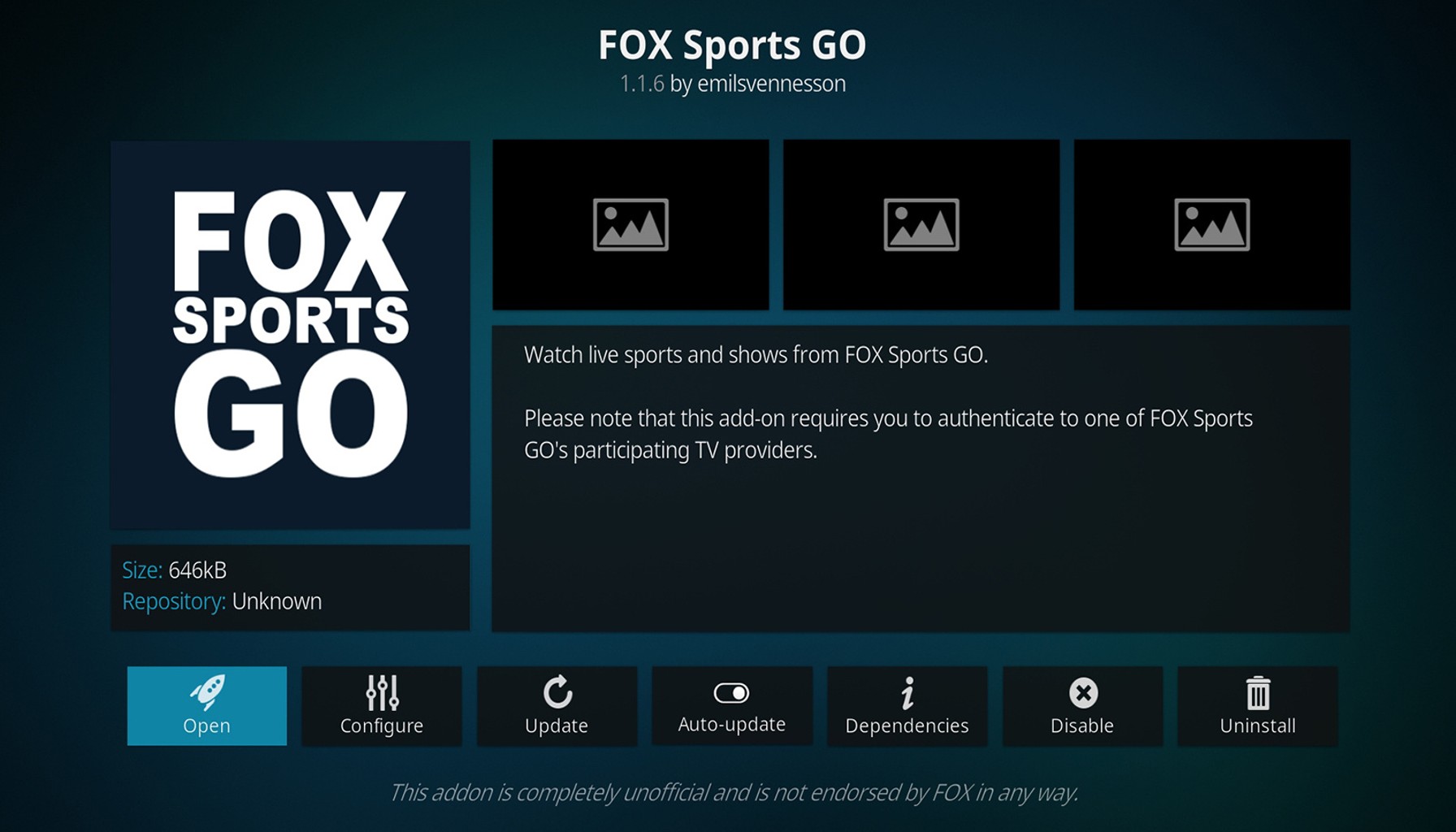
If you’re a sports enthusiast who loves streaming live games, highlights, and exclusive content, the Fox Sports GO Kodi addon is a must-have for your Kodi setup. This addon allows you to access Fox Sports content directly through Kodi, making it easier to enjoy your favorite sports without switching between apps. In this guide, we’ll walk you through the installation process step by step, ensuring even beginners can follow along.
🔒 Protect Your Kodi Streaming
Avoid ISP tracking and stream Kodi safely using one of the fastest and most trusted VPN services.
✔ Works with Kodi & Firestick
✔ No Logs Privacy Protection
✔ 30-Day Money Back Guarantee
Recommended for safe and private Kodi streaming
What is Fox Sports GO Kodi Addon?
The Fox Sports GO Kodi addon is a third-party addon that integrates Fox Sports’ live TV, on-demand content, and replays into the Kodi media player. It’s perfect for cord-cutters who want to stream sports like NFL, MLB, NASCAR, and more without a cable subscription. However, since it’s a third-party addon, you’ll need to install it manually using a repository.
Why Use Fox Sports GO on Kodi?
- Convenience: Access all Fox Sports content in one place.
- Customization: Kodi’s interface allows you to organize and stream content seamlessly.
- Cost-effective: No need for a cable subscription to watch live sports.
Prerequisites Before Installation
Before installing the Fox Sports GO Kodi addon, ensure you have the following:
- Kodi Installed: Make sure you’re using the latest version of Kodi.
- Unknown Sources Enabled: Go to Settings > System > Add-ons > Unknown Sources and toggle it on.
- A Reliable VPN: Since third-party addons can sometimes access geo-restricted content, using a VPN is highly recommended for privacy and security.
Step-by-Step Installation Guide
Step 1: Install the Fox Sports Repository
The Fox Sports GO Kodi addon is hosted in a third-party repository. Here’s how to install it:
⚠️ WARNING: Before installing this Kodi addon, it is strongly recommended to use a VPN to protect your privacy while streaming.
👉 Get 76% NordVPN Deal- Launch Kodi and click the Settings icon
- Click Add-ons which is the open box icon Install Kodi Addon
- Click Install From Repository
- By default you are now in the Kodi Add-On Repository. Then select Video add-ons
- Choose Fox Sports
- Click Install
- Kodi will then prompt the message below stating “The following additional add-ons will be installed”, Click OK
- Wait for Fox Sports add-on installed message to appear
- Return back to the home screen of Kodi and select add-ons
- Choose Video add-ons
- Select Popcornflix
- The installation of the Fox Sports Kodi Addon is now complete!
Step 2: Configure the Addon
- Open the Fox Sports GO Kodi addon from the Add-ons menu.
- You may need to log in with your Fox Sports GO credentials (if required).
- Browse through the available content and start streaming!
Troubleshooting Common Issues
Issue 1: Addon Not Installing
- Solution: Ensure you’ve entered the correct repository URL and that the source is properly named.
Issue 2: Streaming Buffering
- Solution: Check your internet connection or use a VPN to improve streaming speeds.
Issue 3: Geo-Restrictions
- Solution: Use a VPN to bypass regional restrictions and access Fox Sports content.
Tips for Optimal Streaming
- Use a VPN: Protect your privacy and access geo-restricted content.
- Clear Cache: Regularly clear Kodi’s cache to improve performance.
- Update Kodi: Always use the latest version of Kodi for compatibility.
Conclusion
The Fox Sports GO Kodi addon is a fantastic way to stream live sports and on-demand content directly through Kodi. By following this guide, you can easily install and configure the addon, even if you’re a beginner. Remember to use a VPN for added security and to bypass any geo-restrictions. Now, sit back, relax, and enjoy your favorite sports hassle-free!
FAQs
Q: Is the Fox Sports GO Kodi addon free?
A: Yes, the addon itself is free, but you may need a Fox Sports GO subscription to access certain content.
Q: Can I install this addon on Firestick?
A: Yes, the installation process is the same for Firestick and other devices.
Q: Is it legal to use third-party addons?
A: While Kodi itself is legal, third-party addons may access copyrighted content. Always use a VPN and ensure you’re streaming legally.
By following this guide, you’ll have the Fox Sports GO Kodi addon up and running in no time. Happy streaming!