Drag the slider to adjust text size.
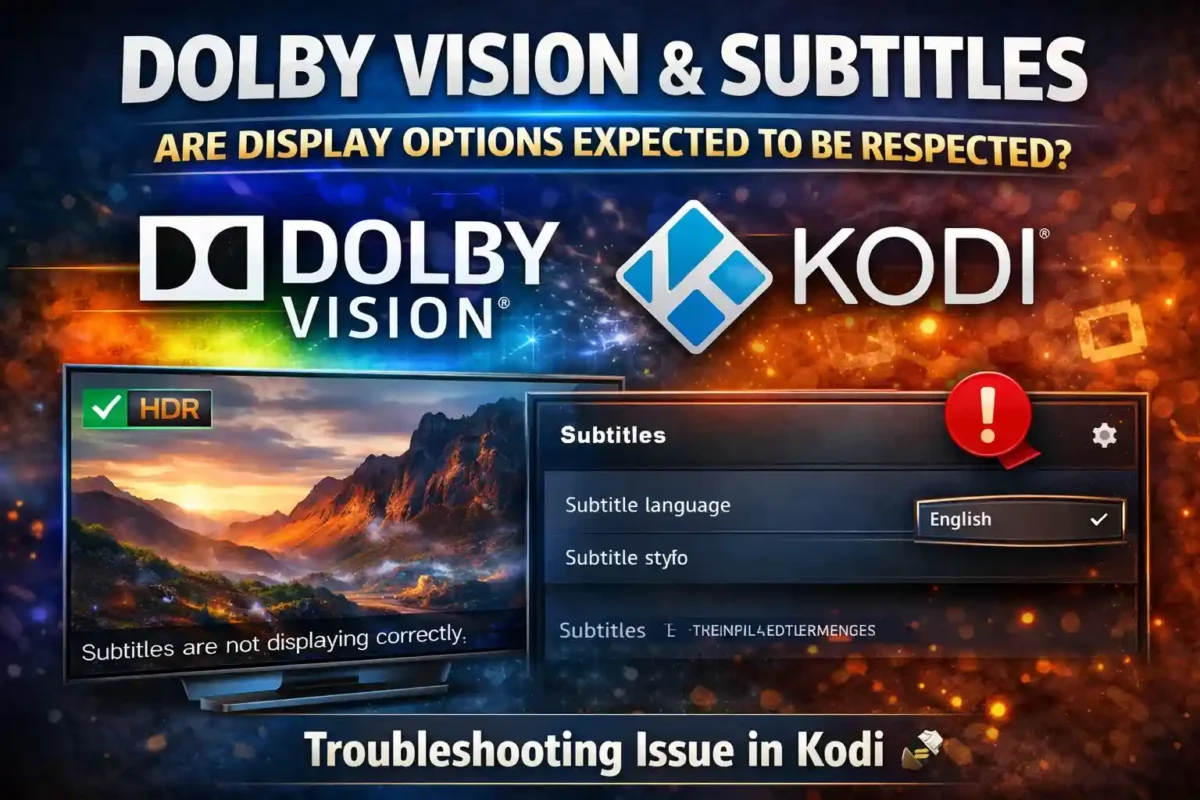
Dolby Vision and subtitles are two essential features that enhance the viewing experience on Kodi. However, many users report that their display settings—especially Dolby Vision and subtitle preferences—are not being respected by the media player. This article explores the issue, explains why it happens, and provides practical solutions to ensure your settings work as expected.
🔒 Protect Your Kodi Streaming
Avoid ISP tracking and stream Kodi safely using one of the fastest and most trusted VPN services.
✔ Works with Kodi & Firestick
✔ No Logs Privacy Protection
✔ 30-Day Money Back Guarantee
Recommended for safe and private Kodi streaming
Understanding Dolby Vision and Subtitles in Kodi
Dolby Vision is a high dynamic range (HDR) format that delivers stunning contrast, brightness, and color accuracy. It’s especially popular among 4K UHD content enthusiasts. On the other hand, subtitles are crucial for accessibility, language learning, and understanding foreign-language content.
Kodi, being a highly customizable open-source media player, allows users to configure both Dolby Vision and subtitle settings. However, these settings don’t always behave as expected, leading to frustration.
Why Aren’t Dolby Vision and Subtitles Being Respected?
Several factors can cause Kodi to ignore your display and subtitle settings:
1. Hardware and Software Compatibility
Not all devices support Dolby Vision. Even if your TV is Dolby Vision-capable, your streaming device or Kodi build might not fully support it. Similarly, subtitle rendering depends on the player’s capabilities and the subtitle file format.
2. Incorrect Kodi Settings
Kodi’s video and subtitle settings might be misconfigured. For example, if Dolby Vision is disabled in the settings or if subtitle defaults are set incorrectly, the player won’t respect your preferences.
3. Add-on Issues
Third-party add-ons can override Kodi’s default settings. Some add-ons may not pass through Dolby Vision signals or may force subtitle tracks that conflict with your preferences.
4. Codec and Container Problems
Certain video codecs or container formats might not support Dolby Vision metadata. Similarly, subtitle formats like SRT or ASS might not be recognized properly by the player.
How to Fix Dolby Vision and Subtitle Issues in Kodi
Here are actionable steps to ensure your display options are respected:
1. Check Hardware Compatibility
- Ensure your TV, streaming device, and HDMI cable support Dolby Vision.
- Update your device firmware and Kodi to the latest versions.
2. Configure Kodi Video Settings
- Go to Settings > Player > Videos.
- Enable Adjust display refresh rate and Sync playback to display.
- Enable ** Dolby Vision** if available.
3. Adjust Subtitle Settings
- Navigate to Settings > Player > Language.
- Set your preferred subtitle language and default style.
- Enable Download information during playback to fetch subtitles automatically.
4. Use Compatible Add-ons
- Stick to well-maintained add-ons that support Dolby Vision and proper subtitle handling.
- Avoid add-ons known for forcing unwanted subtitle tracks.
5. Test with Different Files
- Try playing Dolby Vision content in supported formats like MP4 or MKV.
- Use subtitle files that are properly synced and formatted.
Best Practices for Dolby Vision and Subtitles
To avoid issues in the future:
- Regularly update Kodi and your device firmware.
- Use high-quality video and subtitle sources.
- Test your settings with different content to ensure consistency.
Conclusion
Dolby Vision and subtitles are powerful features that can significantly enhance your Kodi experience. However, they require proper configuration and compatible hardware to work correctly. By following the steps outlined in this article, you can ensure your display options are respected and enjoy a seamless viewing experience.
If you’re still facing issues, consider reaching out to Kodi’s community forums or support channels for personalized assistance.
FAQs
Q1: Why is Dolby Vision not working on my Kodi setup?
A: It could be due to hardware incompatibility, incorrect settings, or unsupported video formats.
Q2: How do I force subtitles in Kodi?
A: Go to Settings > Player > Language and set your preferred subtitle language. You can also use the subtitle button during playback.
Q3: Can I use Dolby Vision with any add-on?
A: Not all add-ons support Dolby Vision. Use reputable add-ons that explicitly mention HDR/Dolby Vision support.