Drag the slider to adjust text size.
The Zap Kodi addon is a popular choice among Kodi users who want access to a vast library of movies and TV shows. With its integration with premium debrid services, Zap delivers high-quality streaming links, making it a favorite for cord-cutters. In this guide, we’ll walk you through the step-by-step process of installing the Zap Kodi addon and setting it up for optimal performance.
🔒 Protect Your Kodi Streaming
Avoid ISP tracking and stream Kodi safely using one of the fastest and most trusted VPN services.
✔ Works with Kodi & Firestick
✔ No Logs Privacy Protection
✔ 30-Day Money Back Guarantee
Recommended for safe and private Kodi streaming
What is the Zap Kodi Addon?
Zap is a third-party Kodi addon that specializes in providing on-demand content, including the latest movies and TV shows. It stands out for its seamless integration with debrid services like Real-Debrid, Premiumize, and AllDebrid, which significantly enhances streaming quality and reduces buffering. Whether you’re a movie buff or a binge-watcher, Zap offers a user-friendly interface and a robust content library.
Is Zap Kodi Addon Safe and Legal?
Before installing any third-party addon, it’s essential to consider safety and legality. Zap is not available in the official Kodi repository, so you’ll need to install it from a third-party source. While the addon itself is generally safe, downloading from untrusted sources can pose risks. Always use a reputable VPN to protect your privacy and ensure secure streaming.
As for legality, the content you access through Zap depends on your location and the sources it pulls from. Using a VPN can help you stay anonymous and avoid potential legal issues.
Prerequisites for Installing Zap Kodi Addon
Before you begin the installation process, make sure you have the following:
- Kodi installed on your device (Windows, Mac, Android, or Firestick).
- A premium debrid account (optional but recommended for better streaming quality).
- A reliable VPN to protect your privacy and bypass geo-restrictions.
- Unknown Sources enabled in Kodi settings (required for third-party addons).
Step-by-Step Guide to Install Zap Kodi Addon
Step 1: Enable Unknown Sources
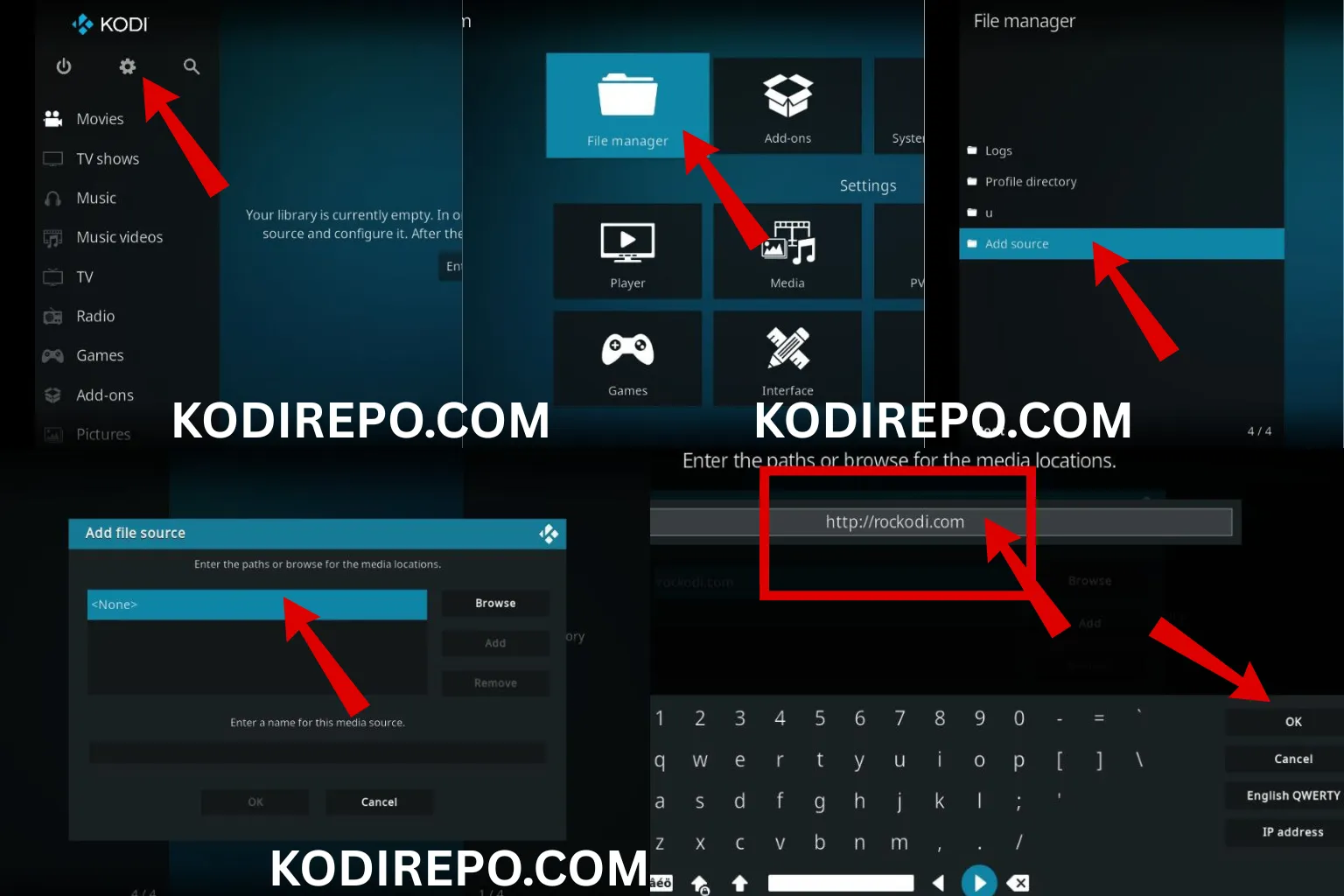
- Open Kodi and click on the Settings icon (gear icon) in the top-left corner.
- Navigate to System > Add-ons.
- Toggle on Unknown Sources and confirm the warning message.
Step 2: Install the Lazy Kodi Repository
Zap is hosted in the Lazy Kodi Repository, so you’ll need to install it first.
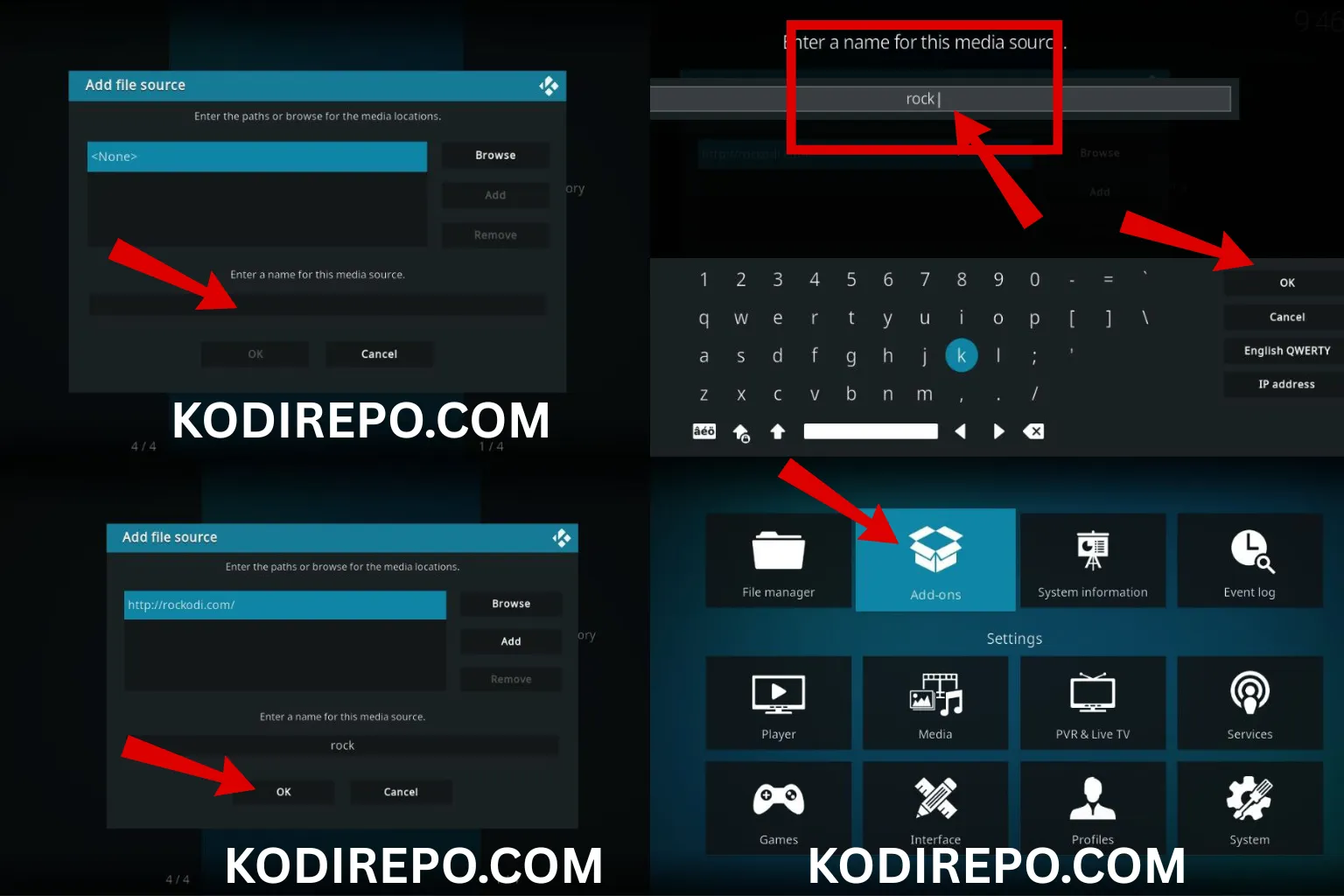
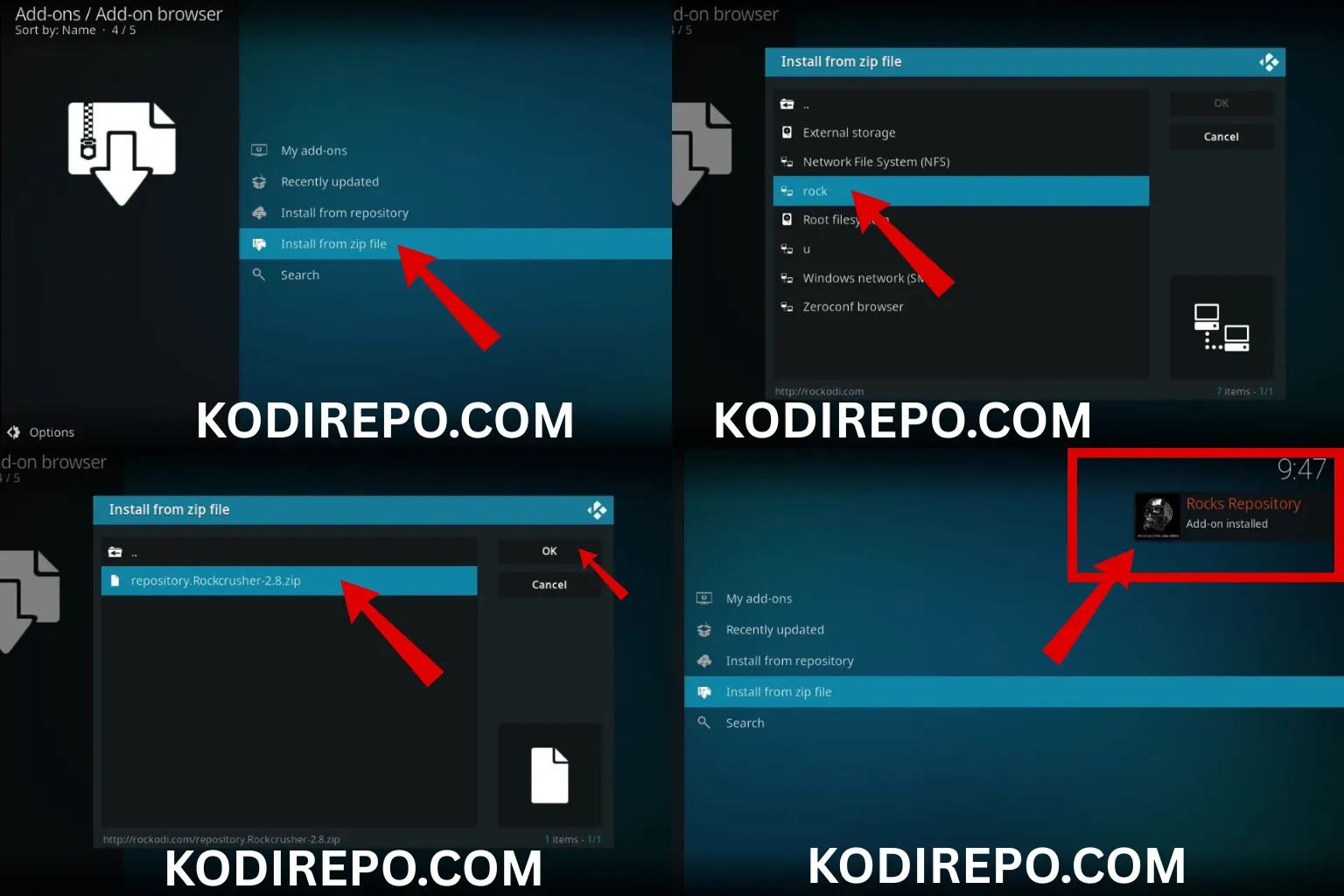
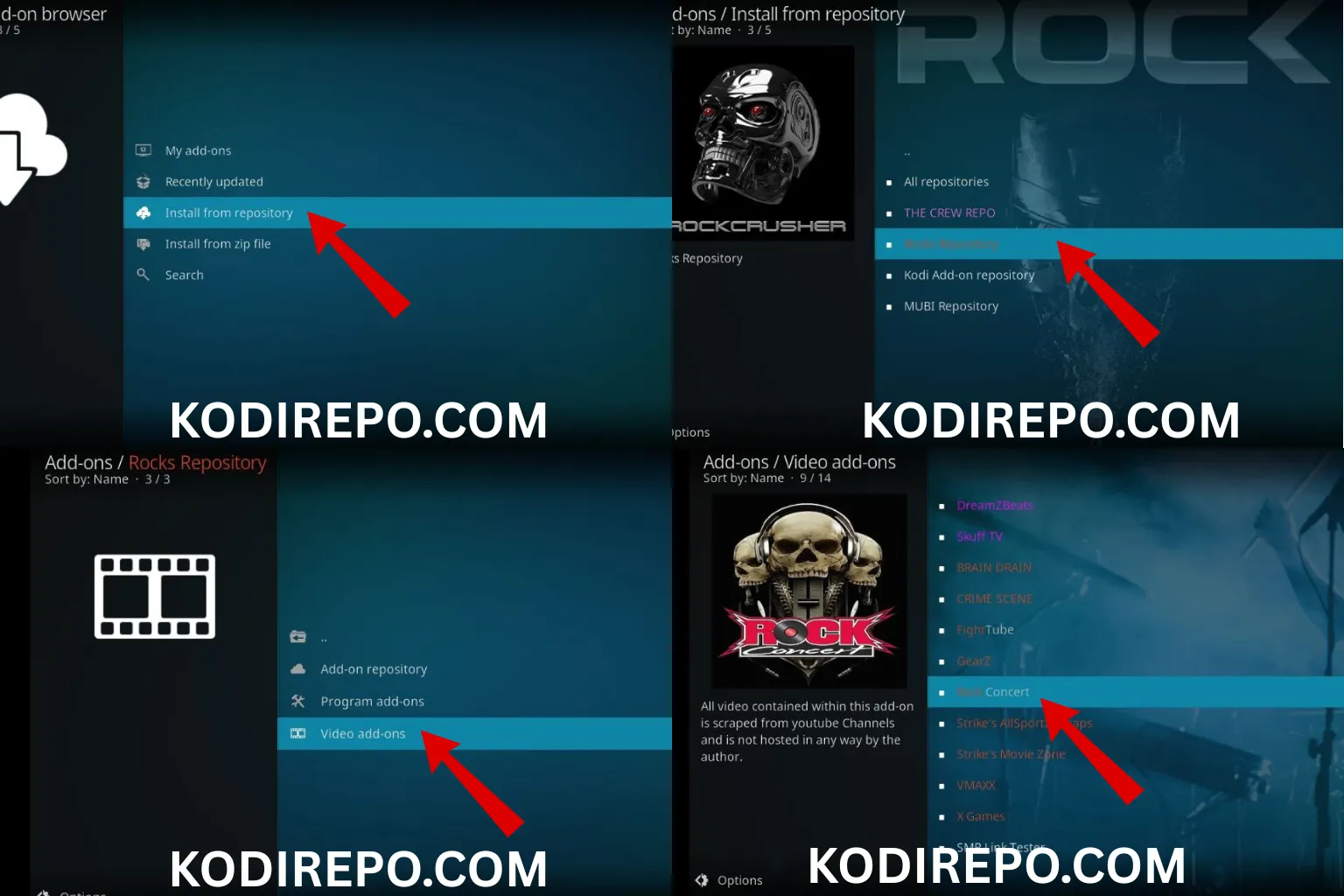
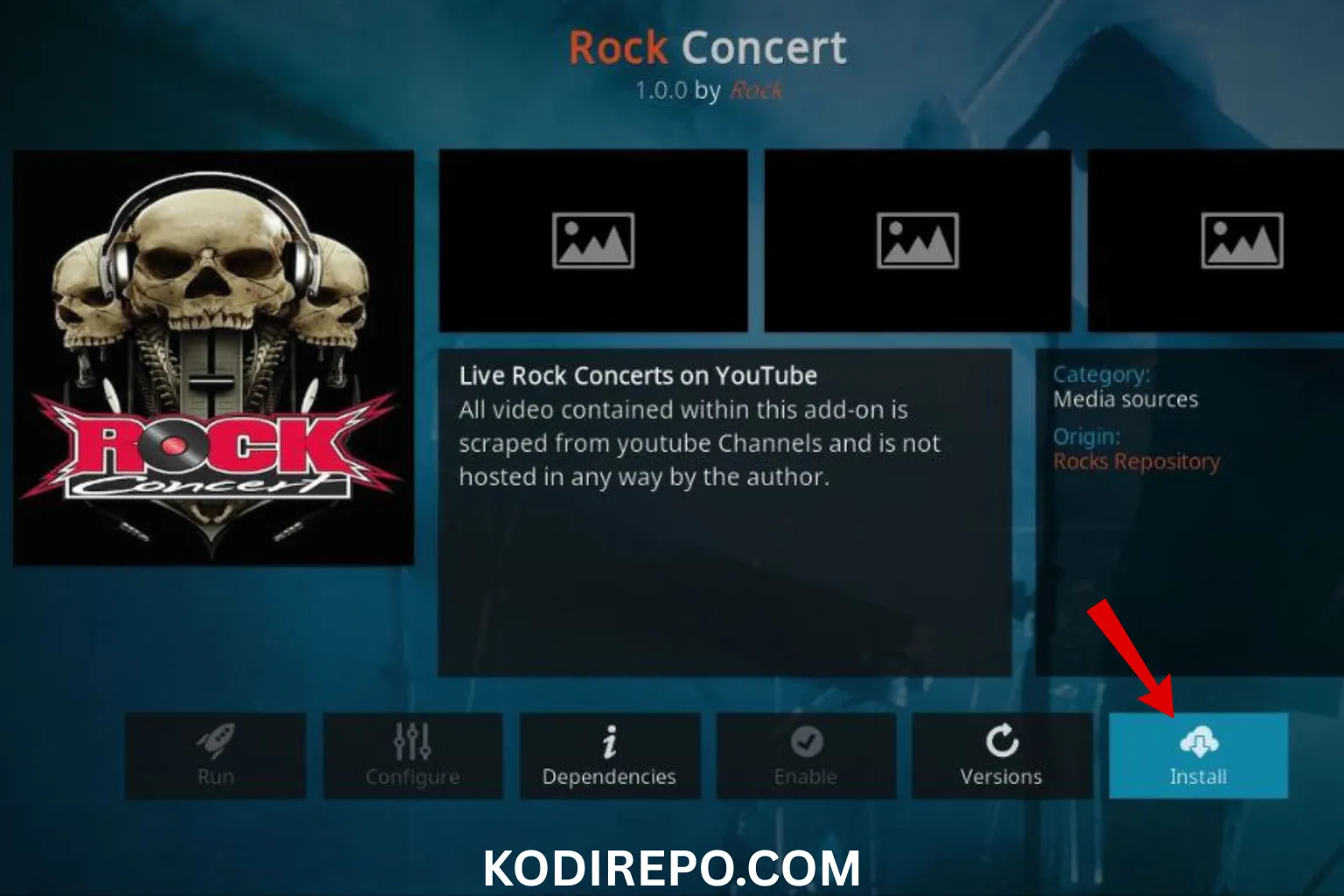
⚠️ WARNING: Before installing this Kodi addon, it is strongly recommended to use a VPN to protect your privacy while streaming.
👉 Get 76% NordVPN Deal- Go back to the Settings menu and select File Manager.
- Click on Add Source and then .
- Enter the URL:
https://fuse99.com/aliundeand click OK. - Name the source (e.g., “Lazy Kodi”) and click OK.
- Return to the Settings menu and select Add-ons.
- Click on Install from zip file and choose the “Lazy Kodi” source.
- Select the latest repository file (e.g.,
repository.lazykodi.zip) and wait for the installation to complete.
Step 3: Install the Zap Addon
- After installing the repository, go to Install from repository.
- Select Lazy Kodi Repository > Video add-ons.
- Scroll down and click on Zap.
- Click Install and wait for the addon to download and install.
Step 4: Configure Zap with Debrid Services
To unlock the full potential of Zap, integrate it with a premium debrid service.
- Open the Zap addon from the Add-ons menu.
- Navigate to Settings > Debrid Services.
- Select your preferred debrid service (e.g., Real-Debrid).
- Authorize the connection by following the on-screen instructions.
- Save your settings and restart the addon.
Troubleshooting Common Issues
- Zap not working: Ensure the Lazy Kodi Repository is up to date. If issues persist, try reinstalling the addon.
- No streams available: Check your debrid account balance and ensure it’s properly linked to Zap.
- Buffering issues: Use a premium debrid service and a stable internet connection for smoother streaming.
Tips for Optimizing Zap Kodi Addon
- Keep Kodi and addons updated to avoid compatibility issues.
- Use a VPN to protect your privacy and access geo-restricted content.
- Clear cache regularly to improve performance and reduce buffering.
- Explore Zap’s settings to customize your streaming experience.
Conclusion
The Zap Kodi addon is a powerful tool for streaming movies and TV shows, especially when paired with a premium debrid service. By following this guide, you can easily install and configure Zap to enjoy high-quality content on Kodi. Remember to prioritize safety by using a VPN and downloading from trusted sources. Happy streaming!