Drag the slider to adjust text size.
Kodi has evolved into one of the most versatile media center applications available, and installing it on your Xbox in 2026 is easier than ever. Whether you want to organize your media library, stream content, or customize your entertainment experience, Kodi transforms your Xbox into a powerful multimedia hub. This comprehensive guide walks you through every step of the installation process while addressing common issues users encounter.
🔒 Protect Your Kodi Streaming
Avoid ISP tracking and stream Kodi safely using one of the fastest and most trusted VPN services.
✔ Works with Kodi & Firestick
✔ No Logs Privacy Protection
✔ 30-Day Money Back Guarantee
Recommended for safe and private Kodi streaming
What is Kodi and Why Install It on Xbox?
Kodi is an open-source media player software that supports virtually every media format imaginable. When installed on your Xbox, it provides a unified interface for managing movies, TV shows, music, photos, and even live TV. The Xbox version benefits from the console’s powerful hardware, offering smooth playback and excellent performance for even high-resolution content.
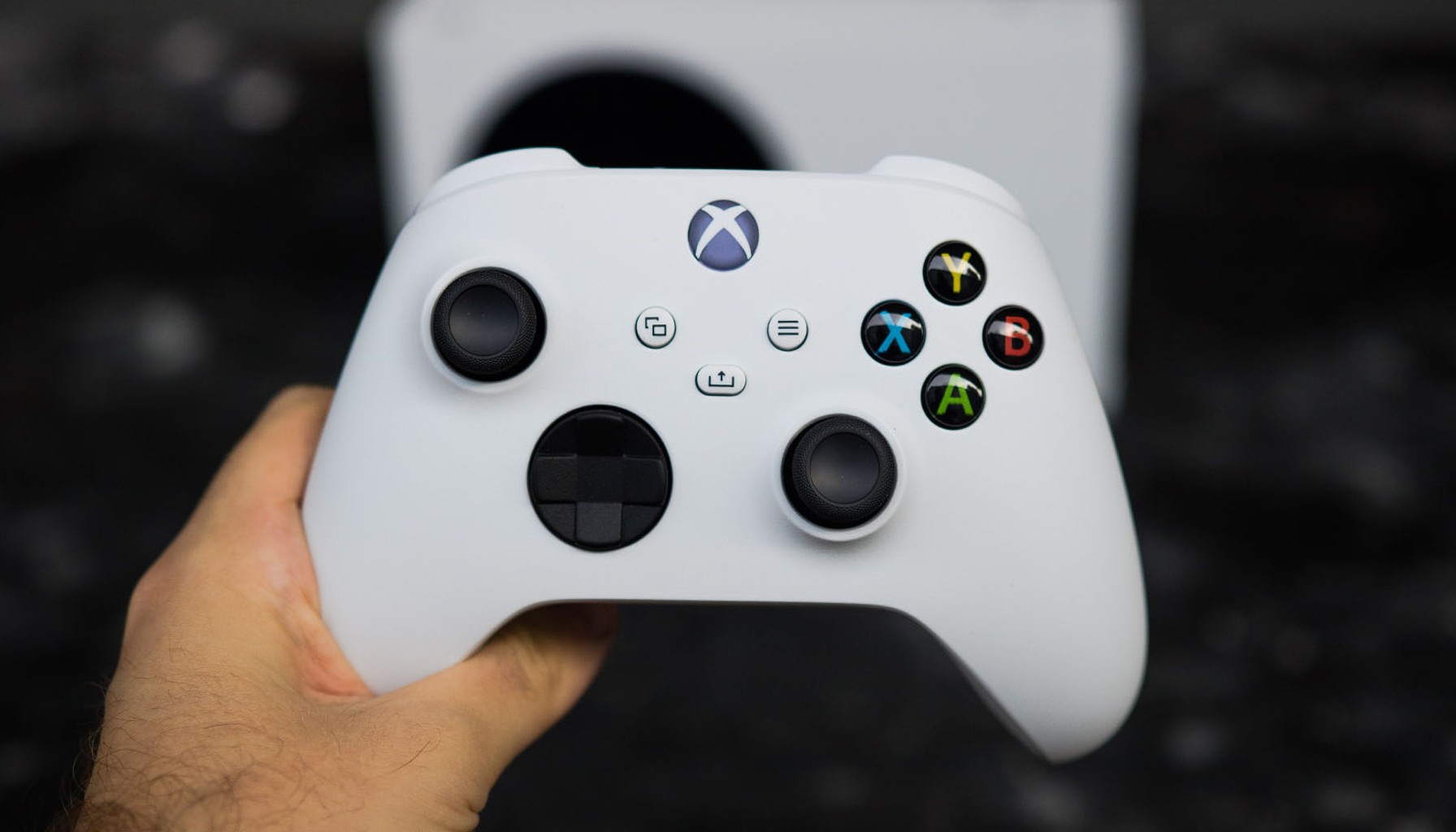
The integration between Kodi and Xbox creates a seamless entertainment experience. You can use your existing Xbox controller, voice commands through Kinect or compatible devices, and access all your media through a familiar console interface. Plus, Kodi’s extensive add-on ecosystem means you can expand functionality beyond basic media playback.
Prerequisites Before Installation
Before diving into the installation process, ensure your Xbox meets the necessary requirements. Your console must be running the latest system software to access the Microsoft Store where Kodi is available. Check for updates in Settings > System > Updates to make sure everything is current.
You’ll need a Microsoft account linked to your Xbox, as this is required for downloading apps from the store. Ensure you have sufficient storage space available—Kodi itself doesn’t take up much room, but you’ll want extra space for your media library if you plan to store content locally on the console.
A stable internet connection is essential for downloading Kodi and any additional add-ons you might want later. While Kodi works offline once installed, the initial setup and updates require connectivity.
Step-by-Step Installation Guide
Method 1: Installing Kodi from Microsoft Store
The official and recommended way to install Kodi on Xbox is through the Microsoft Store. This method ensures you get the legitimate, optimized version specifically designed for Xbox consoles.
Press the Xbox button on your controller to open the guide, then navigate to the Microsoft Store icon. You can find it in your apps list or on the home screen. Once in the store, select the Search option and type “Kodi” into the search bar.
Look for the official Kodi app, which should display the familiar Kodi logo—a stylized “K” inside a blue circle. The developer should be listed as XBMC Foundation. Click on the Kodi listing to view the app details page.
On the Kodi page, you’ll see an Install button. Select it, and the download will begin automatically. The installation process typically takes just a few minutes, depending on your internet speed. You can monitor the progress in the notification area of your Xbox dashboard.
Once installation completes, you can launch Kodi directly from the store page or find it in your apps library. The first time you open Kodi, it will perform some initial setup tasks and may prompt you to configure basic settings.
Method 2: Sideloading Kodi (For Advanced Users)
While the Microsoft Store method is recommended, some users prefer sideloading for access to specific versions or configurations. This method requires enabling developer mode on your Xbox, which voids certain warranty protections and should only be attempted by experienced users.
To enable developer mode, go to Settings > System > Console info and select “Make this my development console.” Follow the prompts to register your device as a developer unit. This process requires a free Microsoft developer account.
Once developer mode is enabled, you can use the Windows Device Portal to deploy applications to your Xbox. Connect your Xbox to your PC using the same network, then access the device portal through a web browser at the IP address shown on your Xbox.
From the device portal, you can upload Kodi APK files for installation. This method allows installation of beta versions or customized builds, but it’s more complex and carries risks if you’re not familiar with the process.
Initial Setup and Configuration
After successfully installing Kodi on your Xbox, the first launch presents you with several configuration options. The setup wizard guides you through basic preferences like language selection, interface theme, and media source configuration.
Kodi’s default skin on Xbox is optimized for controller navigation, but you can customize this later through the settings menu. The initial setup also asks about your preferred content types—movies, TV shows, music, and photos—which helps Kodi organize your library appropriately.
You’ll want to configure your media sources during this initial setup. Kodi can access content from local storage, network shares, and various online services. For Xbox users, network streaming from a PC or NAS device is particularly convenient, allowing you to access your existing media library without transferring files to the console.
Common Installation Issues and Solutions
Some users encounter problems during or after installation. If Kodi fails to install from the store, check your Xbox storage space and internet connection. Clear the Microsoft Store cache by closing and reopening the store app, or restart your Xbox completely.
If Kodi crashes on launch, ensure your Xbox system software is fully updated. Outdated system software can cause compatibility issues with newer app versions. You may also need to clear Kodi’s cache by uninstalling and reinstalling the app.
Controller navigation problems sometimes occur with certain Kodi versions. If your controller isn’t responding correctly, check the input settings within Kodi. The Xbox version should automatically configure controller support, but manual adjustments are sometimes necessary.
Performance issues like stuttering playback often relate to media file formats or network streaming problems. Convert problematic files to more compatible formats, or check your network connection if streaming from another device.
Essential Add-ons for Xbox Users
Once Kodi is installed and running smoothly, you can enhance its functionality with add-ons. The Xbox version supports most popular add-ons, though some may have specific optimizations for console use.
For media organization, consider add-ons like Artwork Beef for automatic metadata and artwork downloading, or Trakt for syncing your watch history across devices. These add-ons integrate seamlessly with Kodi’s library management system.
Streaming add-ons expand your content options significantly. While Kodi itself doesn’t provide content, legitimate streaming add-ons can access various online media sources. Always ensure you’re using authorized content sources to comply with copyright laws.
Live TV and DVR functionality is particularly valuable for Xbox users. Add-ons like NextPVR or MythTV integrate with TV tuner hardware, allowing you to watch and record live television through Kodi’s interface.
Optimizing Kodi Performance on Xbox
Your Xbox hardware provides excellent performance for Kodi, but some optimization can enhance your experience further. Adjust video playback settings based on your TV’s capabilities—enable hardware acceleration for supported formats to reduce CPU load and improve battery life on portable Xbox models.
Audio configuration is crucial for home theater setups. Kodi on Xbox supports advanced audio formats including Dolby Atmos and DTS:X. Configure your audio output settings to match your sound system for the best possible audio experience.
Network optimization improves streaming performance. If you’re accessing media from a network source, ensure your Xbox has a strong Wi-Fi connection or use a wired Ethernet connection for maximum stability. Adjust buffer settings in Kodi’s playback options to prevent interruptions.
Security and Privacy Considerations
When using Kodi on Xbox, be mindful of security and privacy aspects. Only install add-ons from trusted sources, as malicious add-ons can compromise your system or steal personal information. The official Kodi repository is the safest source for add-ons.
Review Kodi’s privacy settings to control data collection and sharing preferences. While Kodi itself doesn’t collect personal data, some add-ons may have their own privacy policies that you should understand before installation.
Keep Kodi updated to the latest version for security patches and performance improvements. The Microsoft Store version should update automatically, but check periodically to ensure you have the latest release.
Troubleshooting Common Problems
If you experience issues with Kodi on Xbox, several troubleshooting steps can help resolve most problems. Start with the simplest solutions: restart Kodi, restart your Xbox, or check your network connection.
For persistent issues, clear Kodi’s cache and temporary files through the settings menu. This can resolve problems with slow performance, crashes, or display issues. You won’t lose your library configuration or add-on settings when clearing cache.
If specific add-ons aren’t working, check for updates or reinstall them. Add-on developers frequently release updates to fix bugs and improve compatibility with new Kodi versions.
When all else fails, completely uninstall and reinstall Kodi. This gives you a fresh installation while preserving your Xbox system software and other apps.
Conclusion
Installing Kodi on your Xbox in 2026 opens up a world of entertainment possibilities, transforming your console into a comprehensive media center. The process is straightforward whether you use the official Microsoft Store method or advanced sideloading techniques for specific needs.
With proper setup and configuration, Kodi provides an intuitive interface for managing and enjoying your entire media collection. The combination of Xbox’s powerful hardware and Kodi’s flexible software creates an ideal platform for both casual viewers and media enthusiasts.
Remember to keep your installation updated, use trusted add-ons, and optimize settings for your specific hardware and network configuration. With these practices, your Kodi on Xbox experience will be smooth, reliable, and thoroughly enjoyable for years to come.
Frequently Asked Questions
Is Kodi free to install on Xbox?
Yes, Kodi is completely free to download and use on Xbox through the Microsoft Store. There are no subscription fees or hidden costs for the basic application.
Can I use my Xbox controller with Kodi?
Absolutely. Kodi on Xbox is specifically optimized for controller navigation, providing an intuitive interface that works seamlessly with your Xbox controller.
Does Kodi on Xbox support 4K and HDR?
Yes, Kodi on Xbox supports 4K resolution and HDR content, provided your TV and media files are compatible. The Xbox hardware handles these formats efficiently.
Can I install Kodi add-ons on Xbox?
Most Kodi add-ons are compatible with the Xbox version, though some may have specific optimizations. You can install add-ons through Kodi’s built-in repository browser.
Will installing Kodi void my Xbox warranty?
Installing Kodi from the official Microsoft Store will not void your warranty. However, enabling developer mode for sideloading may affect warranty coverage, so proceed with caution.