Drag the slider to adjust text size.
TVOne Addon is a popular choice among Kodi users looking for a wide range of live TV channels, movies, and on-demand content. Whether you’re using a Firestick or an Android TV, installing TVOne Addon can significantly enhance your streaming experience. This guide will walk you through the installation process step by step, ensuring you can enjoy seamless entertainment.
🔒 Protect Your Kodi Streaming
Avoid ISP tracking and stream Kodi safely using one of the fastest and most trusted VPN services.
✔ Works with Kodi & Firestick
✔ No Logs Privacy Protection
✔ 30-Day Money Back Guarantee
Recommended for safe and private Kodi streaming
What is TVOne Addon?
TVOne Addon is a third-party Kodi addon that provides access to a variety of live TV channels, movies, and TV shows. It’s particularly popular for its user-friendly interface and extensive content library. However, since it’s a third-party addon, it’s essential to use a VPN to protect your privacy and ensure secure streaming.
Why Use TVOne Addon?
- Wide Content Selection: Access to live TV, movies, and on-demand content.
- User-Friendly Interface: Easy navigation for beginners and advanced users.
- Compatibility: Works seamlessly on Firestick, Android TV, and other Kodi-supported devices.
Prerequisites for Installation
Before you begin, ensure you have the following:
- Kodi Installed: Make sure Kodi is installed on your device.
- Unknown Sources Enabled: Go to Kodi Settings > System > Add-ons > Unknown Sources and toggle it on.
- A Reliable VPN: For privacy and security while streaming.
How to Install TVOne Addon on Kodi
Step 1: Enable Unknown Sources
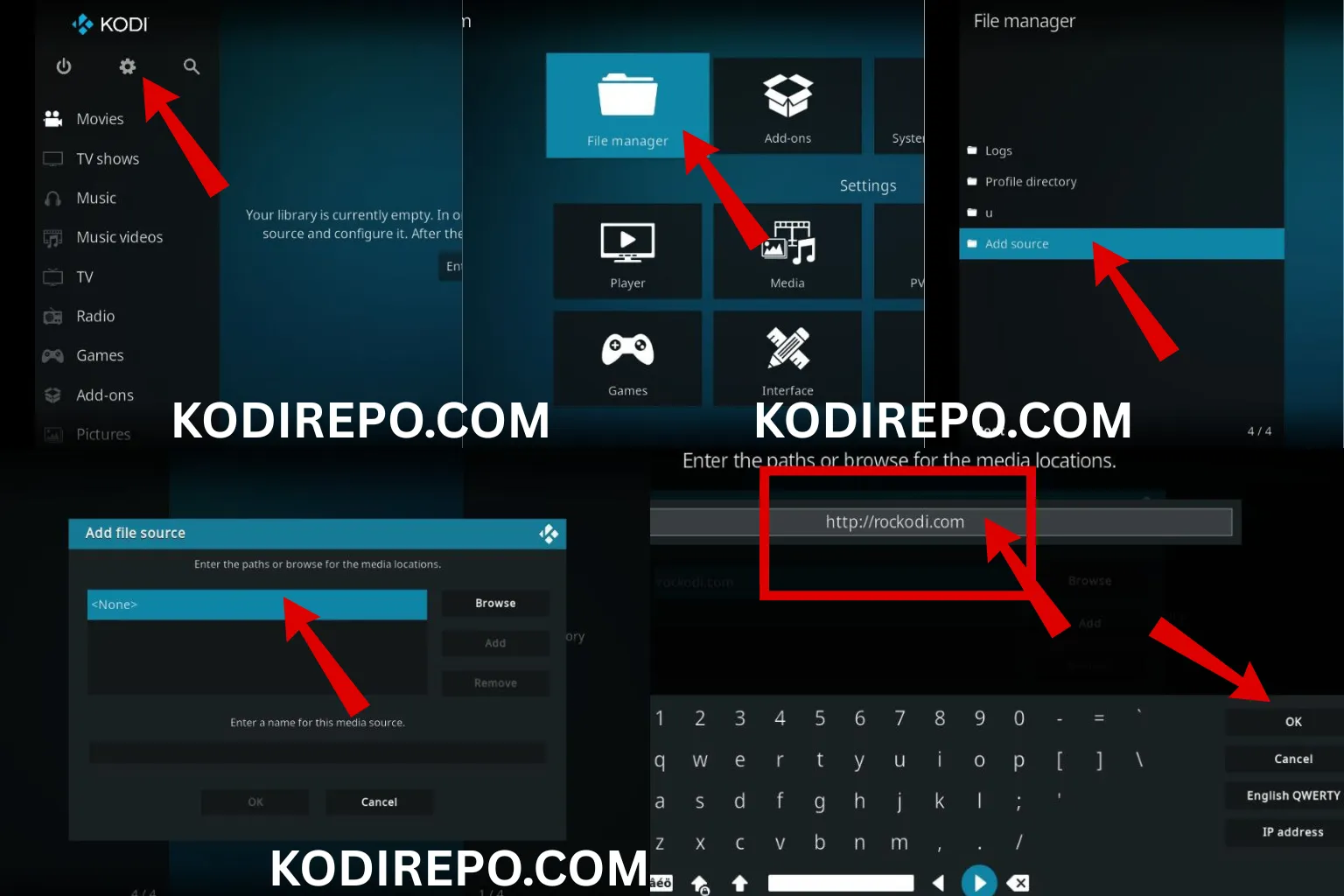
- Open Kodi and navigate to the Settings (gear icon).
- Click on System.
- Select Add-ons from the left menu.
- Toggle on Unknown Sources.
- Confirm by clicking Yes on the warning message.
Step 2: Add the TVOne Repository
⚠️ WARNING: Before installing this Kodi addon, it is strongly recommended to use a VPN to protect your privacy while streaming.
👉 Get 76% NordVPN Deal- Go back to the Settings menu.
- Click on File Manager.
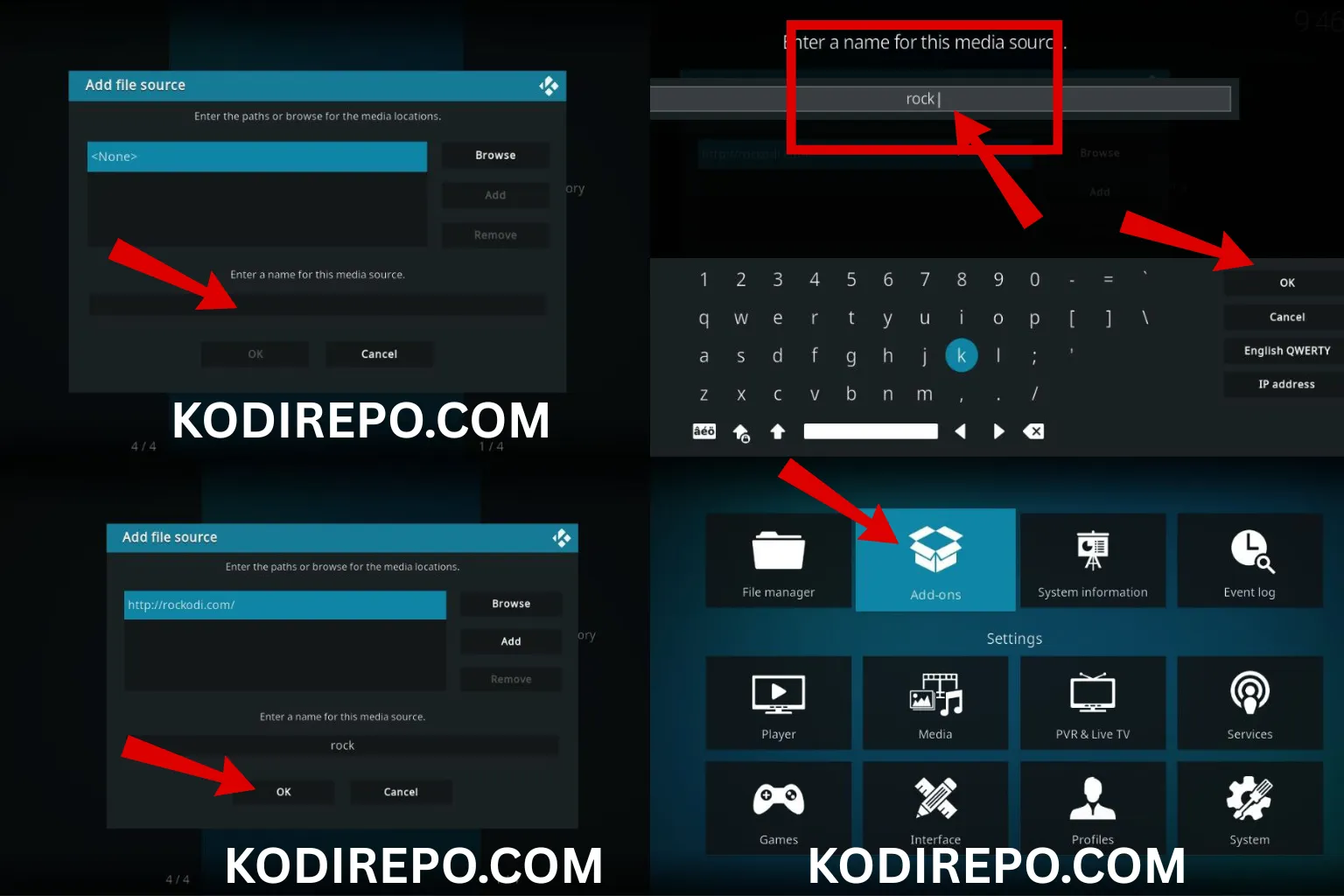
- Select Add Source.
- Click on and enter the repository URL:
http://repo.redwizard.xyz. - Name the source (e.g., “TVOne”) and click OK.
Step 3: Install the TVOne Addon
- Return to the Settings menu and select Add-ons.
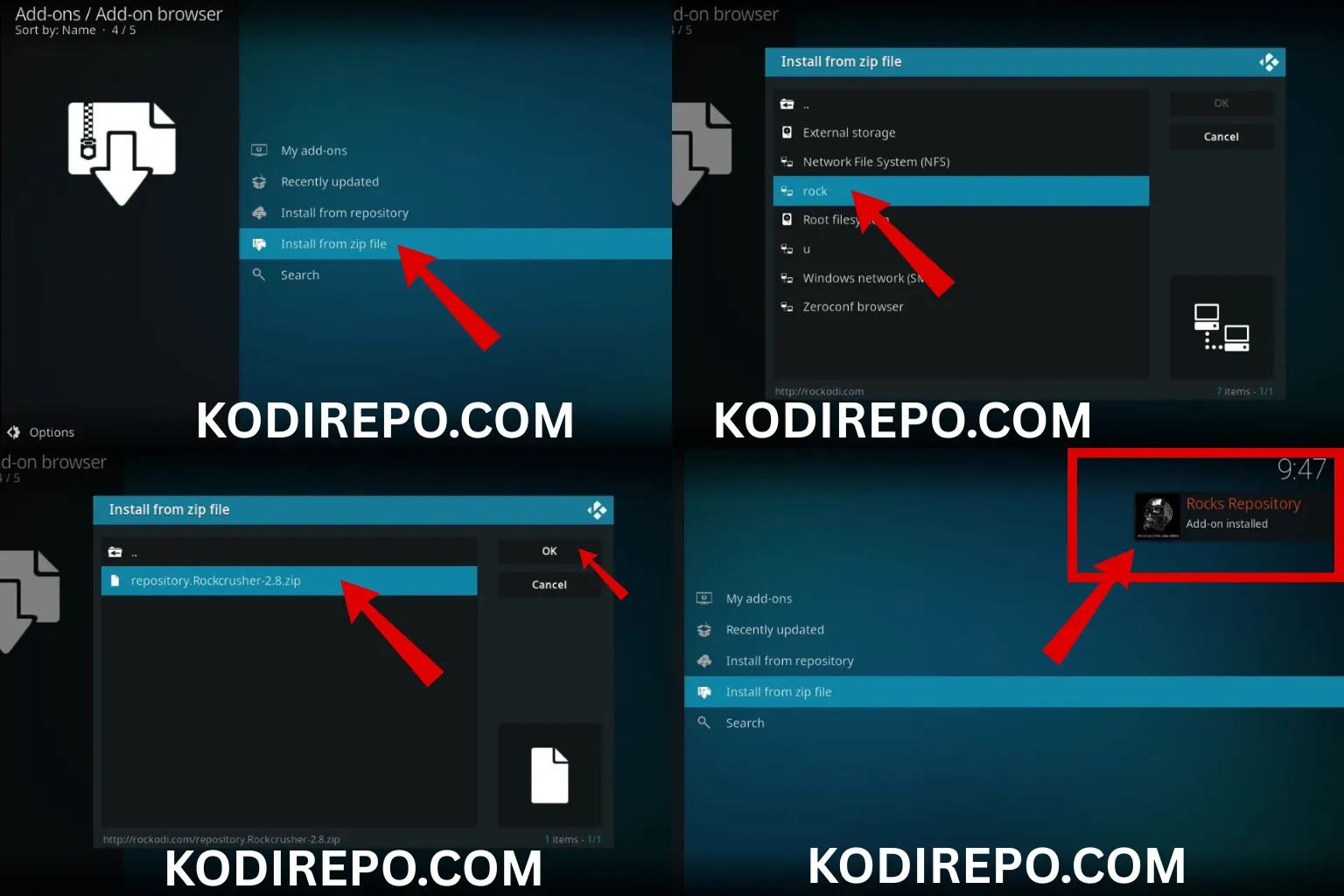
- Click on Install from zip file.
- Choose the source you added (e.g., “TVOne”).
- Select the repository file (e.g.,
repository.tvone.zip). - Wait for the notification confirming the repository installation.
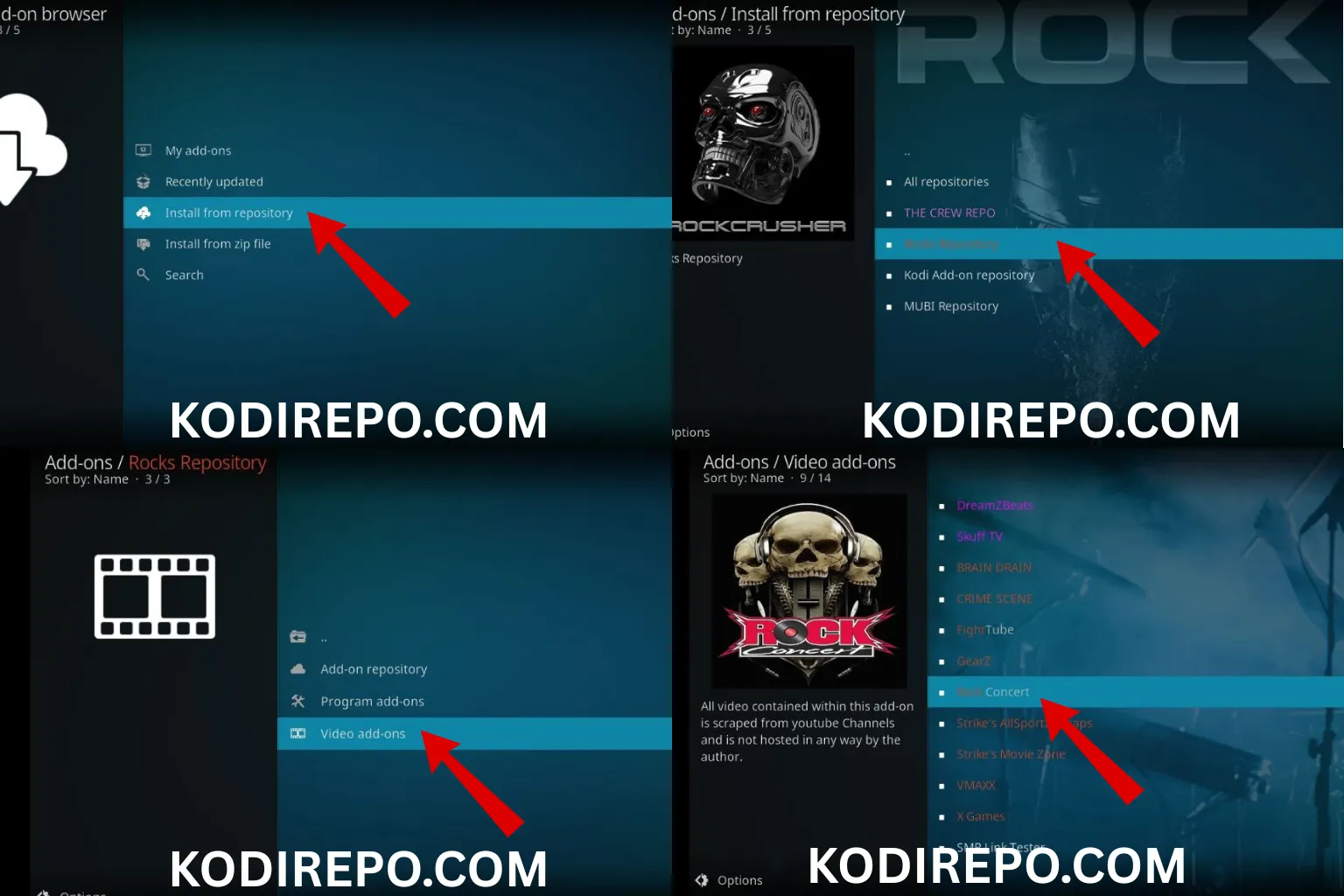
- Go back to Install from repository.
- Select TVOne Repository.
- Navigate to Video add-ons and find TVOne.
- Click Install and wait for the addon to be installed.
How to Use TVOne Addon on Firestick & Android TV
On Firestick:
- Open Kodi on your Firestick.
- Navigate to Add-ons from the main menu.
- Click on Video add-ons and select TVOne.
- Browse through the available content and start streaming.
On Android TV:
- Launch Kodi on your Android TV.
- Follow the same steps as above to access TVOne Addon.
- Use your remote to navigate and select your preferred content.
Troubleshooting Common Issues
- Addon Not Installing: Ensure the repository URL is correct and your internet connection is stable.
- Content Not Loading: Clear Kodi cache or try a different source.
- VPN Not Working: Check your VPN settings and ensure it’s connected to a server.
Tips for Optimal Streaming
- Use a VPN: Protect your privacy and bypass geo-restrictions.
- Keep Kodi Updated: Regularly update Kodi and the TVOne Addon for the latest features.
- Clear Cache: Periodically clear Kodi’s cache to improve performance.
Conclusion
Installing TVOne Addon on Kodi is a straightforward process that can significantly enhance your streaming experience. By following the steps outlined in this guide, you can enjoy a wide range of live TV channels, movies, and on-demand content on your Firestick or Android TV. Remember to use a VPN for secure streaming and keep your Kodi installation up to date for the best performance.
Related Keywords: Kodi addons, Firestick streaming, Android TV apps, live TV Kodi, TVOne installation guide, Kodi repository setup.