
Drag the slider to adjust text size.
If you’re looking for a way to expand your Kodi library with high-quality movies and TV series, the Dradis addon is an excellent choice. Known for its smooth streaming experience and wide range of content, Dradis has become a favorite among Kodi users worldwide. In this guide, we’ll walk you through the entire installation process, ensuring you can enjoy your favorite entertainment without any hassle.
🔒 Protect Your Kodi Streaming
Avoid ISP tracking and stream Kodi safely using one of the fastest and most trusted VPN services.
✔ Works with Kodi & Firestick
✔ No Logs Privacy Protection
✔ 30-Day Money Back Guarantee
Recommended for safe and private Kodi streaming
What is the Dradis Addon?
Before diving into the installation steps, it’s important to understand what the Dradis addon offers. Dradis is a third-party Kodi addon that provides access to a vast library of movies and TV series. It’s designed to offer high-quality streaming links, often in HD or even 4K, depending on the source. The addon is particularly popular for its user-friendly interface and reliable performance, making it a go-to option for both beginners and seasoned Kodi users.
Why Choose Dradis?
- Extensive Content Library: Dradis offers a wide range of movies and series, including the latest releases and classic titles.
- High-Quality Streams: The addon prioritizes HD and 4K links, ensuring a premium viewing experience.
- Easy Navigation: Its intuitive interface makes it simple to browse and find your favorite content.
- Regular Updates: Dradis is frequently updated to fix bugs and add new features, keeping it reliable and up-to-date.
How to Install the Dradis Addon on Kodi
Installing the Dradis addon is straightforward, but it requires enabling unknown sources in Kodi. Here’s a step-by-step guide to help you through the process.
Step 1: Enable Unknown Sources
Before installing any third-party addon, you need to allow Kodi to install from unknown sources.
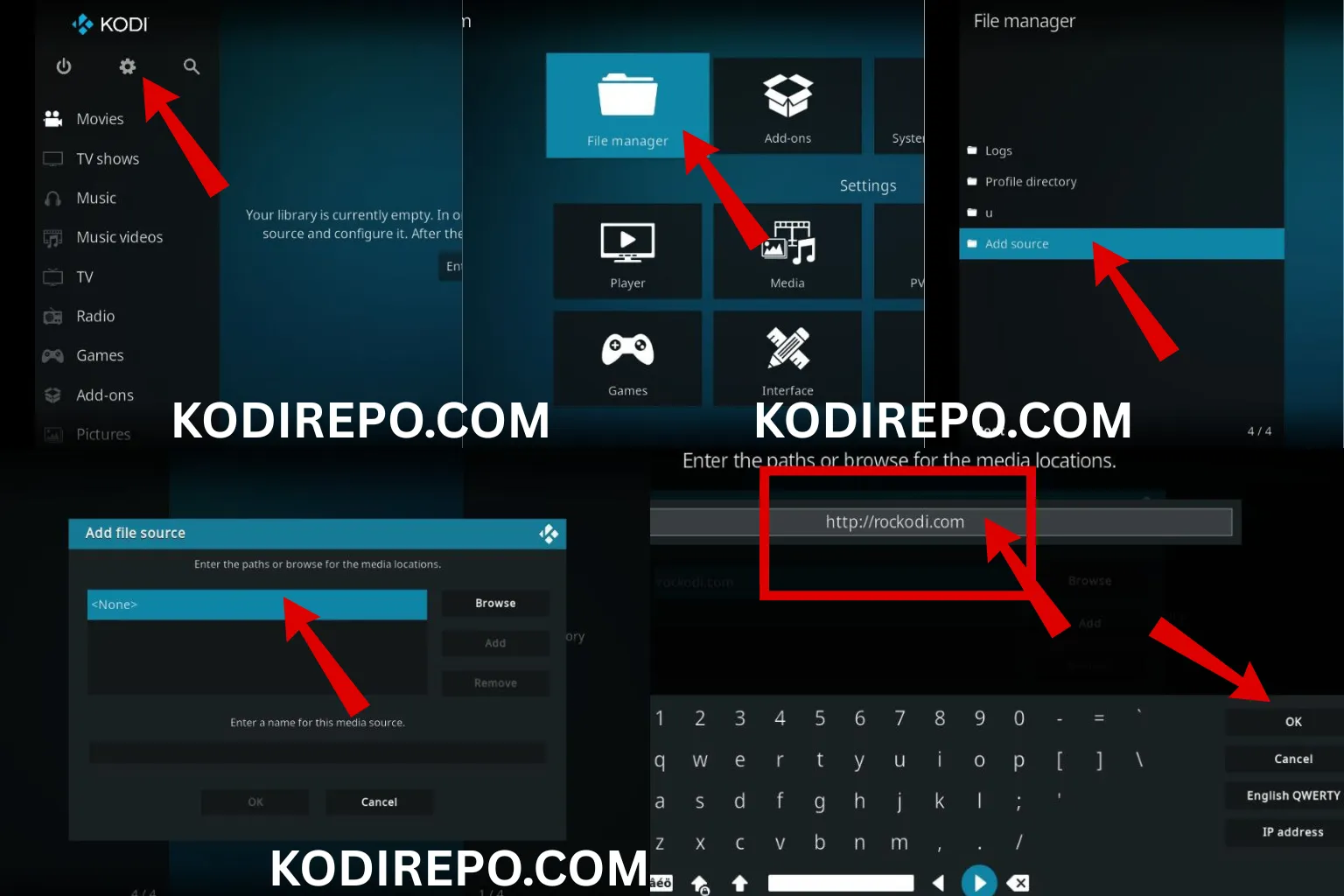
- Open Kodi and click on the Settings icon (gear icon) in the top-left corner.
- Navigate to System > Add-ons.
- Toggle on Unknown sources and confirm the warning message.
Step 2: Install the Dradis Repository
Dradis is not available in the official Kodi repository, so you’ll need to install it via a third-party repository.
⚠️ WARNING: Before installing this Kodi addon, it is strongly recommended to use a VPN to protect your privacy while streaming.
👉 Get 76% NordVPN Deal- Go back to the Settings menu and select File Manager.
- Click on Add Source and choose .
- Enter the repository URL:
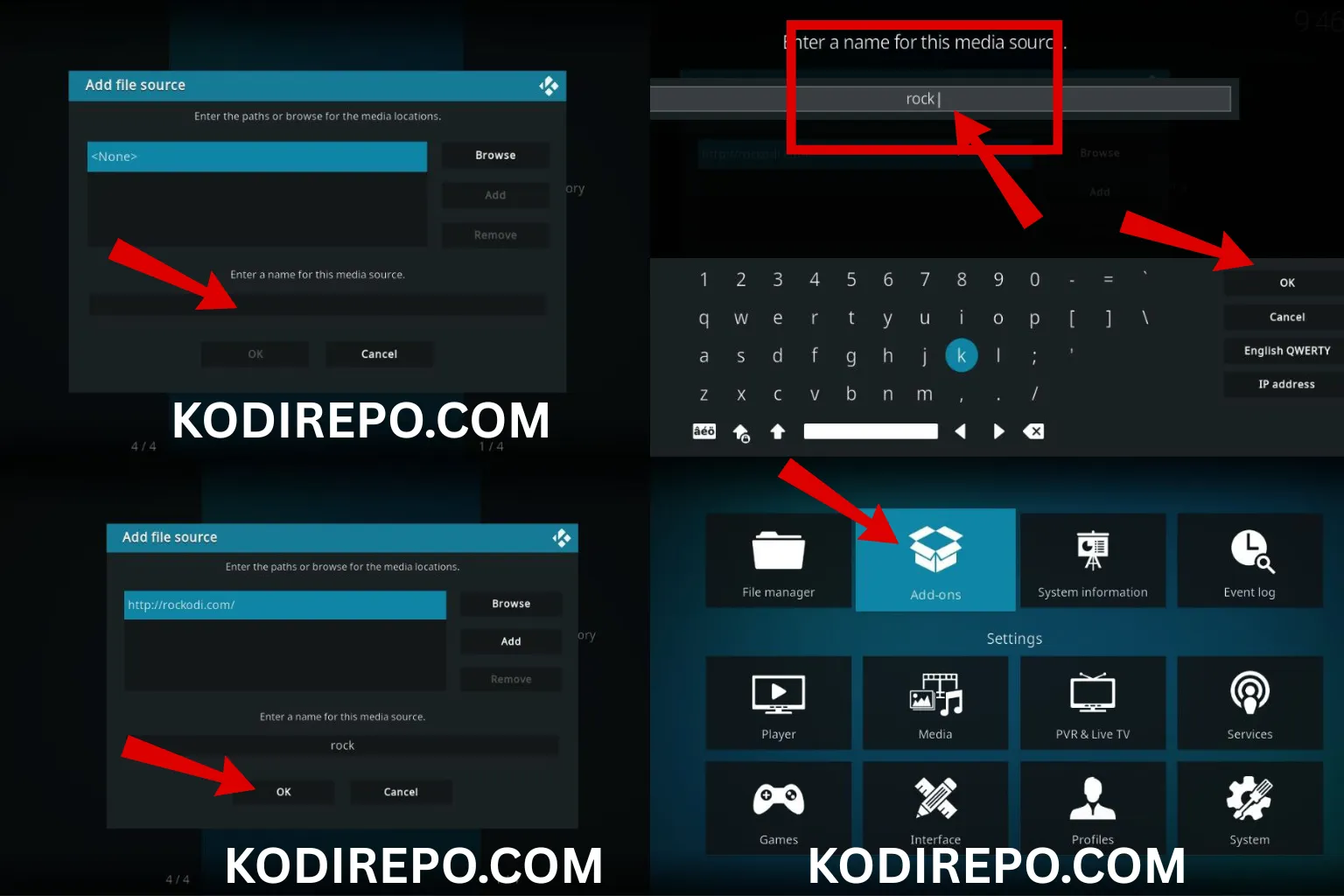
https://kodifitzwell.github.io/repo/(replace with the actual URL if different). - Name the source (e.g., “Dradis Repo”) and click OK.
- Return to the Settings menu and select Add-ons.
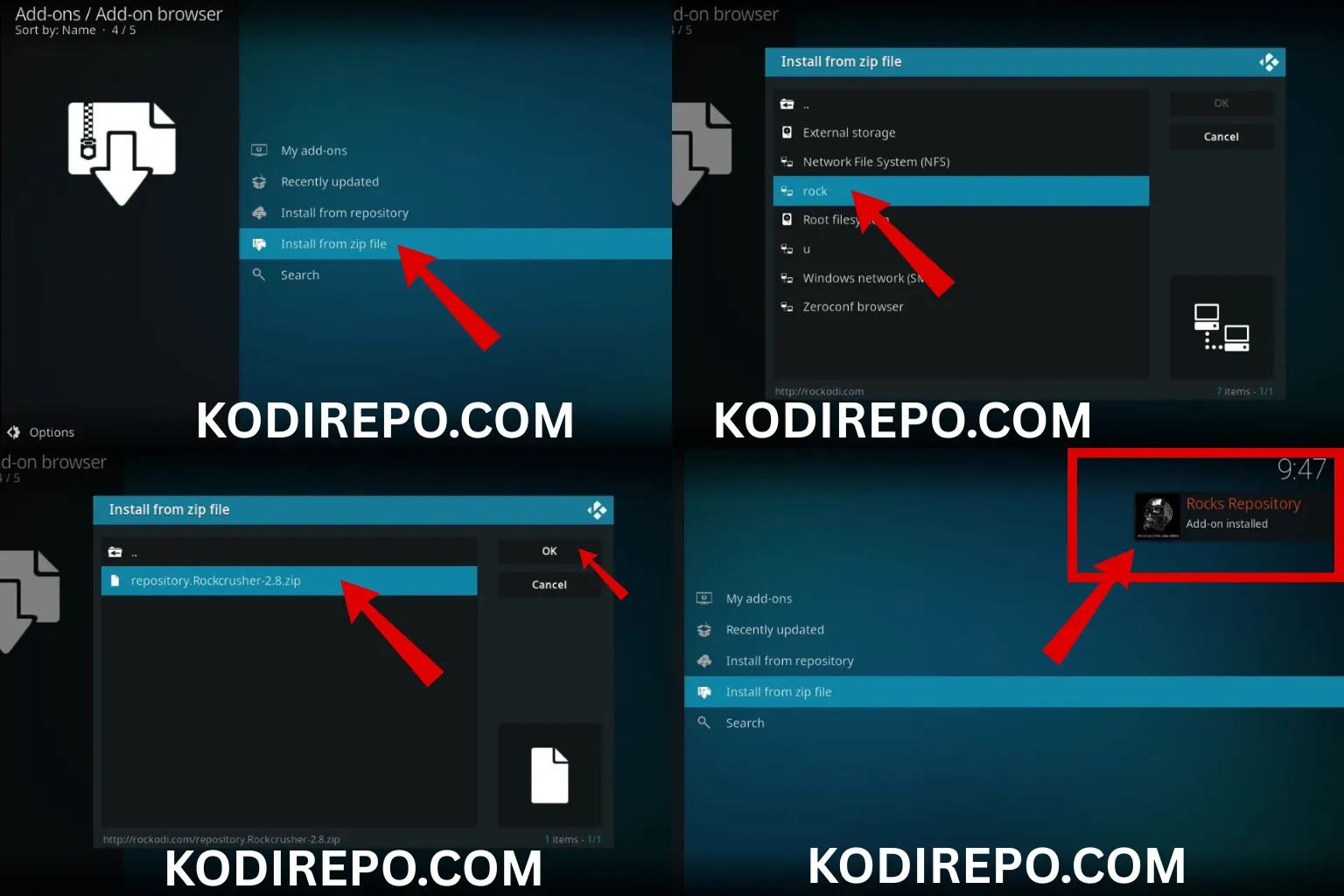
- Click on Install from zip file and choose the Dradis Repo source.
- Select the repository file (usually named
repository.dradis.zip) and wait for the installation to complete.
Step 3: Install the Dradis Addon
Once the repository is installed, you can proceed to install the Dradis addon.
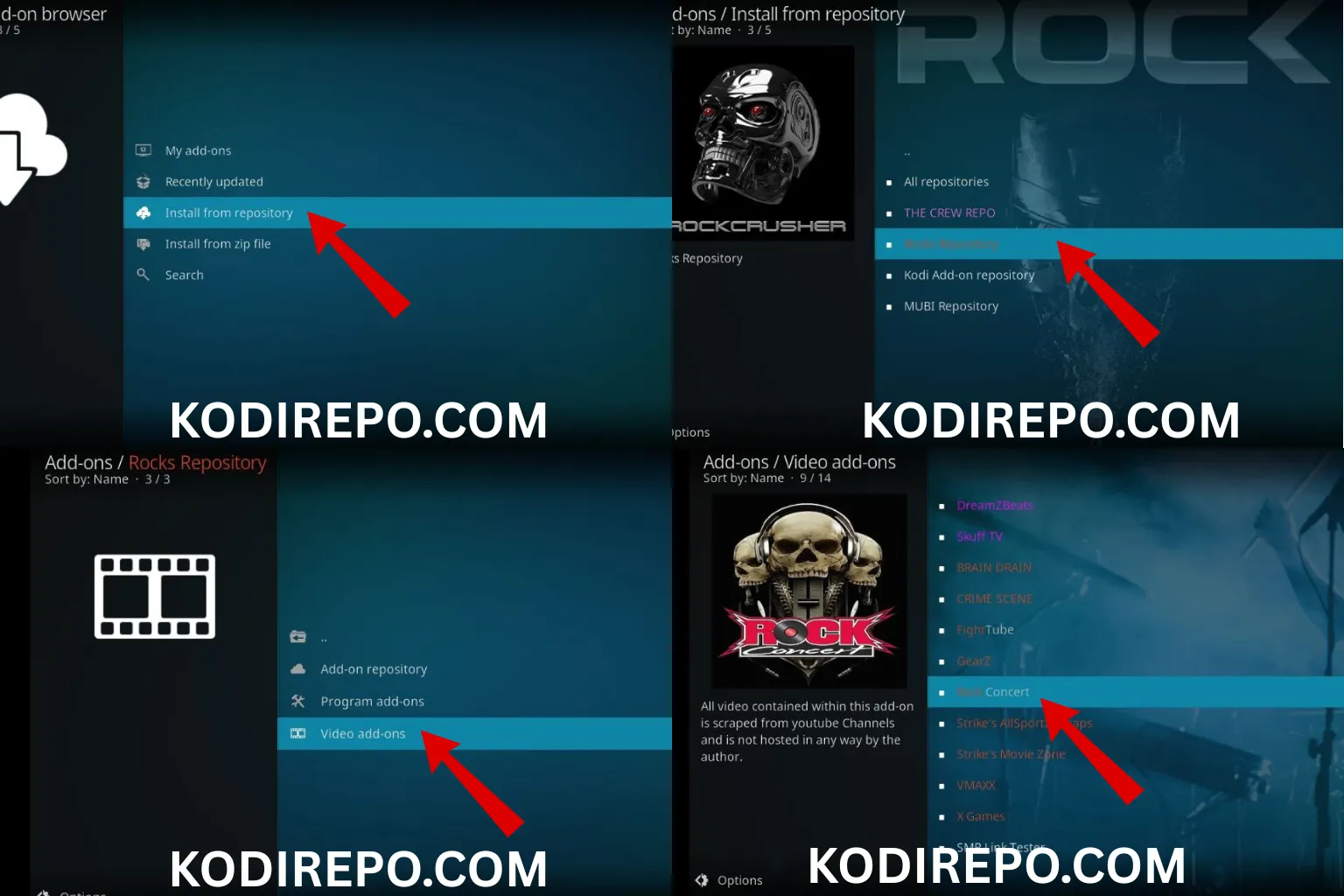
- From the Add-ons menu, click on Install from repository.
- Select Dradis Repository.
- Navigate to Video add-ons and find Dradis.
- Click on Install and wait for the addon to download and install.
Step 4: Configure Dradis for Optimal Performance
After installation, it’s a good idea to configure the addon to suit your preferences.
- Open the Dradis addon from the Add-ons menu.
- Go to Settings and adjust options like video quality, subtitles, and playback preferences.
- You can also set up a Real-Debrid account for access to premium streaming links.
Troubleshooting Common Issues
While Dradis is generally reliable, you might encounter occasional issues. Here are some common problems and their solutions:
- Addon Not Working: Ensure that unknown sources are enabled and the repository URL is correct.
- Buffering Issues: Check your internet connection or switch to a lower video quality.
- Broken Links: Try refreshing the addon or switching to a different streaming source.
Conclusion
The Dradis addon is a fantastic addition to your Kodi setup, offering a seamless way to stream movies and TV series. By following the steps outlined in this guide, you can easily install and configure Dradis to enjoy a premium entertainment experience. Whether you’re a casual viewer or a binge-watcher, Dradis has something for everyone.
So, what are you waiting for? Dive into the world of unlimited entertainment with the Dradis addon today!