Drag the slider to adjust text size.
If you’re looking to expand your Kodi media center with fresh video content, the Rumble Kodi Addon is a solid choice. This addon brings a wide range of independent video content directly into your Kodi setup, making it a favorite for users who enjoy alternative media sources. In this guide, we’ll walk you through how to install the Rumble Kodi Addon safely and efficiently.
🔒 Protect Your Kodi Streaming
Avoid ISP tracking and stream Kodi safely using one of the fastest and most trusted VPN services.
✔ Works with Kodi & Firestick
✔ No Logs Privacy Protection
✔ 30-Day Money Back Guarantee
Recommended for safe and private Kodi streaming
What is the Rumble Kodi Addon?
The Rumble Kodi Addon is a third-party addon that allows Kodi users to stream content from Rumble, a popular video-sharing platform known for hosting independent creators and alternative viewpoints. Unlike mainstream platforms, Rumble focuses on free speech and diverse content, which makes it a unique addition to your Kodi library.
This addon gives you access to a variety of videos, including news, commentary, entertainment, and more—all within the familiar Kodi interface.
Is the Rumble Kodi Addon Safe and Legal?
Before installing any third-party Kodi addon, it’s important to consider safety and legality.
- Safety: Since the Rumble Kodi Addon is not available in Kodi’s official repository, it must be installed from a third-party source. Always use a trusted repository and consider running a VPN to protect your privacy.
- Legality: Streaming content from Rumble itself is legal, as long as the content is freely available and you’re not bypassing any paywalls or terms of service.
Pro Tip: Always use a reputable VPN when streaming with third-party addons to safeguard your data and maintain anonymity.
Prerequisites for Installing the Rumble Kodi Addon
Before you begin, make sure you have the following:
- A working installation of Kodi (version 18 or higher recommended)
- A reliable VPN (optional but recommended)
- Access to a trusted third-party repository that hosts the Rumble Kodi Addon
- Stable internet connection
Step-by-Step Guide to Install the Rumble Kodi Addon
Follow these steps carefully to install the Rumble Kodi Addon on your device.
Step 1: Enable Unknown Sources in Kodi
Kodi blocks installations from third-party sources by default. You’ll need to enable this option first.
- Open Kodi and click the Settings icon (gear icon) in the top-left corner.
- Select System (or System Settings depending on your Kodi version).
- Navigate to Add-ons in the left menu.
- Toggle on Unknown Sources.
- A warning message will appear—click Yes to confirm.
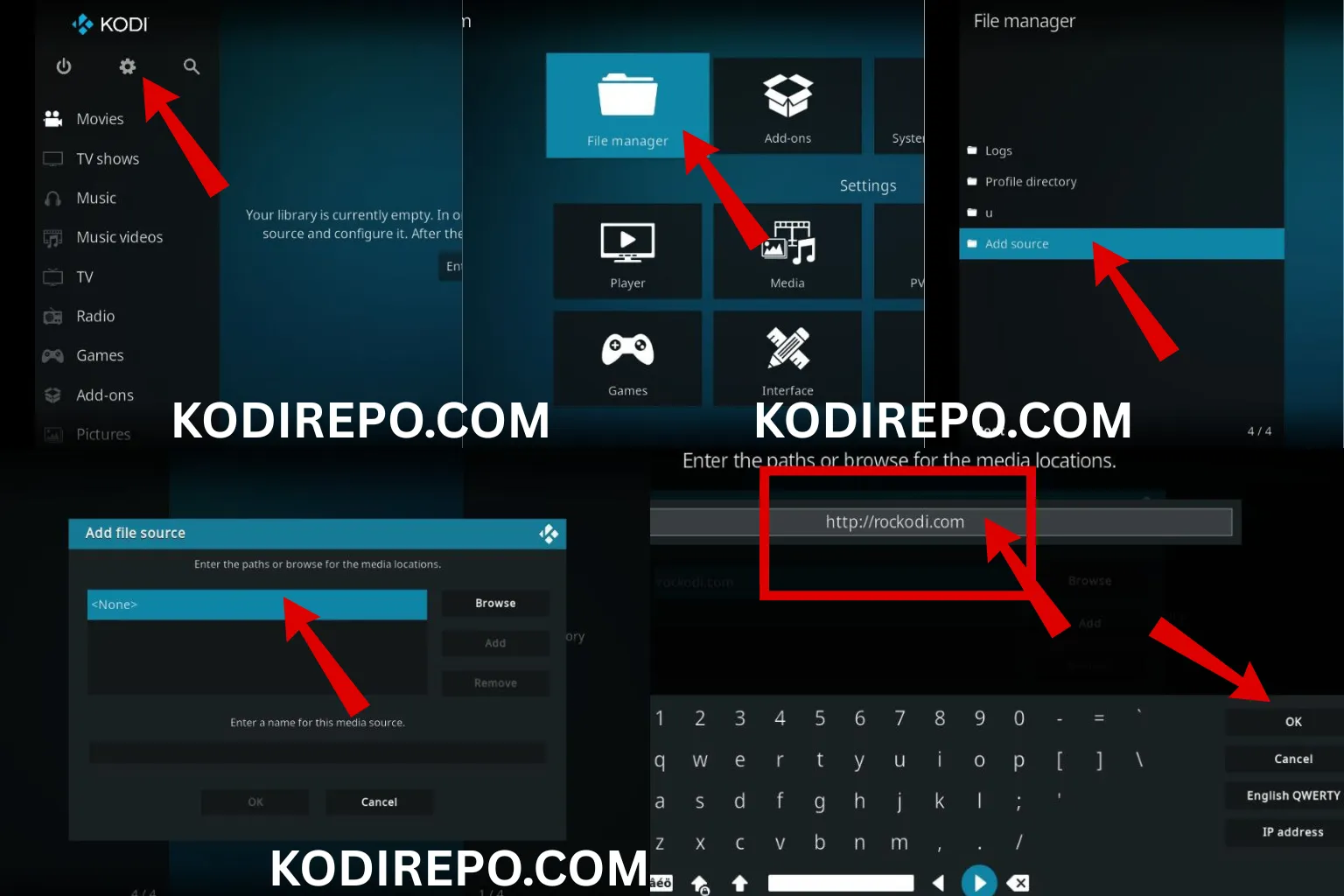
Step 2: Add the Source Repository
Next, you need to add the repository that hosts the Rumble Kodi Addon.
⚠️ WARNING: Before installing this Kodi addon, it is strongly recommended to use a VPN to protect your privacy while streaming.
👉 Get 76% NordVPN Deal- Go back to the Settings menu.
- Click on File Manager.
- Select Add Source.
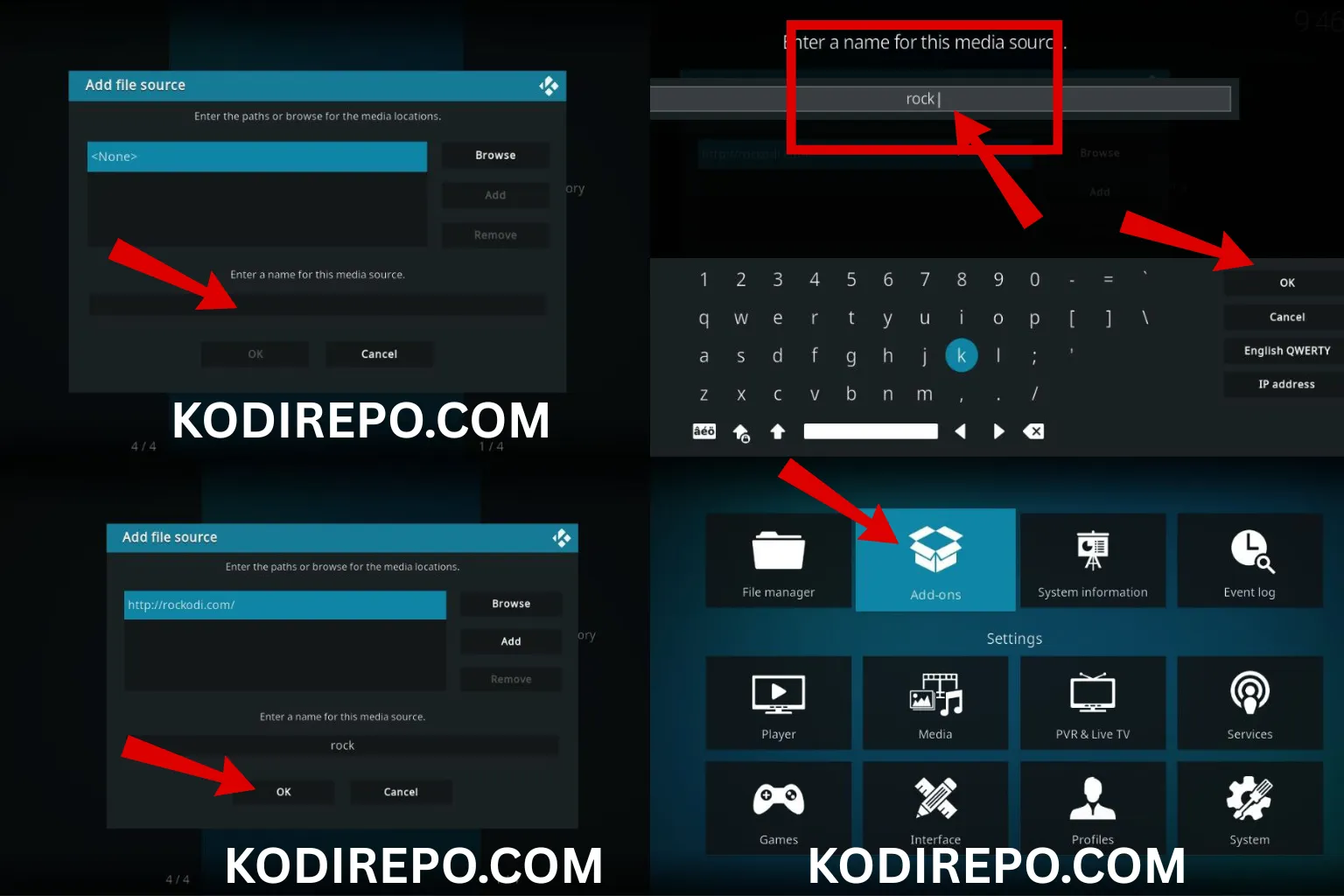
- Click on and enter the URL of the repository (https://oneplayhd.com/oneplay/).
- Name the source (e.g., “Rumble Repo”) and click OK.
- Double-check the URL and name for accuracy, then click OK again.
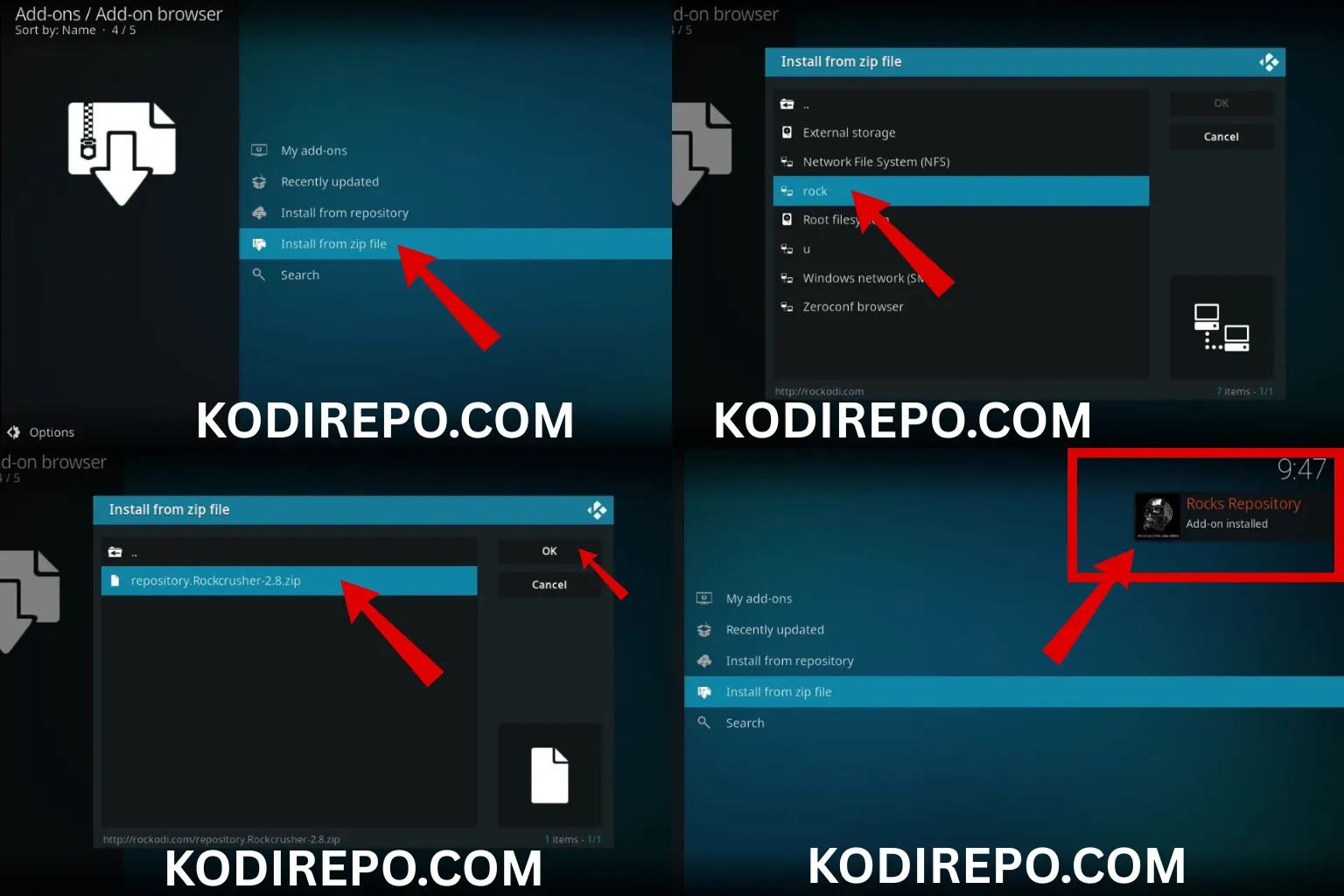
Step 3: Install the Repository
Now that the source is added, you can install the repository.
- Return to the Settings menu and select Add-ons.
- Click the Install from zip file option.
- Choose the source name you added earlier (e.g., “Rumble Repo”).
- Select the repository zip file (e.g.,
repository.rumbleaddon.zip). - Wait for the notification that the repository was installed successfully.
Step 4: Install the Rumble Kodi Addon
With the repository installed, you can now install the addon itself.
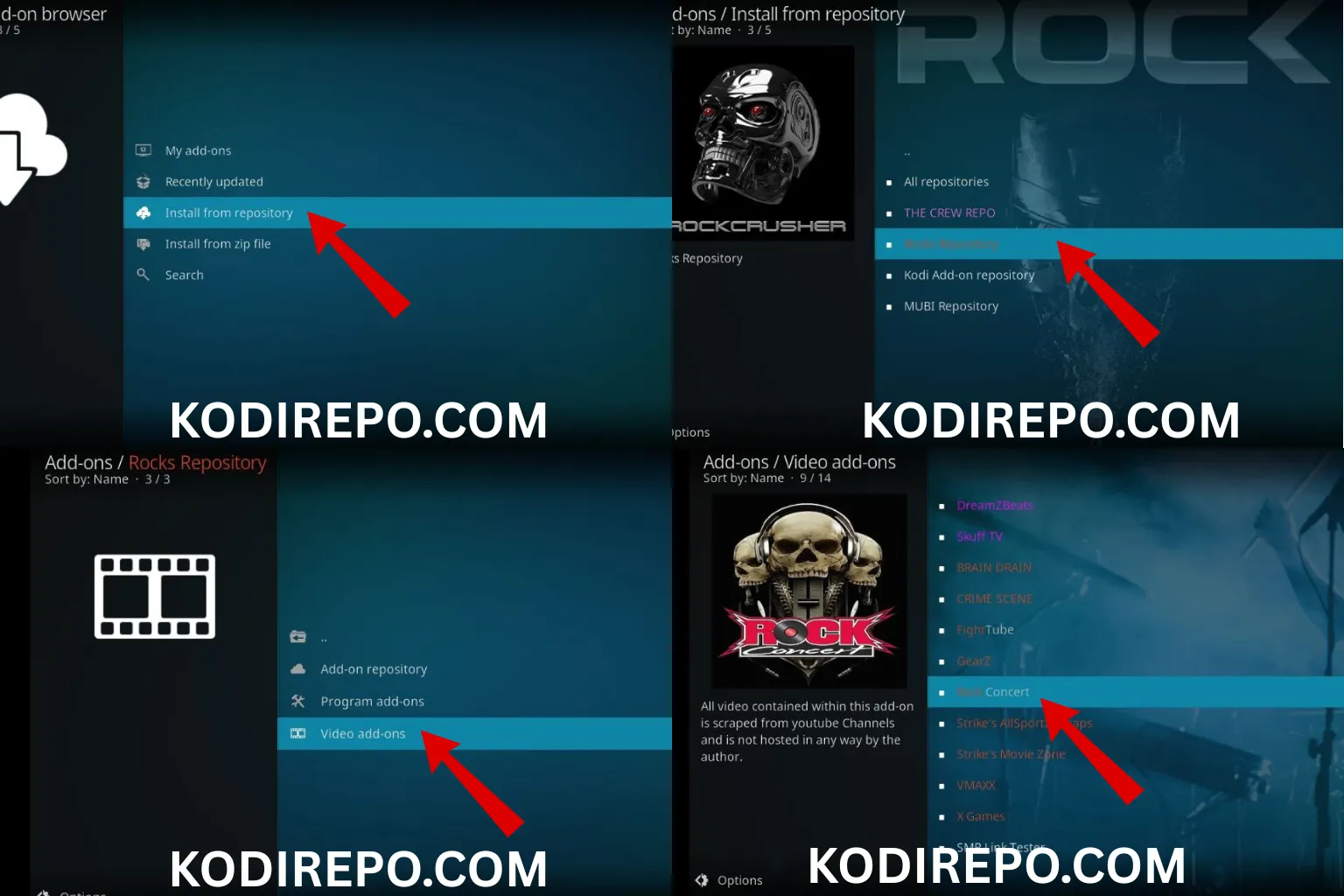
- From the Add-ons menu, select Install from repository.
- Choose the repository you just installed (e.g., “Rumble Repository”).
- Navigate to Video add-ons.
- Find and click on Rumble.
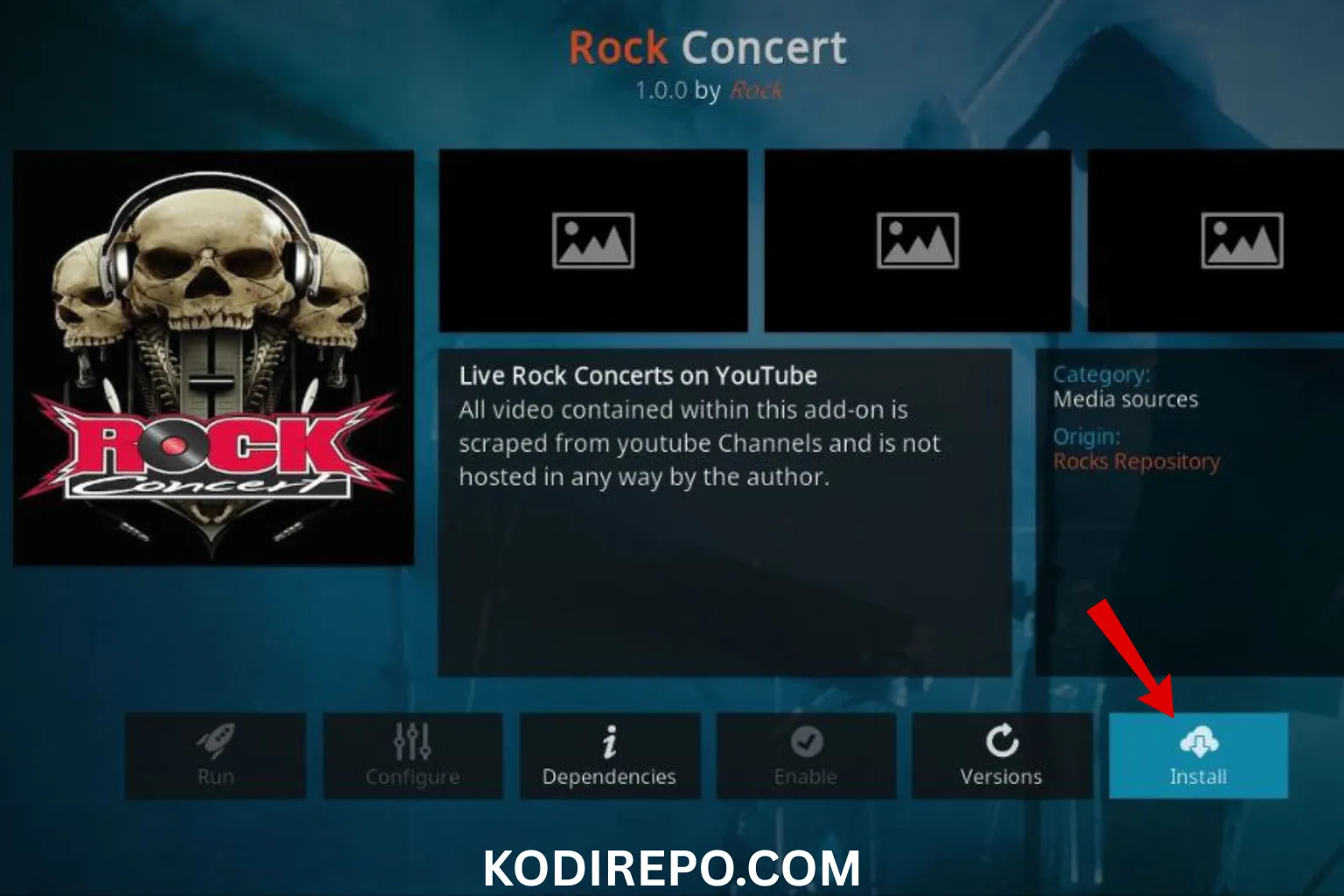
- Click Install and wait for the addon to download and install.
- Once installed, you’ll see a notification confirming success.
Step 5: Launch and Use the Rumble Kodi Addon
To start using the addon:
- Go to Add-ons from the main menu.
- Click on Video add-ons.
- Select Rumble.
- Browse or search for content and start streaming!
Troubleshooting Common Installation Issues
If you run into problems while trying to install the Rumble Kodi Addon, here are some quick fixes:
- Addon not appearing: Ensure the repository was installed correctly and that you selected the right source.
- Stream not loading: Check your internet connection or try a different server.
- Kodi crashes: Clear Kodi cache or reinstall the addon.
- Source URL not working: Verify the repository URL is current and active.
Benefits of Using the Rumble Kodi Addon
Here’s why many users choose to install the Rumble Kodi Addon:
- Diverse Content: Access a wide range of independent videos.
- Free to Use: No subscription fees or hidden costs.
- User-Friendly: Easy navigation within Kodi.
- Regular Updates: Addon is often updated with new features and content.
Alternatives to the Rumble Kodi Addon
If the Rumble Kodi Addon doesn’t meet your needs, consider these alternatives:
- YouTube Kodi Addon: For mainstream video content.
- PeerTube Kodi Addon: Another platform for independent creators.
- Vimeo Kodi Addon: High-quality creative and artistic videos.
Final Thoughts
The Rumble Kodi Addon is a great way to bring independent video content into your Kodi media center. By following the steps above, you can safely install the Rumble Kodi Addon and start enjoying a fresh stream of videos. Always remember to use a VPN for added security and only install addons from trusted sources.
Ready to get started? Follow this guide to install the Rumble Kodi Addon today and unlock a new world of streaming content on Kodi!