
Drag the slider to adjust text size.
Kodi is a powerful media center that allows users to stream a wide variety of content, including live TV channels from around the world. One of the most popular add-ons for accessing international channels is the IPTV AU Addon. This guide will walk you through the process of installing IPTV AU Addon on Kodi, ensuring you can enjoy a vast selection of global content with ease.
🔒 Protect Your Kodi Streaming
Avoid ISP tracking and stream Kodi safely using one of the fastest and most trusted VPN services.
✔ Works with Kodi & Firestick
✔ No Logs Privacy Protection
✔ 30-Day Money Back Guarantee
Recommended for safe and private Kodi streaming
What is IPTV AU Addon?
The IPTV AU Addon is a Kodi add-on that provides access to a wide range of international TV channels, including those from Australia, the United States, the United Kingdom, and other countries. It offers a user-friendly interface and a comprehensive list of channels, making it a favorite among Kodi users who want to explore content from different regions.
Why Use IPTV AU Addon?
- Extensive Channel List: Access to a diverse range of international channels.
- User-Friendly Interface: Easy navigation and channel selection.
- Regular Updates: The add-on is frequently updated to ensure smooth performance and new channel additions.
- Free to Use: No subscription fees required.
Prerequisites for Installation
Before you begin the installation process, ensure that you have the following:
- Kodi Installed: Make sure you have the latest version of Kodi installed on your device.
- Unknown Sources Enabled: Kodi needs to allow installations from unknown sources. You can enable this in the settings.
- Stable Internet Connection: A reliable internet connection is essential for streaming content.
Step-by-Step Guide to Install IPTV AU Addon on Kodi
Step 1: Enable Unknown Sources
- Open Kodi and navigate to the Settings (gear icon).
- Click on System or System Settings.
- Select Add-ons from the left-hand menu.
- Toggle on Unknown Sources and confirm the warning message.
⚠️ WARNING: Before installing this Kodi addon, it is strongly recommended to use a VPN to protect your privacy while streaming.
👉 Get 76% NordVPN DealStep 2: Add the Repository Source
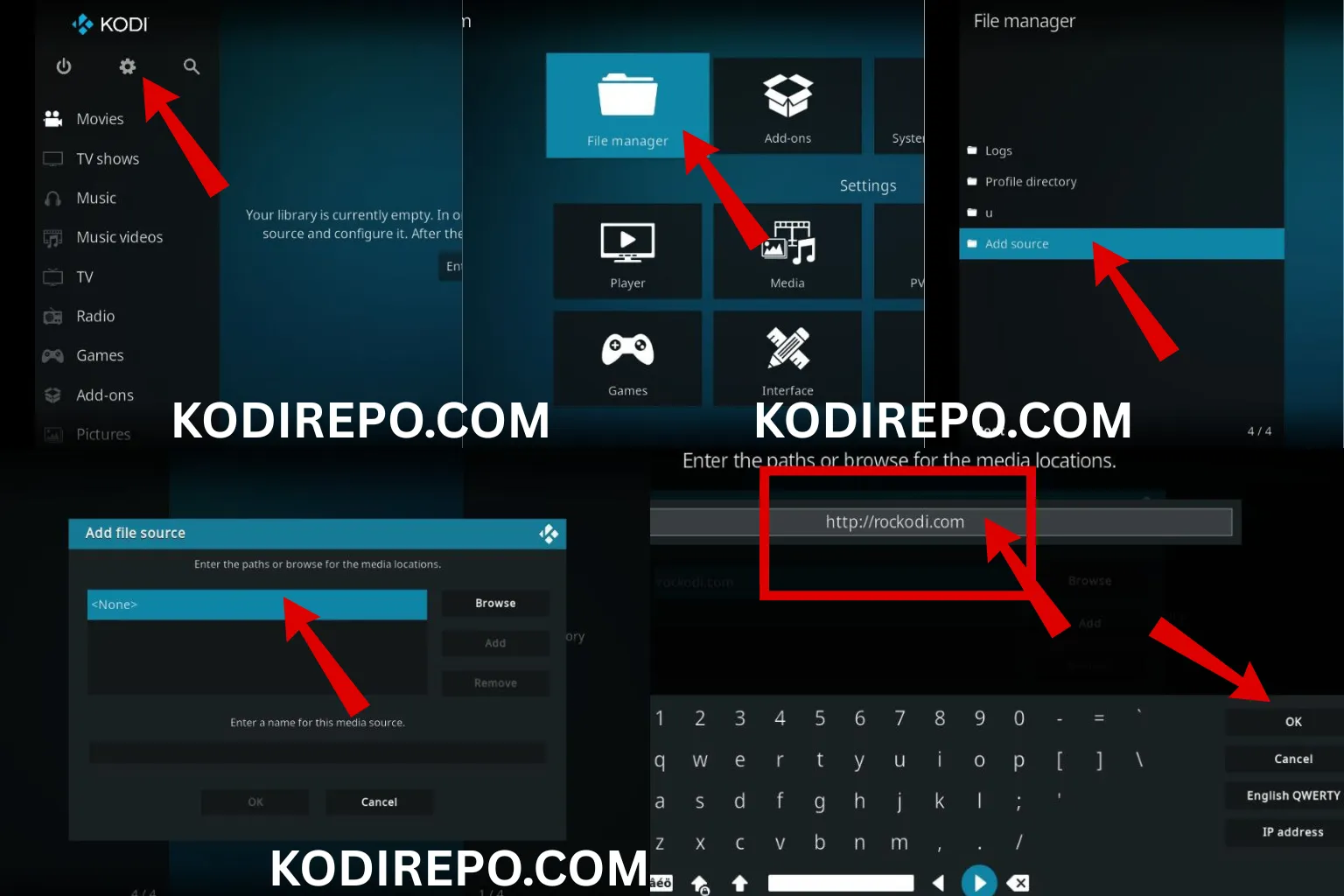
- Go back to the Settings menu.
- Click on File Manager.
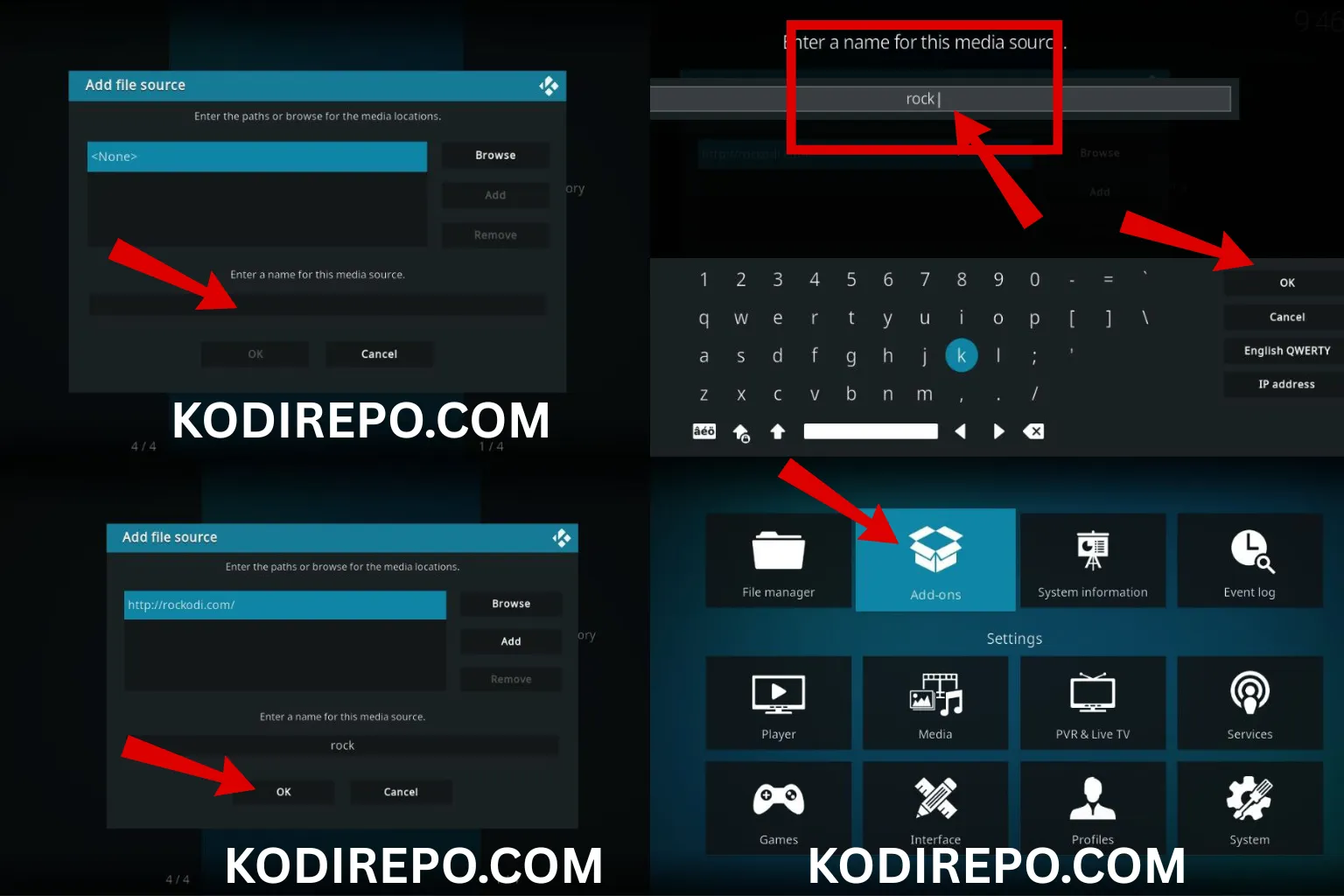
- Select Add Source and click on .
- Enter the URL for the IPTV AU repository:
https://k.slyguy.xyz/(Note: Always verify the URL from a trusted source). - Name the source (e.g., “KDIL”) and click OK.
Step 3: Install the Repository
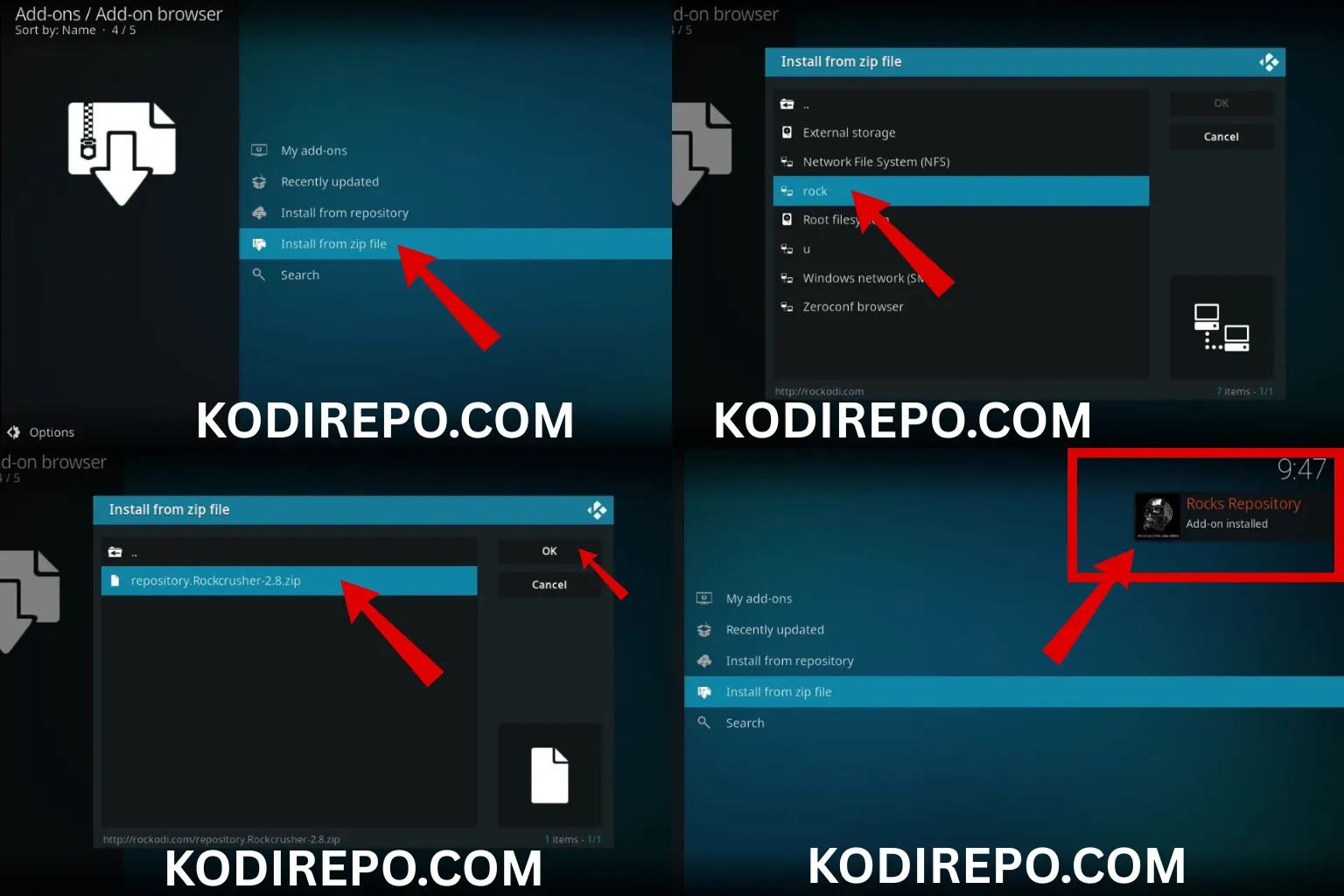
- Return to the Settings menu and select Add-ons.
- Click on Install from zip file.
- Choose the source you added earlier (e.g., “KDIL”).
- Select the repository file (e.g.,
repository.Kodil.zip) and wait for the installation to complete.
Step 4: Install IPTV AU Addon
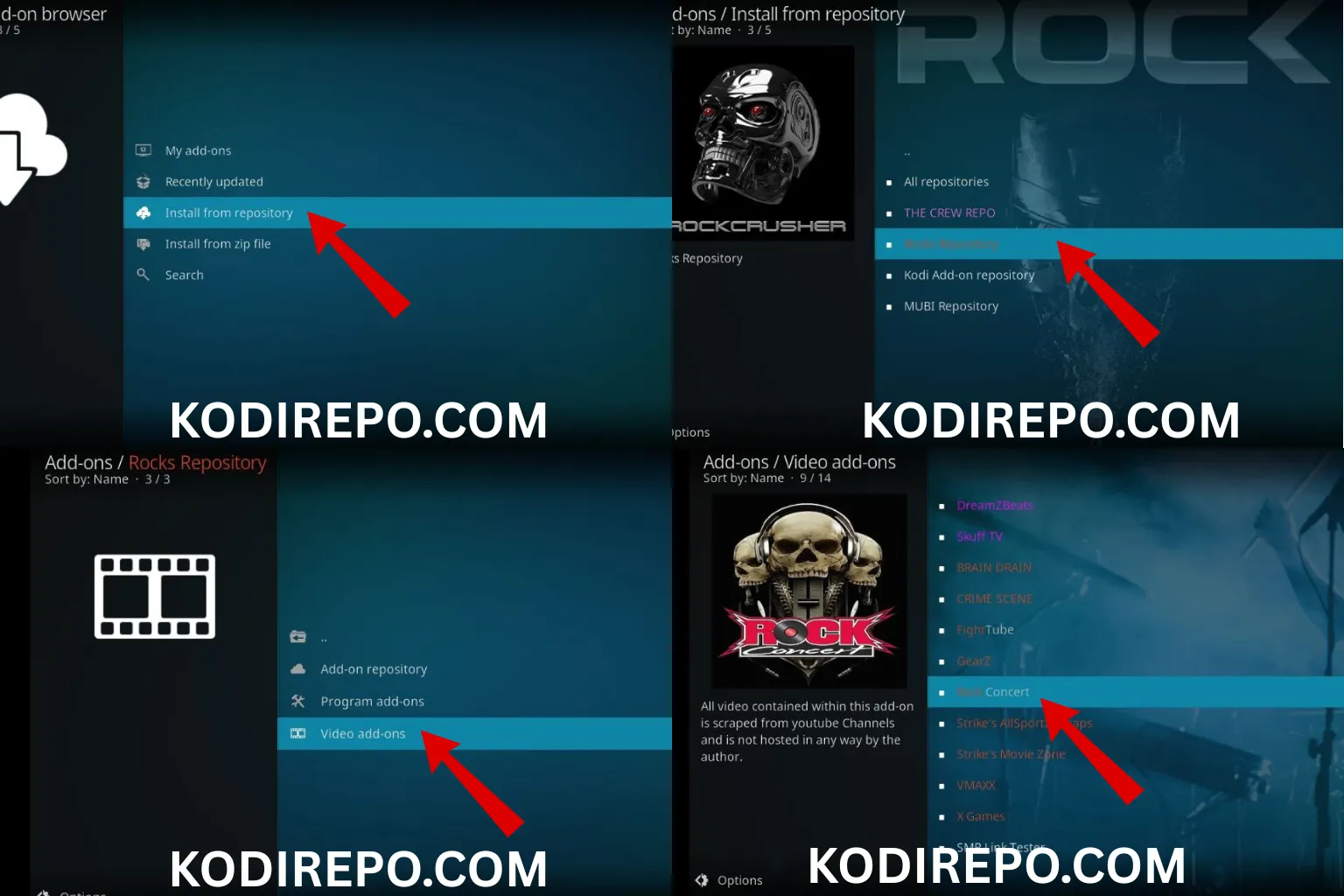
- After the repository is installed, go back to the Add-ons menu.
- Click on Install from repository.
- Select Kodil Repository.
- Navigate to Video add-ons.
- Find and click on IPTV AU.
- Click Install and wait for the add-on to be installed.
Step 5: Access IPTV AU Addon
- Once installed, go to the Add-ons section from the main menu.
- Click on Video add-ons.
- Select IPTV AU to open the add-on.
- Browse through the available channels and start streaming your favorite international content.
Troubleshooting Common Issues
- Addon Not Working: Ensure that your internet connection is stable and that the repository source is correct.
- Channels Not Loading: Try clearing the cache in Kodi or restarting the application.
- Outdated Repository: Check for updates to the repository and add-on regularly.
Tips for Optimizing Your IPTV Experience
- Use a VPN: To protect your privacy and access geo-restricted content, consider using a VPN.
- Regularly Update Kodi and Add-ons: Keep your Kodi and add-ons updated for the best performance and security.
- Organize Your Channels: Use favorites or playlists to organize your most-watched channels for easy access.
Conclusion
Installing the IPTV AU Addon on Kodi is a straightforward process that opens up a world of international content. By following this guide, you can easily set up the add-on and start enjoying a diverse range of TV channels from around the globe. Remember to keep your Kodi and add-ons updated, and consider using a VPN for a secure streaming experience.
Related Keywords: Kodi IPTV setup, international channels on Kodi, IPTV add-ons for Kodi, live TV streaming on Kodi, Kodi repository installation, IPTV AU guide, Kodi international content, streaming add-ons for Kodi.