Drag the slider to adjust text size.
If you’re looking for a way to enhance your Kodi experience, the Shadow Kodi Addon is a popular choice. It offers a wide range of content, including movies, TV shows, live TV, and more. In this guide, we’ll walk you through the step-by-step process of installing the Shadow Kodi Addon on FireStick, Android devices, and PCs. Whether you’re a beginner or an intermediate user, this tutorial will help you get started quickly and easily.
🔒 Protect Your Kodi Streaming
Avoid ISP tracking and stream Kodi safely using one of the fastest and most trusted VPN services.
✔ Works with Kodi & Firestick
✔ No Logs Privacy Protection
✔ 30-Day Money Back Guarantee
Recommended for safe and private Kodi streaming
What is the Shadow Kodi Addon?
The Shadow Kodi Addon is a third-party addon that provides access to a vast library of entertainment content. It’s known for its user-friendly interface and high-quality streaming options. However, since it’s a third-party addon, it’s essential to use a VPN to protect your privacy and ensure secure streaming.
Why Use a VPN with Kodi?
Before we dive into the installation process, it’s crucial to understand why using a VPN is necessary. A VPN (Virtual Private Network) encrypts your internet connection, hides your IP address, and prevents your ISP (Internet Service Provider) from tracking your online activities. This is especially important when using third-party addons like Shadow Kodi Addon, as it ensures your streaming activities remain private and secure.
How to Install Shadow Kodi Addon on FireStick
Installing the Shadow Kodi Addon on FireStick is straightforward. Follow these steps carefully:
Step 1: Enable Apps from Unknown Sources
- Go to the FireStick home screen.
- Navigate to Settings > My Fire TV > Developer Options.
- Turn on Apps from Unknown Sources.
Step 2: Install the Downloader App
- Open the Amazon Appstore on your FireStick.
- Search for the Downloader app and install it.
- Launch the Downloader app.
Step 3: Download and Install Kodi
- In the Downloader app, enter the URL for the Kodi APK file.
- Download and install Kodi on your FireStick.
Step 4: Install the Shadow Kodi Addon
- Open Kodi on your FireStick.
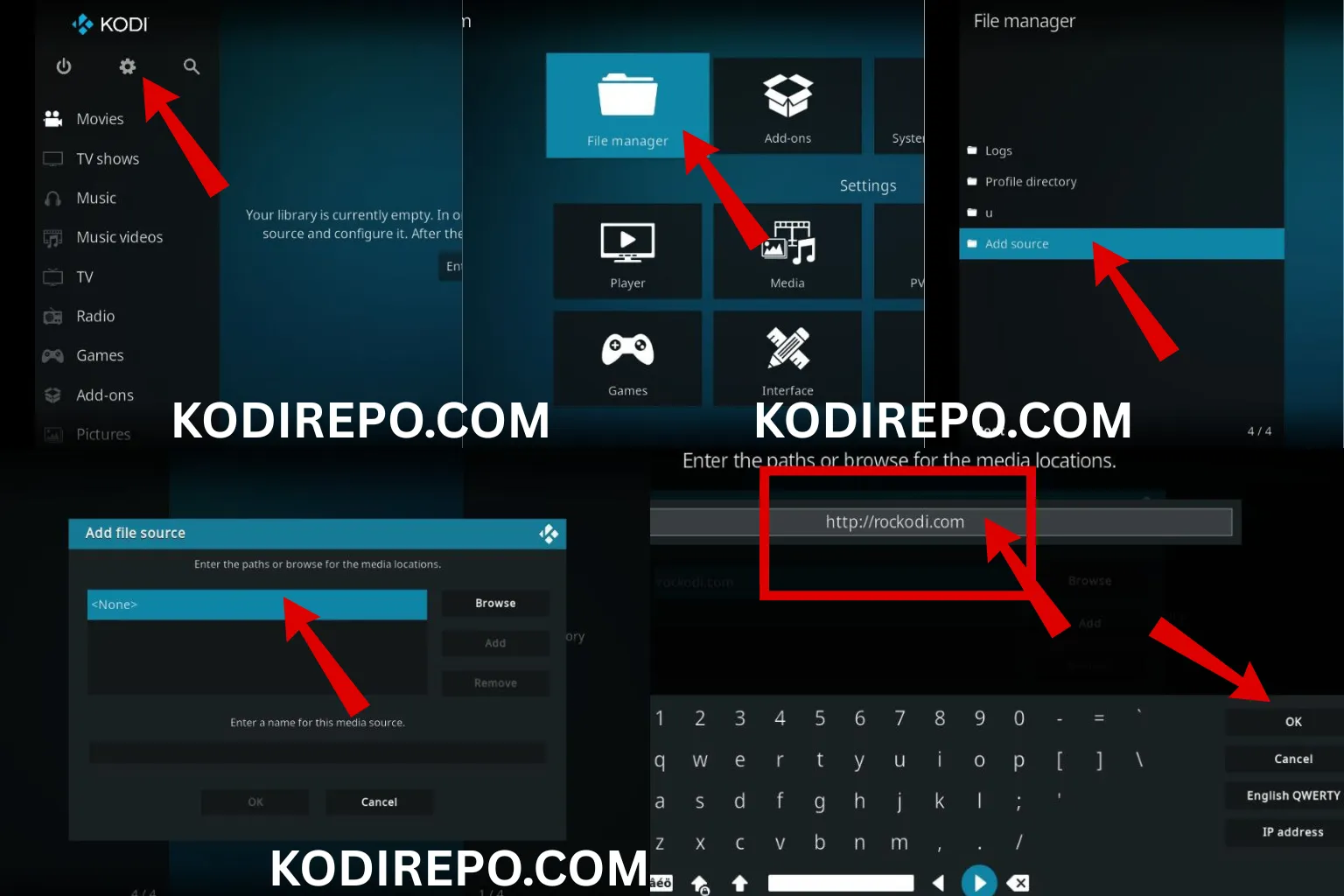
- Go to Settings > File Manager > Add Source.
- Enter the URL for the Shadow Kodi Addon repository.
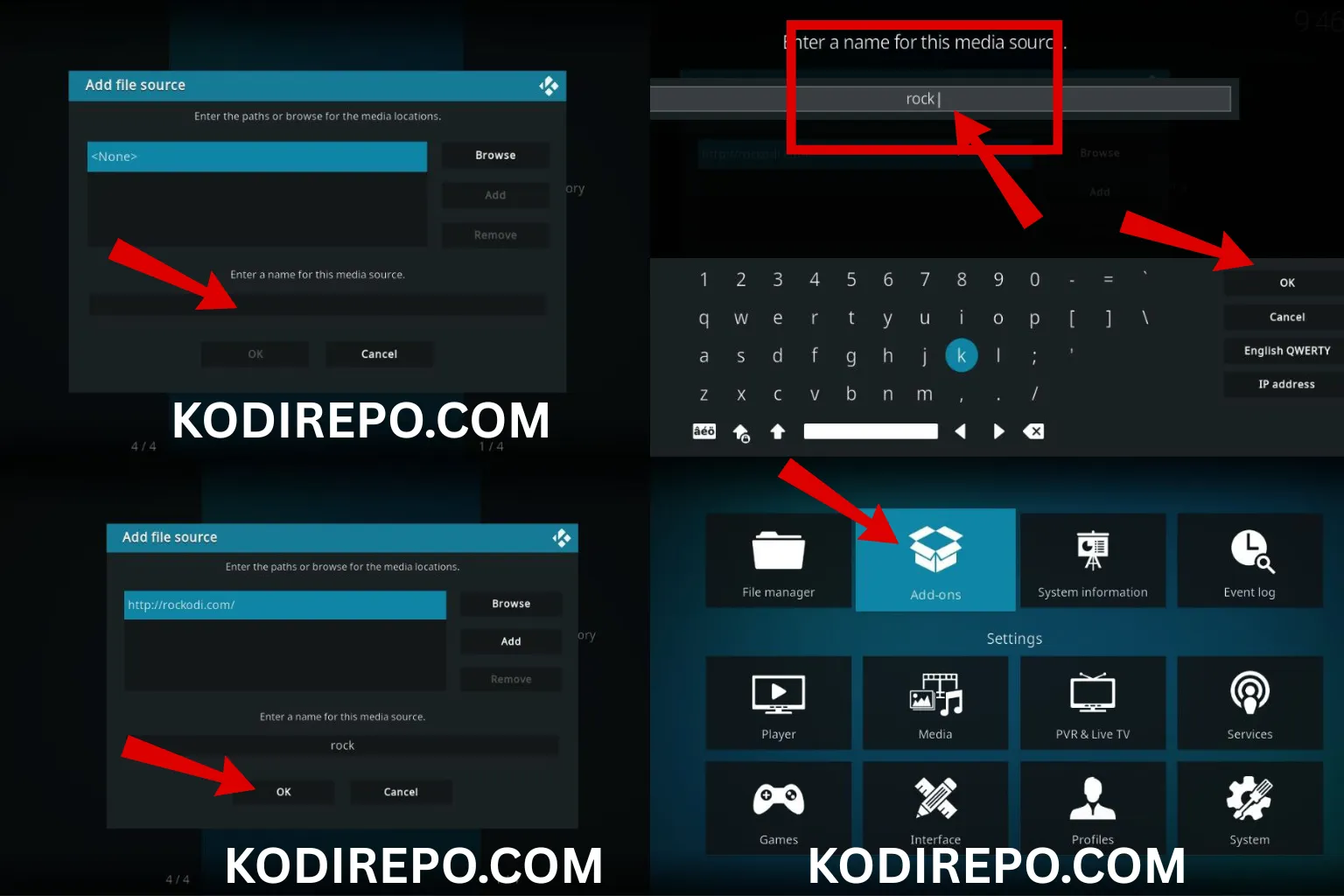
- Return to the Kodi home screen and select Add-ons.
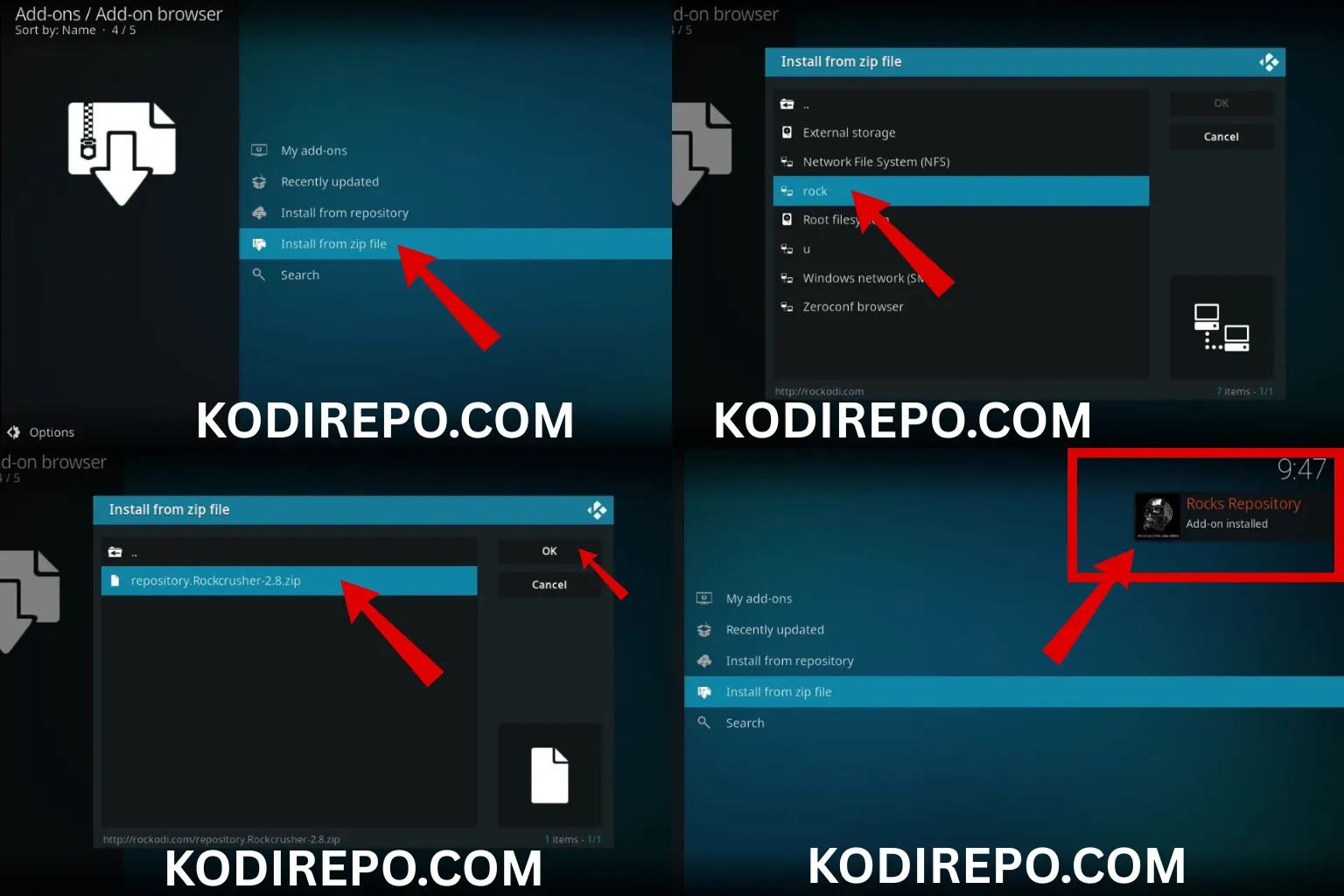
- Click on Install from zip file and select the repository you added. ( https://magnetic.website/repo/ )
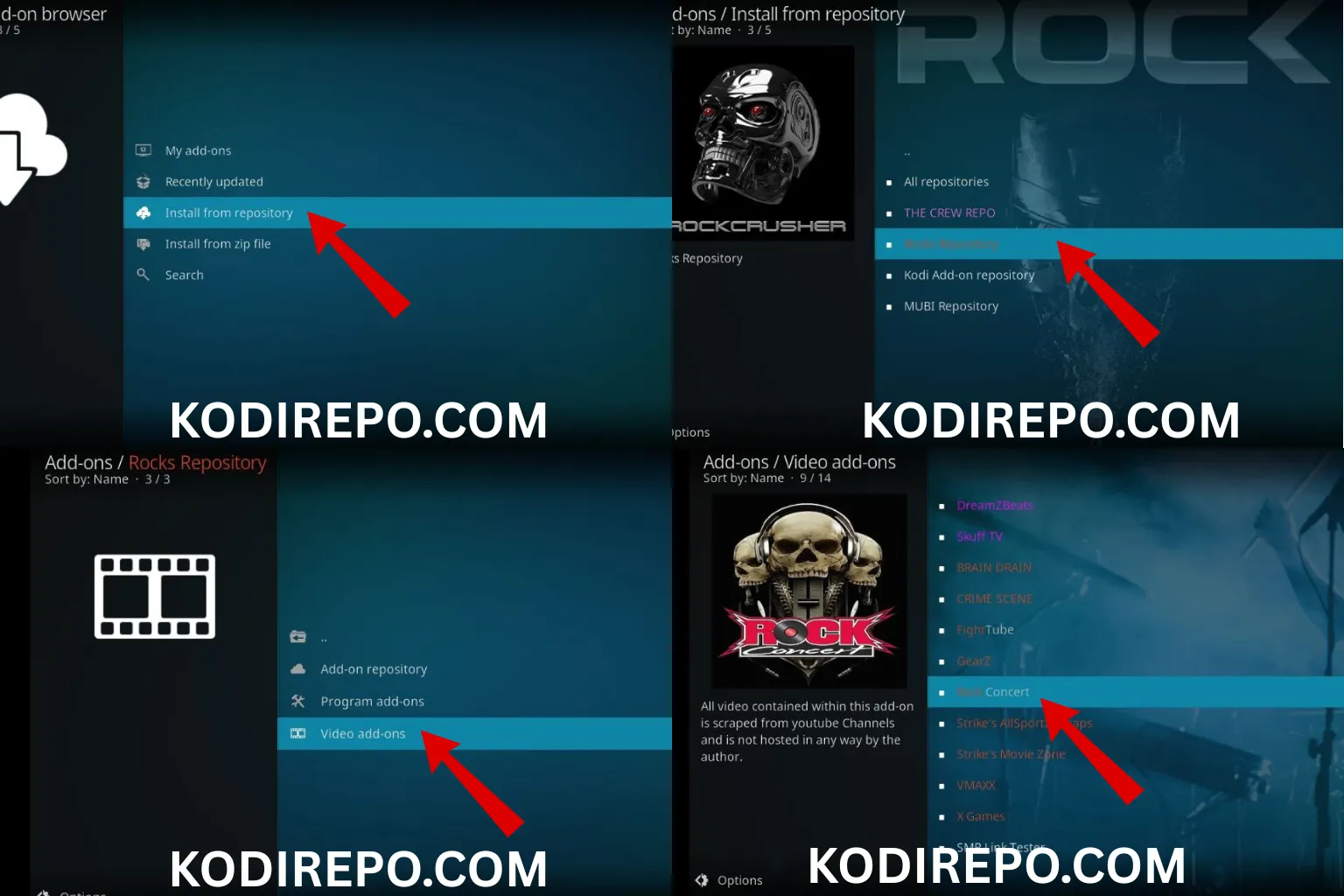
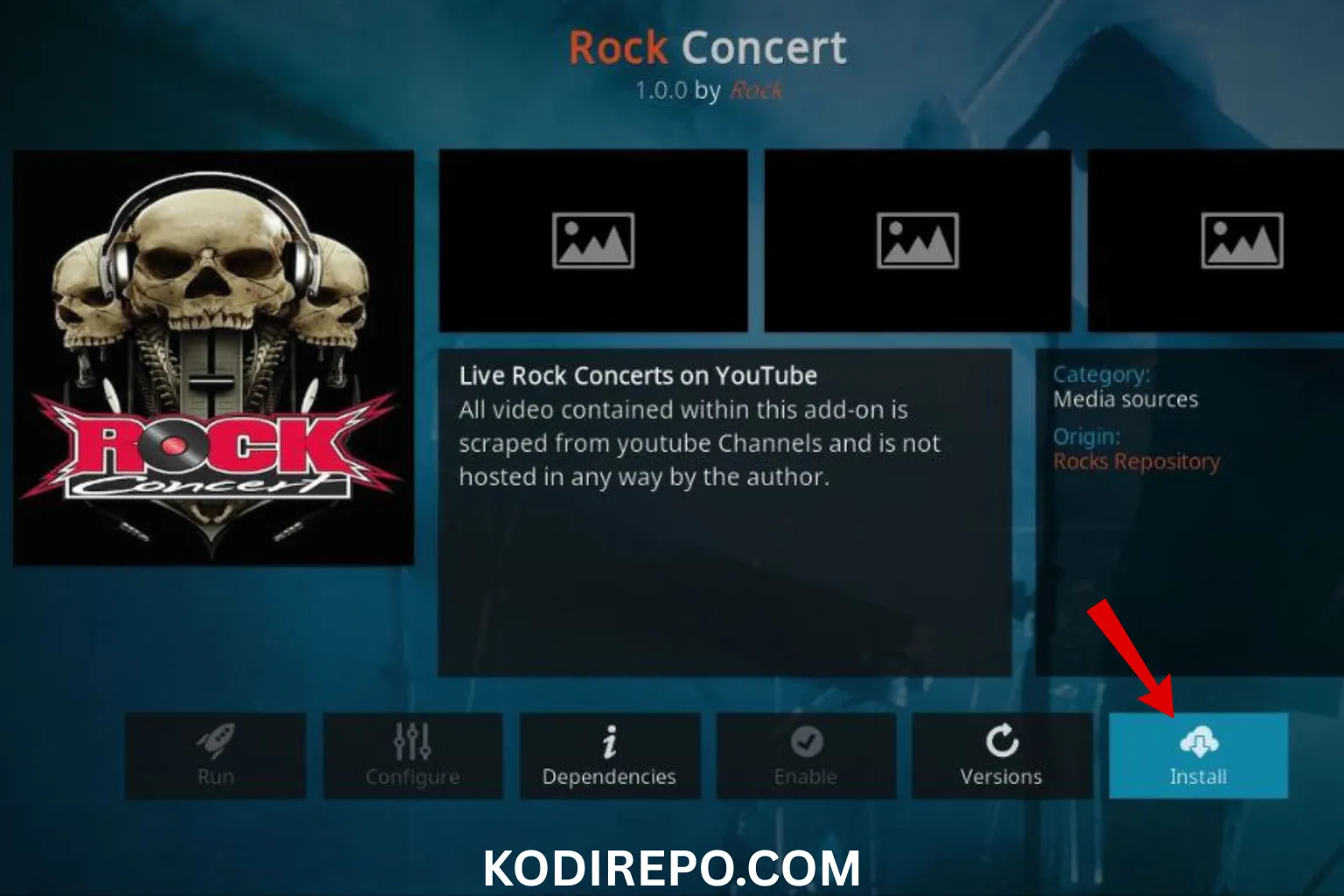
- Install the Shadow Kodi Addon from the repository.
How to Install Shadow Kodi Addon on Android Devices
Installing the Shadow Kodi Addon on Android devices is similar to the FireStick process. Here’s how:
⚠️ WARNING: Before installing this Kodi addon, it is strongly recommended to use a VPN to protect your privacy while streaming.
👉 Get 76% NordVPN DealStep 1: Download and Install Kodi
- Open the Google Play Store on your Android device.
- Search for Kodi and install it.
- Launch Kodi once the installation is complete.
Step 2: Enable Unknown Sources
- Go to Settings > System > Add-ons.
- Turn on Unknown Sources.
Step 3: Install the Shadow Kodi Addon
- Follow the same steps as mentioned for FireStick to add the repository and install the Shadow Kodi Addon. https://magnetic.website/repo/
How to Install Shadow Kodi Addon on PCs
Installing the Shadow Kodi Addon on a PC is slightly different but still easy. Here’s how:
Step 1: Download and Install Kodi
- Visit the official Kodi website on your PC.
- Download the appropriate version of Kodi for your operating system (Windows, macOS, or Linux).
- Install Kodi by following the on-screen instructions.
Step 2: Enable Unknown Sources
- Open Kodi on your PC.
- Go to Settings > System > Add-ons.
- Turn on Unknown Sources.
Step 3: Install the Shadow Kodi Addon
- Follow the same steps as mentioned for FireStick to add the repository and install the Shadow Kodi Addon. https://magnetic.website/repo/
Troubleshooting Common Issues
If you encounter any issues while installing or using the Shadow Kodi Addon, here are some common solutions:
- Addon Not Working: Ensure you’ve installed the latest version of Kodi and the addon.
- Streaming Issues: Check your internet connection and try using a VPN.
- Repository Errors: Verify the URL of the repository and ensure it’s correct.
Conclusion
The Shadow Kodi Addon is a fantastic addition to your Kodi setup, offering a wide range of content for your entertainment needs. By following this guide, you can easily install it on FireStick, Android devices, and PCs. Remember to use a VPN for secure streaming and to protect your privacy. Enjoy your enhanced Kodi experience with the Shadow Kodi Addon!